Tutorial
Your first posts, start to finish
From an empty workspace to your first approved posts, in the order that works best, with what to press at each step.
This walk-through takes a new workspace to its first posts: connect an account and your store, tell SemPost about your brand, generate posts, approve them and watch them run in test mode. Each step names the buttons to press and links to the full guide if you want more. A new workspace starts in test mode, so nothing reaches your followers while you try.
If you installed SemPost from the Shopify App Store, your store is connected already: skip step 2.
Seven steps to your first posts
Connect a social account
Go to Settings › Social accounts and press Connect next to a network, Instagram for example. A short window explains what happens: press Continue to …. The network's own sign-in page opens: allow access, and you come back to SemPost with the account in your list. Your password goes only to the network. See Connect your social accounts.
Connect your store
Go to Settings › Store connections and press Connect a store: the Shopify tab for a Shopify store, the WooCommerce tab for a WooCommerce store. No store to connect? Skip this step and use a product page's address in step 4. See Connect Shopify with your own app or Connect a WooCommerce store.
Tell SemPost about your brand
Go to Settings › Brand. Upload your logo and switch on Put the logo on posts, then fill in Brand name and How do you talk? and press Save. Ten minutes here make every post sound like you. See Set up your brand.
Generate your first posts
Open Generate from products. Pick one or two products, keep your accounts ticked, choose a Scene style (or Product photo to use your store's own photos, for no scene credits) and Best time under Timing. The Summary shows the exact credits before anything starts; press Generate. See Generate posts from your products.
Approve them
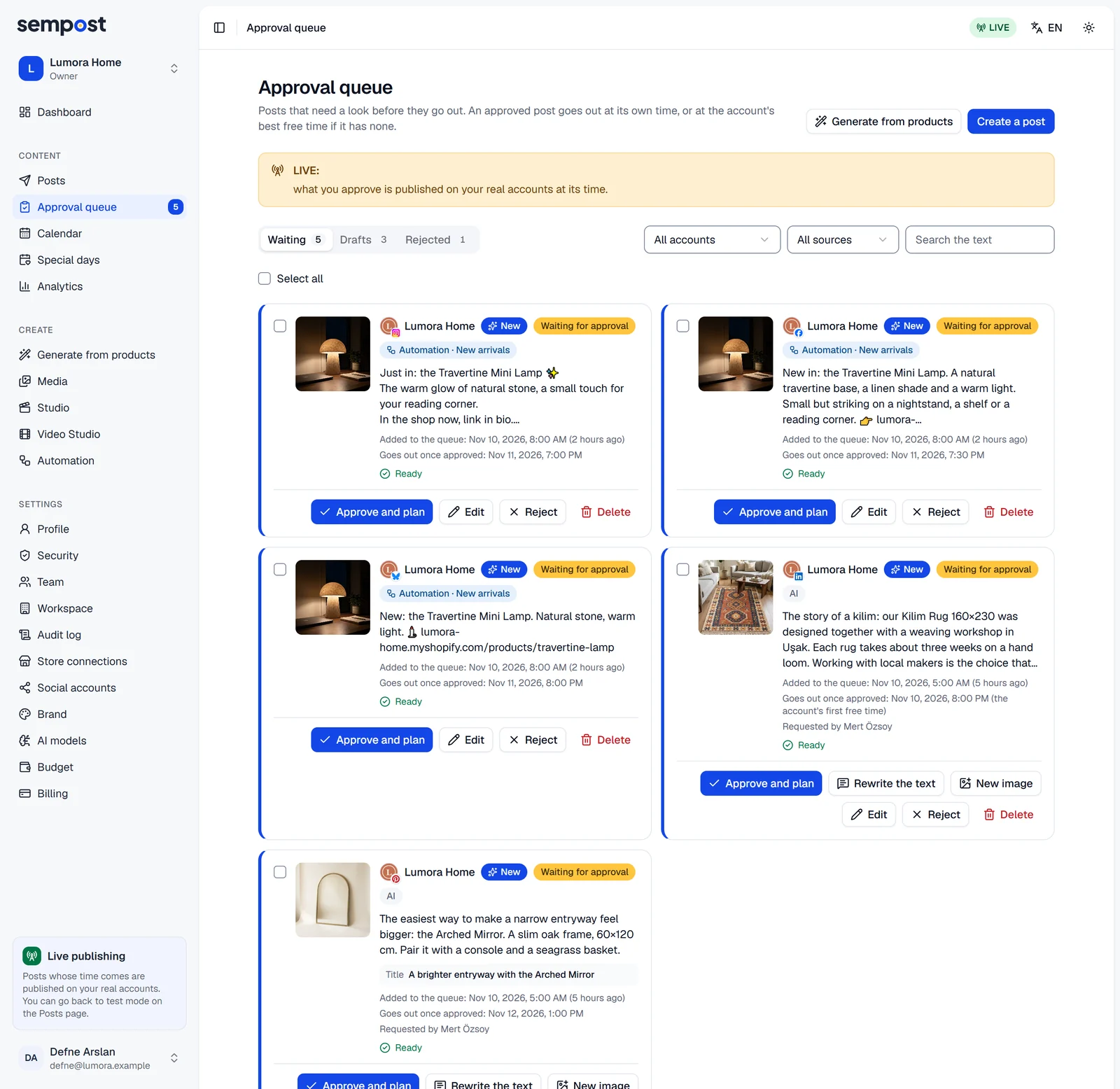
The Approval queue opens, and with the default approval rule the posts arrive in Waiting as they're made. Read each one. Change a word with Edit, or have it rewritten with Rewrite the text, then press Approve and plan. The card says when it goes out.
Watch the test run
Open the Calendar to see your posts at their times. When a post's time comes, test mode checks it against the network's rules: in the post history at the bottom of the Posts page, its status turns Validated (test), or Failed with the reason to fix. Nothing is shared.
Go live
When you're happy, write to [email protected]: during the beta, our team switches on live publishing for each workspace. Then look through the Calendar once more and, on the Posts page, turn on Live publishing. See Test mode and live mode.
Then
- Invite your team (Settings › Team): Invite your team and choose roles.
- Plan for the busy days (the dashboard's Upcoming special days card): Special days.
- Let a rule post for you every week: Create your first automation rule.
- Post your own photos and videos (Studio): Make a post in the Studio.
If something goes wrong
- The account isn't in the list after the network's page. Connect it again and allow every permission the network asks for: Nightly checks and reconnecting.
- Generate from products lists no products. Connect a store, or paste a product page's address on the From a product URL tab.
- The summary says you don't have enough credits. Pick fewer products or accounts, or choose Product photo: The exact credits before you start.
- Nothing to approve. The posts are still being made: the Generating card at the top of the queue follows each product.