Tutorial
Create your first automation rule
Build a rule step by step, check its free preview and switch it on, so posts from your products are prepared for you every day.
An automation rule prepares posts from your products by itself, on the days you choose. You decide which products go to which accounts, when, and how the posts look; SemPost prepares each day's posts ahead of time and puts them in the Approval queue. A free preview shows what the rule will do before you save it.
The Automation page
Choose Automation in the menu. At the top you see your publish mode, Live mode or Test mode, and where the rules' posts go: Posts wait for you in the approval queue before they are shared. When your workspace's approval rule is None, a red line says the posts are planned without approval instead. The Your plan card counts the Rules switched on.
Only admins and the owner create, change and run rules; other members can look. You need a connected social account, but not a store: a rule can also use product page addresses.
Start from an example
While you have no rule, the page offers five under Start from an example. One tap fills in the form; you still choose the accounts, the name and the cap. Create your first rule starts from scratch.
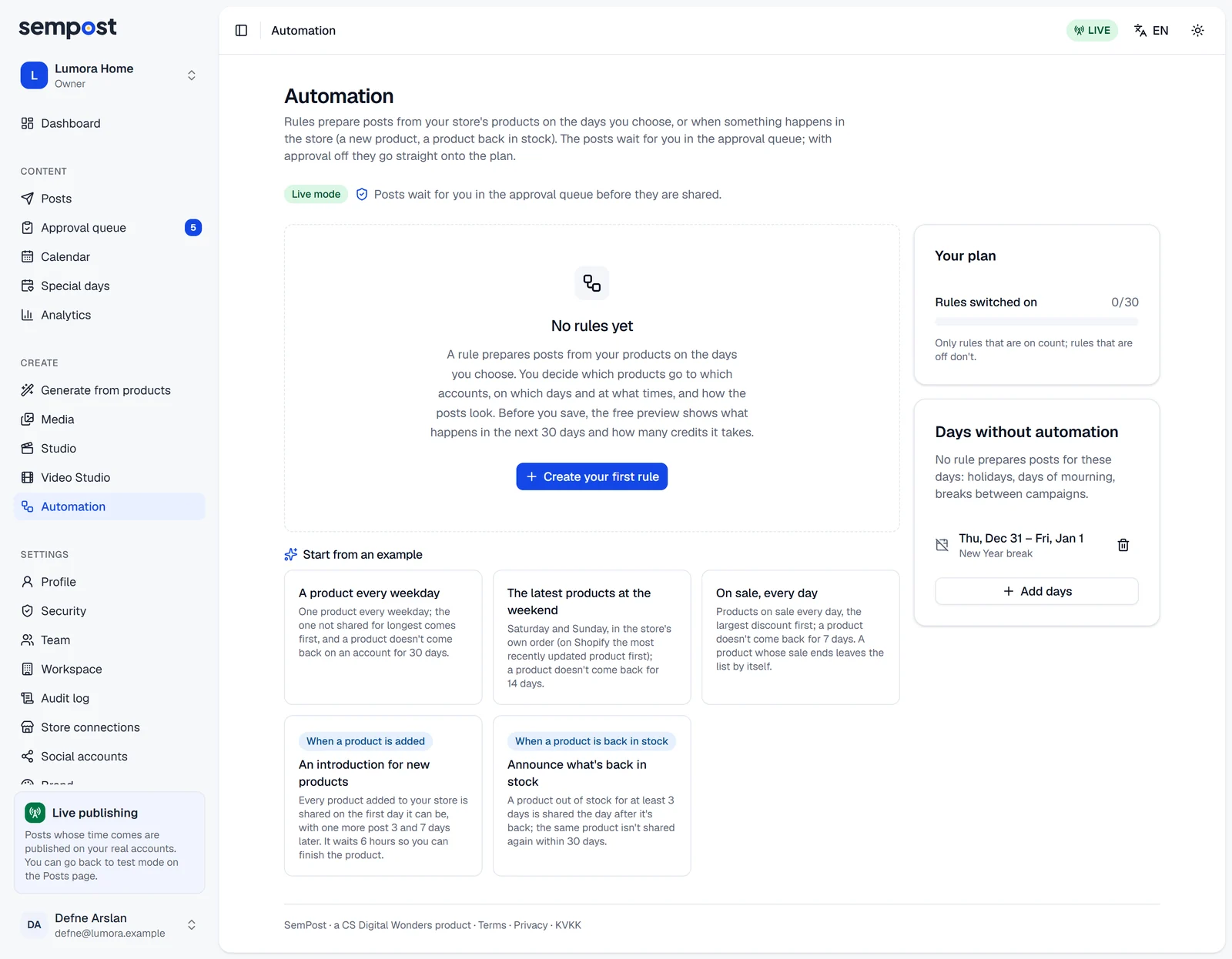
- A product every weekday: the product not shared for longest first; 30 days before it comes back on an account.
- The latest products at the weekend: Saturday and Sunday, in the store's own order; 14 days before a product comes back.
- On sale, every day: the largest discount first; 7 days before a product comes back.
- An introduction for new products and Announce what's back in stock post when something happens in your store: see post when something happens in your store.
Build the rule
The form has five steps. Open them in any order from the bar at the top; finished steps get a tick. Beside the form (below it on a phone), the Preview shows what the rule will do in the next 30 days and how many credits it takes.
A label next to a setting says where it applies: Rule to every account in the rule, Account to one account, Workspace to every rule in the workspace. Tap a label, or a question mark, to read more.
Products
Under Where do the products come from?, choose:
- A group in the store: all products, a collection, category, tag, brand, products on sale or a market. Products that join the group later join the line; those that leave it drop out.
- Products I pick: up to 100 products of one store.
- Product page addresses: up to 50 product pages, without connecting a store. The pages are read again each time a day is prepared. Etsy pages can't be read.
Choose the Store, then the Group type and the Group. Skip products out of stock is on: stock is checked again when each day is prepared and just before a post goes out.
Accounts
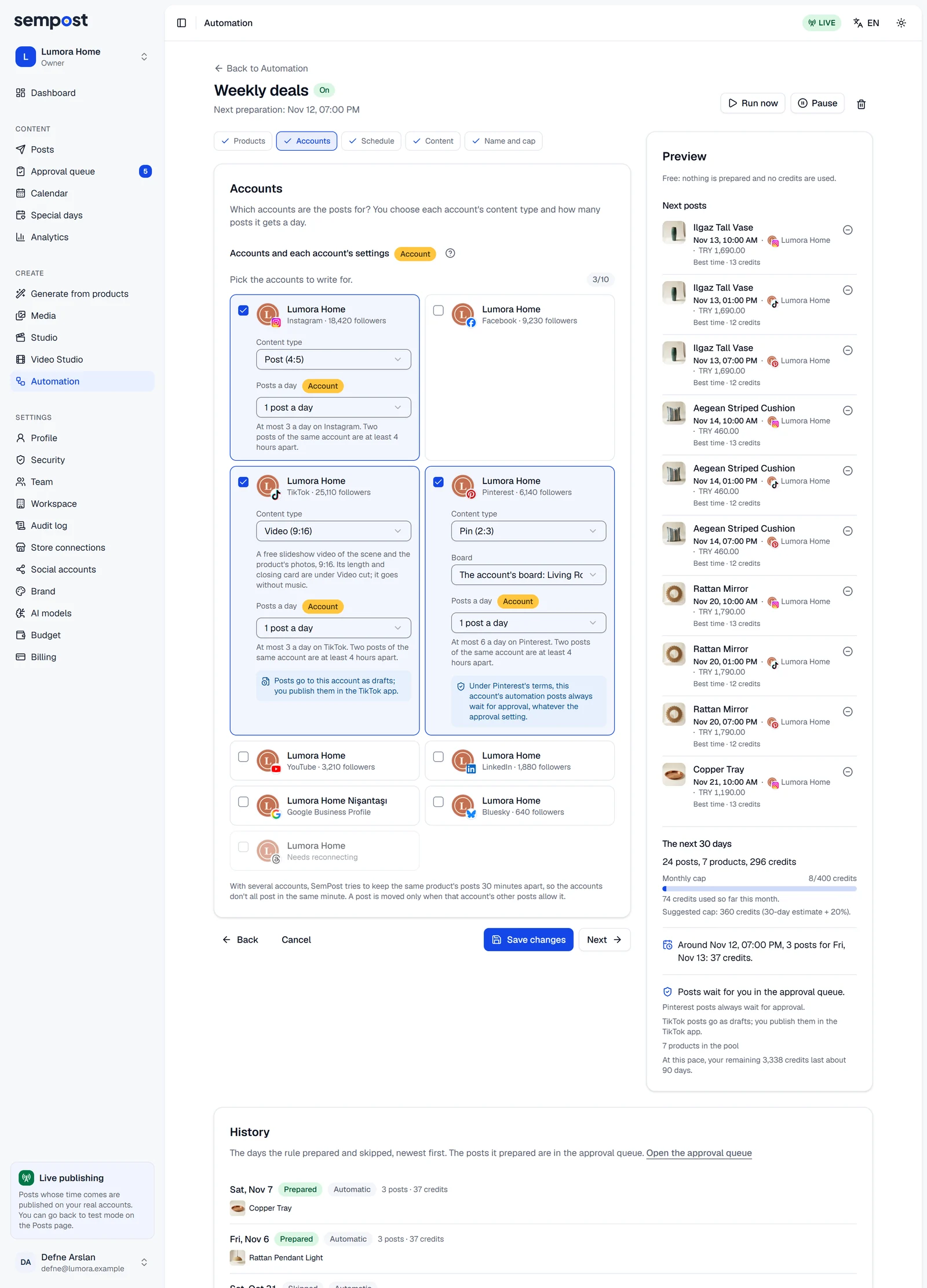
Tick up to 10 accounts. On each card, choose the Content type (or leave it on Automatic), Posts a day (up to the network's daily count; two posts of one account are at least 4 hours apart) and, for Pinterest, the Board.
The card also says how its network takes automation posts: Pinterest and LinkedIn posts always wait for approval, TikTok posts go as drafts, and YouTube and Google Business Profile need you to tick a consent box. See the networks' rules.
Schedule
Under When should it post?, keep On a schedule. Then choose:
- Which days?: Every day, Weekdays, Weekend or your own days.
- At what times?: Best times (each account's hours with the most engagement, or SemPost's usual hours for the network until there's data) or Set times (up to six, in your workspace's time zone).
- How far ahead are posts prepared?: from 6 to 72 hours. We suggest 24, so you have a day to approve.
- When can a product repeat?: from No wait to 180 days.
- Which product comes first?: Not shared for longest, The store's order, Largest discount first or Mixed.
- Start and end and Season (optional), for a campaign or a season.
How a rule turns into posts explains what each one does.
Content
The same choices as in Generate from products, such as the scene style, tone, language, price and labels: see scene styles, tones, languages and labels. They apply to every post of the rule, and there's no timing to choose: the rule gives each post its time. The Automation's safeguards box lists what keeps automated posts accurate (automation's safeguards).
Name and cap
SemPost fills in a suggested Rule name and, from the preview, a Monthly credit cap: the estimate for the next 30 days plus 20%. Change either. The rule never uses more credits than its cap in a calendar month: see credits and the monthly cap.
Before you save lists anything still missing, each with a link to its step. Below it, the whole rule is summed up, with Change beside each part.
Save and switch on
- Save switched off keeps the rule off: it prepares nothing by itself until you press Switch on on its card.
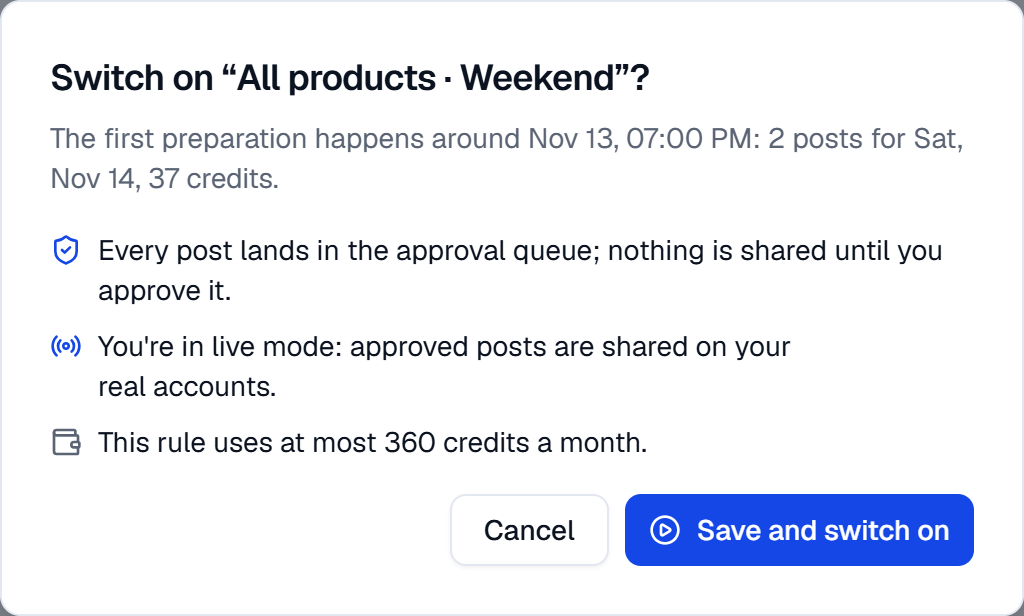
- Save and switch on first asks Switch on “…”?: when the first preparation happens, how many posts for which day and their credits, whether the posts wait for approval, your publish mode and the monthly cap. Press Save and switch on.
Before a rule is switched on, SemPost checks that its end date hasn't passed, its store connection works, at least one of its accounts is connected, consent is given where it's needed and your plan has a free place. If a check fails, the rule is saved switched off and the message says why.
Your plan sets how many rules can be on at once; rules that are off don't count. When every place is taken, Save and switch on isn't offered: save the rule switched off, then pause another rule or move to a bigger plan. Plans with unlimited rules allow 100 at once, and a workspace keeps at most 100 rules, switched off ones included.
| Trial | Starter | Growth | Pro | Agency | |
|---|---|---|---|---|---|
| Credits each month | 150 | 800 | 2,000 | 5,000 | 12,000 |
| Social accounts | 2 | 2 | 5 | 10 | 25 |
| Stores | 1 | 1 | 2 | 5 | 15 |
| Team members | 3 | 1 | 3 | 8 | 20 |
| Automation rules | 2 | 2 | 10 | 30 | Unlimited (fair use: up to 100 switched on) |
| Analytics history | 30 days | 30 days | 90 days | 365 days | 365 days |
| Media library | 1 GB | 1 GB | 5 GB | 10 GB | 20 GB |
Change a rule
Press Edit on the rule's card. The rule opens on Name and cap, and Save changes is on every step. Changes apply to the days not prepared yet; posts already prepared stay as they are.
If someone else saves the rule while you have it open, your save is refused with This rule was changed meanwhile. Open it again to see its latest version. The form opens again with the latest version: make your change again.
If something goes wrong
- Your plan allows … active rules. Pause another rule or move to a bigger plan. Every place in your plan is taken.
- This rule's end date has passed. Move the end date to switch it on. Change or clear End (optional) under Start and end.
- This store must be connected again before it can be read. In Settings › Store connections, fix what the store's row says and press Check. If you connect the store again instead, choose it again in Products.
- Posts cannot be published to this account right now. Reconnect it first. None of the rule's accounts is connected: reconnect one in Settings › Social accounts.