How-to guide
Preview and Run now
See what a rule will post in the next 30 days and what it will cost, for free, and prepare its next day at once when you want to.
The preview shows what a rule will do in the next 30 days and how many credits it takes. It's free: no AI is called, no credit is used and nothing is saved. Run now prepares the rule's next day at once, at the price the preview showed.
Where you find the preview
- In the rule's form, beside the steps (below them on a phone). Once the products' source, an account and the days are chosen, it follows the form a moment after each change.
- On the Automation page, Preview on a rule's card opens Preview of “…”. Everyone in the workspace can open it; members who aren't admins also see it on the rule's page.
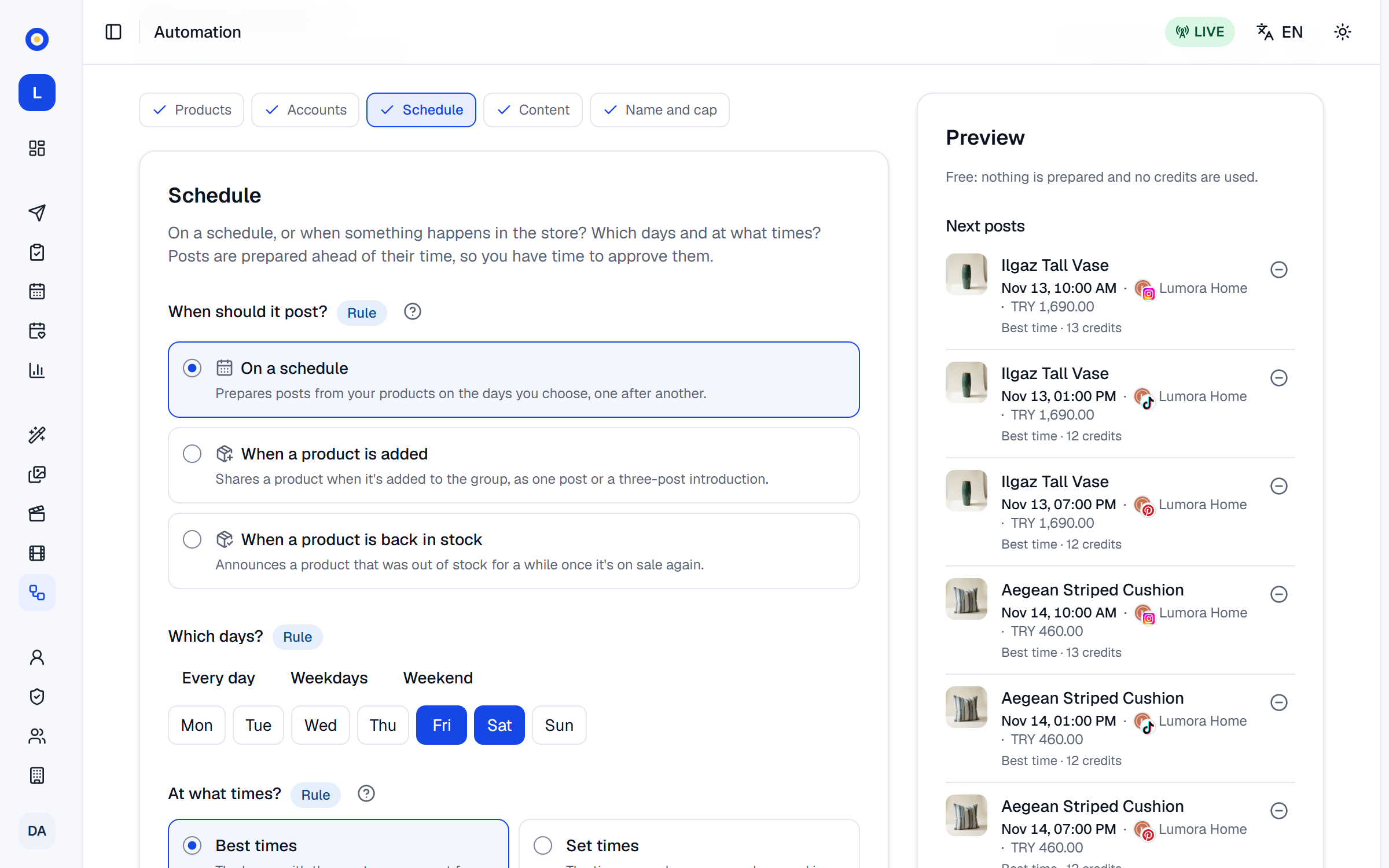
What it shows
- Next posts: the next 10 posts, each with the product's picture, name and price, the time in your workspace's time zone, the account, why that time (Best time, Default posting time or Your set time) and the product's credits for that day.
- The next 30 days: how many posts and products, and how many credits.
- Monthly cap: a bar of what the next 30 days need against the rule's cap, the credits used so far this month, the day the cap would be reached and the Suggested cap (the 30-day estimate plus 20%). Until you set a cap, the preview works without one.
- The next preparation: when the next day is prepared, how many posts for which day, and their credits.
- Where the posts go: the approval queue or straight onto the plan, the networks whose posts always wait for approval, and TikTok's drafts.
- The pool: how many products the rule picks from, and how many are left out, out of stock or without a photo.
- How long your remaining credits last at this pace.
- Warnings, each saying what happened and what to do: see rule statuses and warnings.
The preview uses today's data. When a day is prepared, its products and times are chosen again, as stock, prices and what was published may have changed by then. For picked products and addresses, it uses the names saved with the rule; their stock is checked when the day is prepared. An event rule's preview shows the posts waiting and one event's credits instead: see post when something happens in your store.
Leave a product out
In the form, the minus button on a post, Leave … out of this rule, takes that product out of the rule. It moves to Products left out of the rule in the Products step, where Put … back or Put all back returns it. Save the rule to keep the change.
Run now
Open Run now
On a rule's card or page, press Run now. The dialog works out the next day and its price.
Check the day and the price
It says how many posts will be prepared for which day, and how many credits they take. That's today, when today is one of the rule's days and its accounts still have free times from an hour from now; otherwise it's the next of the rule's days not prepared yet. A skipped day counts as not prepared.
Run it
Press Run: … credits. The posts are prepared at that price, like the rule's other posts, and the day shows in the rule's history as Run now.
- If the price changed after the dialog opened, nothing is prepared: The price changed. Look at the new total before generating. The dialog shows the new price; press again to accept it.
- Run now works on a rule that's switched off, so you can try a rule before you switch it on.
- It doesn't change the rule's own schedule: the rule simply skips the day you prepared.
- It counts toward the monthly cap. When the credits or the cap don't allow it, it tells you, and the rule goes on as before.
- An event rule has no Run now: its days come from the events.
If something goes wrong
- There's no day to prepare right now. Look at the warnings in the preview. The accounts have no free time left, no product can be shared, or the rule's days leave none ahead. The preview's warnings say which.
- This rule's monthly credit cap is reached. Raise the cap to prepare more. Raise the Monthly credit cap in Name and cap, or wait for next month.
- Not enough credits: … The owner can buy credits in Settings › Billing.
- This would go over the workspace's credit budget. … Raise the limit in Settings › Budget.
- Automation is paused for the workspace. Resume it first. Press Resume on the Automation page.