How-to guide
The approval queue
See the posts that wait for a look and when each would go out, then approve, fix or reject them.
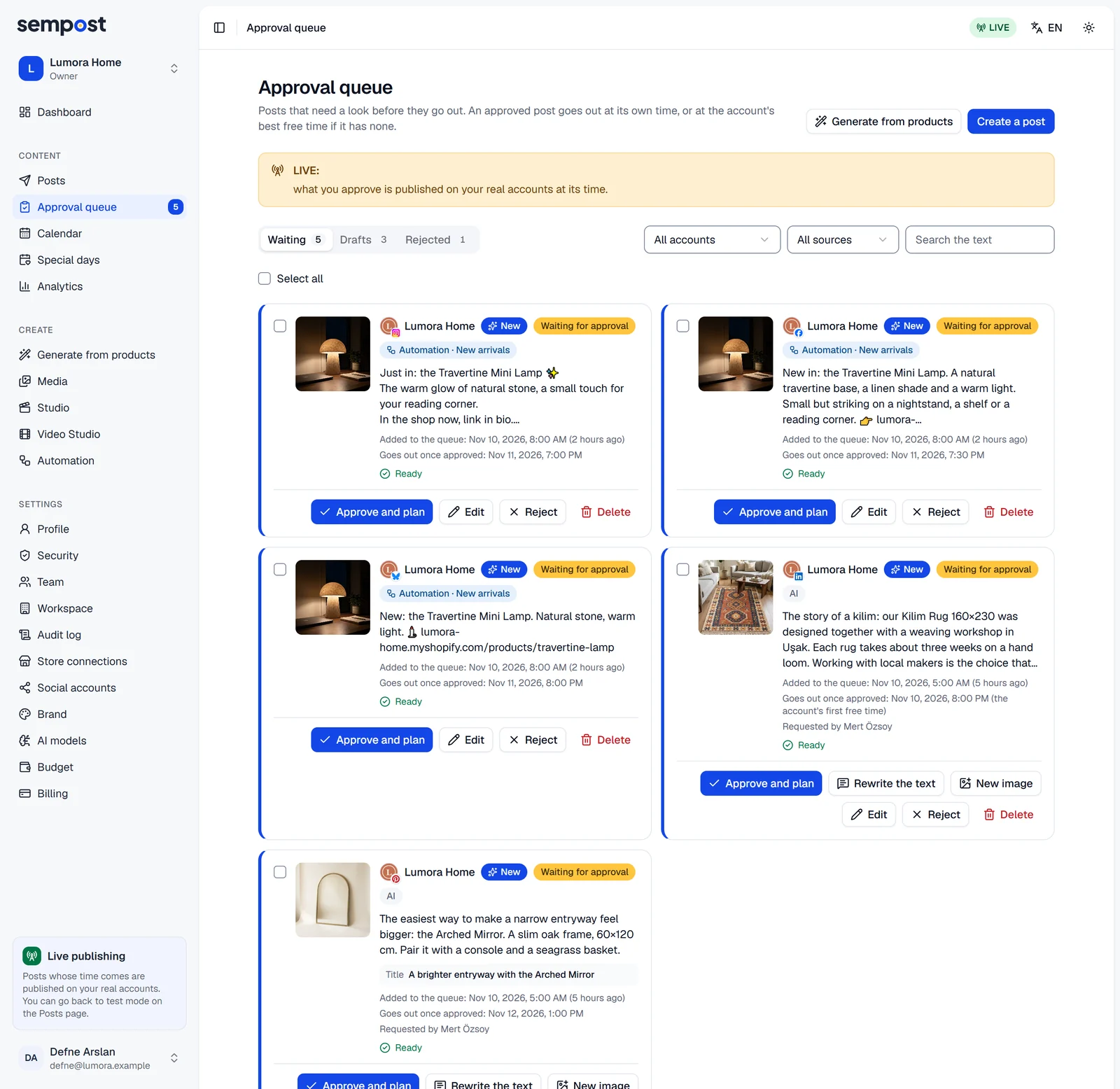
The Approval queue holds the posts that need a look before they go out: by default, what the AI and automation rules write, and everything you send from the Studio. Your workspace's approval rule can add editors' posts, or let AI posts skip the queue. Nothing here is published until an admin or the owner approves it.
Tabs and filters
- Waiting: posts waiting for approval, the latest to arrive first.
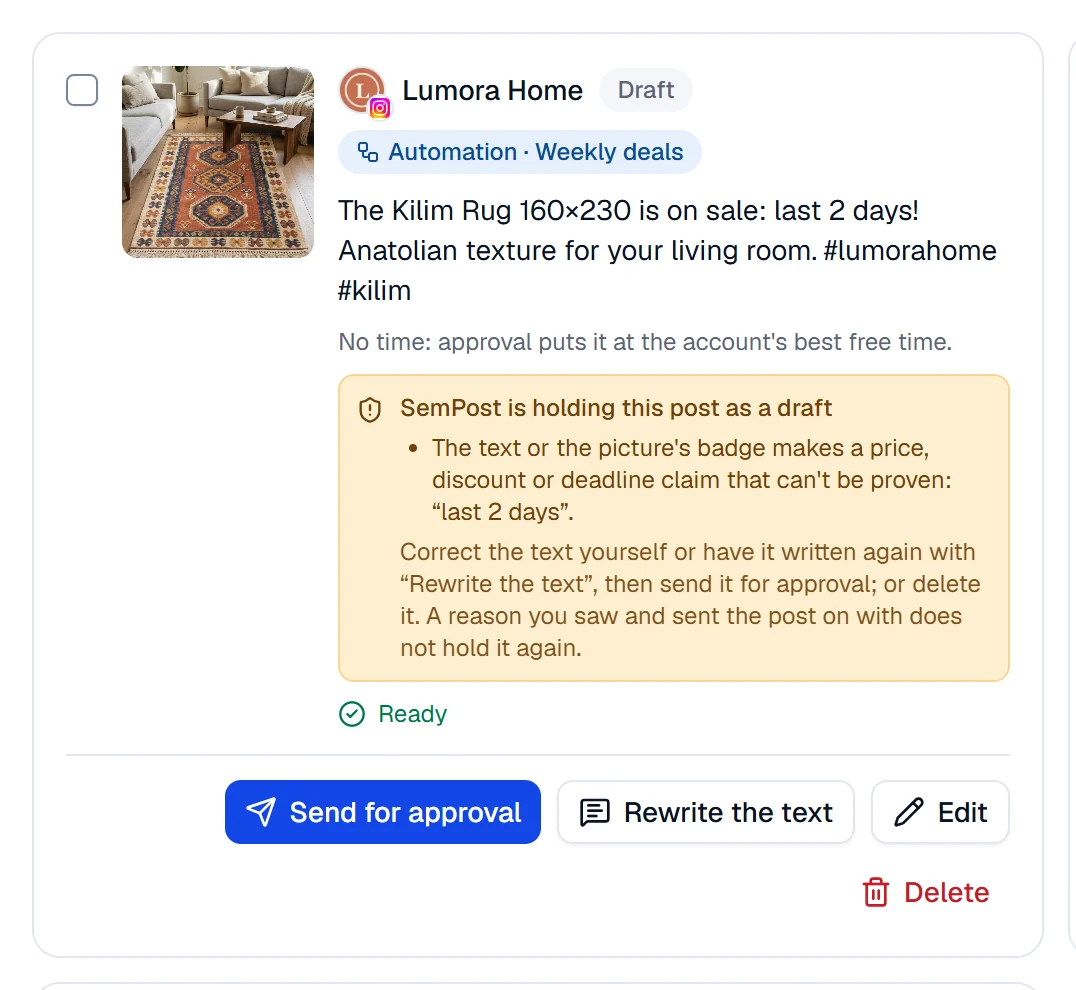
- Drafts: posts not sent for approval yet, such as saved drafts, posts taken off the plan and posts SemPost held back, the soonest time first.
- Rejected: rejected posts, with the approver's note.
Each tab shows how many posts it holds and lists up to 100. Narrow the list with All accounts, All sources (Team, AI or Automation, then All rules) and Search the text.
What a card tells you
- New and a blue stripe: the post arrived in the last 24 hours.
- Where it came from: Team, AI, or Automation with the rule's name, which opens the rule. On team and AI posts, Written by or Requested by names the person.
- Added to the queue: when it arrived, and how long ago.
- Goes out once approved: its own time, if it has one ahead. Otherwise the account's first free time, marked (the account's first free time), also when the proposed time has passed; approving another post of that account first moves it on to the next free time. If the account has no free time in the next three weeks, the card asks you to give the post a time with Edit.
- Ready, or a list under To fix first:, such as a missing image for Instagram or a text over the network's limit. Approve and plan stays off until it's fixed.
Review a post
Open the queue
Choose Approval queue in the menu. The number next to it is how many posts are waiting.
Look at the post
Press the picture to see it at the size the network gets. Read the text and when it would go out.
Fix it if needed
Edit changes the text, the image or video, the comment to DM and the time. On AI posts, Rewrite the text and New image have the AI do it again for credits; you see the price before you confirm.
Approve or reject
Approve and plan puts the post on the plan and SemPost shows the time it goes out. Reject asks for an optional note: the post moves to Rejected, where its writer sees the note and can fix the post and send it again with Send for approval.
Editors see the same cards with Edit, Send for approval and Delete, without Approve and plan or Reject. Viewers only look.
Posts SemPost held back
An automation safeguard can hold a post in Drafts, for example when its text promises a discount that can't be proven. The card says why: correct the text yourself or press Rewrite the text, then Send for approval; or delete the post. A reason you saw and sent the post on with doesn't hold it again.
When a post waits too long
Admins and the owner get an email when a waiting post's time is less than 24 hours away. A waiting post isn't published when its time comes; approved later, it goes to the account's first free time. An automation post still waiting two hours after its time expires instead: it isn't published late, leaves the queue and shows as Expired in the calendar and the post history.
If something goes wrong
- "This post changed since you looked at it. Look at it again before approving." Someone edited it meanwhile. The card now shows the new version: read it and approve again.
- "This account's posts for that day are full. Pick another day." Your workspace allows no more posts that day: pick another day with Edit.
- "Posts cannot be published to this account right now. Reconnect it first." Reconnect the account in Settings › Social accounts.
- "This post cannot be changed in its current state." Someone else approved, rejected or deleted it first; the list refreshes by itself.