Reference
Rule statuses and warnings
What On, Waiting, Paused and Stopped mean and how to fix each, what every warning in the preview says, and which emails a rule sends.
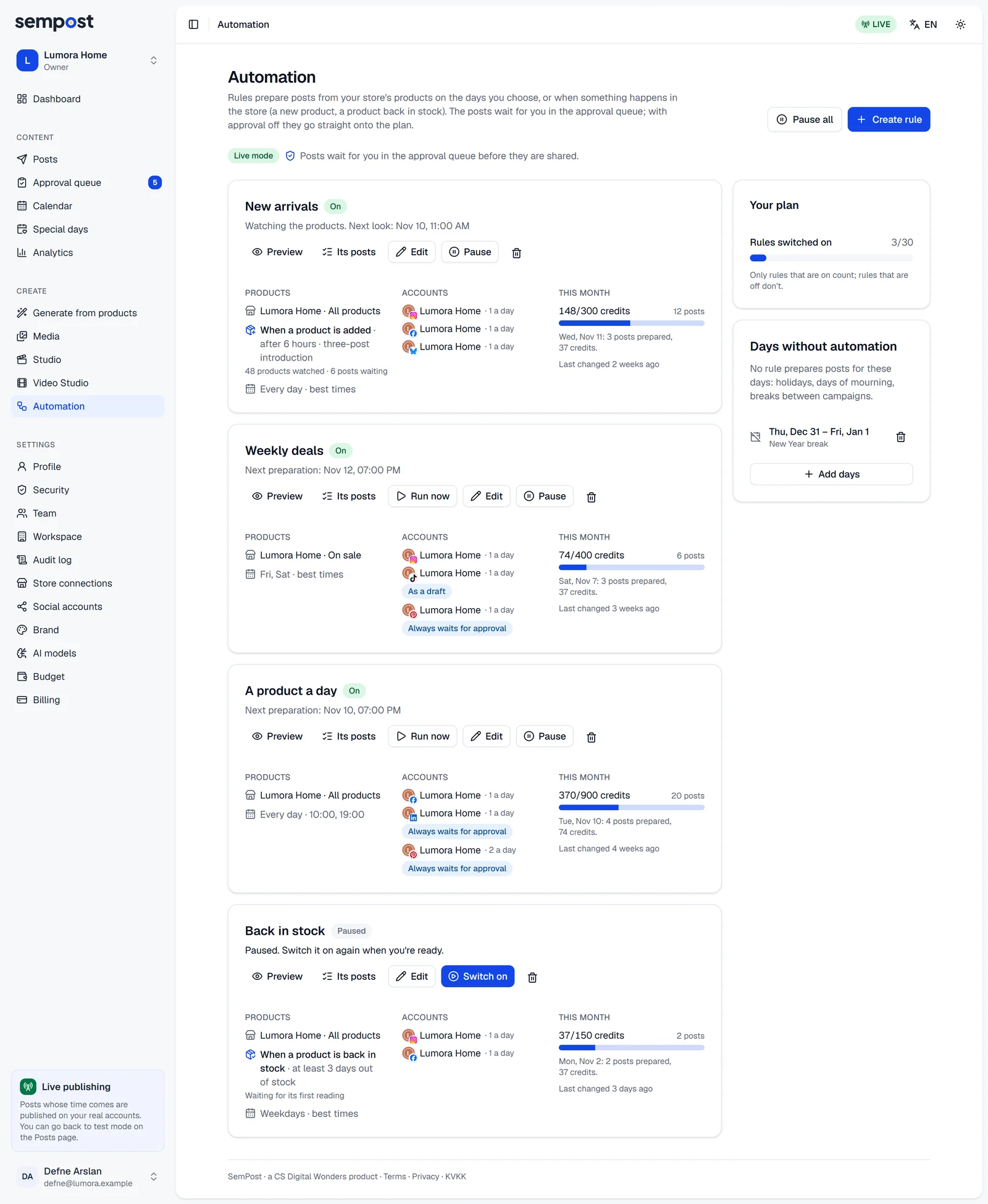
On the Automation page, each rule's status sits next to its name, with a sentence below saying why and, when the fix is elsewhere, a link to it. The rule's own page shows the same. The preview adds warnings about what's coming.
The four statuses
- On: the rule prepares its days. Below the name: Next preparation: …, or for a rule that watches the store, Watching the products. Next look: …. Days outside its season, before its start or without automation don't change this: the next preparation is simply later.
- Waiting: the rule is on, but can't prepare its next day for now, for a reason that can soon go away. Most are tried again every hour until that day begins, and the rule goes on by itself once the reason is gone.
- Paused: someone pressed Pause. Nothing new is prepared; posts already prepared stay in the queue and on the plan. Press Switch on when you're ready.
- Stopped: SemPost stopped the rule. Fix the cause, then press Switch on: a stopped rule never starts again by itself.
Why a rule waits
| The rule says | What to do |
|---|---|
| This month's credit cap is reached; it goes on by itself at the start of next month. | Nothing, or raise the cap: see credits and the monthly cap. |
| Waiting for the store connection to be renewed; it goes on by itself after that. | Renew the store: in Settings › Store connections, fix what the store's row says, then press Check. If you connect the store again instead, choose it again in the rule: see store checks and reconnecting. |
| The store couldn't be reached; trying again every hour. | Nothing: this is usually brief. |
| None of the rule's accounts can be used. | Check the accounts: reconnect them in Settings › Social accounts, or press Resume next to an account marked Stopped on the rule's card. An account marked Needs your consent needs the consent in the rule: see networks that always need a person. |
| Automation posts are piling up in the approval queue; it goes on once you approve or reject some. | Open the approval queue, then approve or reject the rule's posts. |
| The last preparation failed; trying again every hour. | Nothing: the rule tries again by itself. |
| Waiting: the subscription payment failed or the plan is closed; it goes on by itself once paid. | Go to billing, where the owner updates the payment method. |
| Automation is paused for the workspace; it goes on where it left off when you resume. | Press Resume on the Automation page: see pause and days off. |
Why a rule stops
| The rule says | What to do |
|---|---|
| Stopped because the credits ran out. Switch it on again after adding credits. | Buy credits (the owner can), then Switch on. |
| Stopped because the workspace's credit budget (its daily or monthly cap) was reached. Raise the cap or wait for the next day or month, then switch it on again. | Go to budget: raise the daily or monthly limit in Settings › Budget, or wait for the new period; then Switch on. |
| Stopped because the store connection was removed. Choose another source and switch it on again. | Edit the rule, choose another source in Products, save, then Switch on. |
| Stopped because the product pages couldn't be read several times in a row. Check the addresses and switch it on again. | None of the addresses could be read on three days in a row: check them in Products, then Switch on. |
| Stopped because your plan allows fewer rules switched on. | Your plan changed, and the newest rules over its limit stopped. See plans, or pause another rule and switch this one on. |
| Stopped because its end date passed. Move the end date forward to go on. | Move or clear End (optional) in the Schedule step, then Switch on. |
Days skipped for good
When none of the accounts has a free time that day, no product is left to share, or no product page could be read, the day is skipped and isn't tried again. The rule stays On; its card's last line says … was skipped. with the reason, and so does its history. The preview usually warns about it ahead.
Warnings in the preview
The preview lists what it found, the most serious first, each with what to do and, when the fix is elsewhere, a link.
- Approval is off: the rule's posts are planned without approval and shared by themselves. We suggest keeping approval on for automation: Open the approval setting.
- … can't be used right now: the account's connection may have dropped, or it was stopped after failing several times in a row. Reconnect it in Social accounts, or resume it on the rule's card.
- … gets no posts: the rule has no consent on record for its automatic posts. A YouTube channel or a Google Business Profile in a rule saved before that network asked for consent. Edit the rule, tick the consent box on the account's card in the Accounts step and save: see networks that always need a person.
- The store connection needs renewing. Until it's renewed, the rule can't prepare days; it tries again every hour.
- The rule's store isn't connected any more. Choose another store or source in the Products step.
- The store can't be reached right now. This may be temporary; the rule tries again every hour.
- At this pace your credits last about … days. Shown under a week. When the credits run out, the rule stops: add credits, or lower the cap and the posts a day.
- The monthly credit cap is reached on … From then until the month ends, no day is prepared. Raise the cap in Name and cap if you need to.
- … no product is left to share for …: on that day, the rule runs out of products the account may have. Shorten the repeat wait, add products to the source or lower the account's posts a day.
- The group is very large: each preparation looks at the first 500 products the store lists. Choose a narrower group.
- … free times a day instead of …: the network's daily count or the account's other posts leave no room, and with Best times an account has at most three times a day. Lower the posts a day or choose other times.
- No free time can be found for an account: its other posts or the network's daily count leave no room. Choose other times or days.
- … night time there: a set time falls between 23:00 and 07:00 on an account's own clock. Its audience may be in another time zone; consider a daytime hour.
- You're in test mode: posts are only validated, not shared. Switch to live mode when you're ready: see test mode and live mode.
- Comment to DM isn't open to the workspace. The posts are prepared without it.
- … isn't active in the store now: the posts would name a discount code that doesn't work. Change or remove it in the Content step.
- … claims a price, a discount or a deadline: the picture's badge makes a claim automation can't prove, so every post whose picture carries it would wait as a draft (videos, TikTok and Google Business Profile posts carry no badge). Change it to something general like "New", or remove it: see price claims.
- … no page on the store's website: those products are still shared, only without a link. To add it, publish them on the store's website (on Shopify, the Online Store sales channel).
Emails
The owner and admins get these emails, each with Go to automation:
- Your automation rule stopped: … when a rule stops for credits, the budget, a removed store, unreadable product pages or the plan's limit. It says why and what to do. A rule whose end date passes stops without an email.
- Your automation rule is waiting: … when none of the rule's accounts can take posts, or when the subscription payment failed or the plan closed.
- Your automation rule reached its monthly cap: … once a month, with the day the rule goes on.
- Automation stopped on an account: … when posts to one account failed three times in a row: see checks before posting.
The stop and waiting emails come once for the same reason, until the rule prepares a day again or you switch it on again.