Explanation
A rule's history
See which days a rule prepared or skipped and why, which products it picked and what they cost, and find its posts across SemPost.
Every day a rule prepares or skips gets a line in its history. Everyone in the workspace can read it, along with the rule itself and its preview; only admins and the owner change and run rules.
Open the history
On the Automation page, press a rule's name. The rule's page shows its status and its settings, and History below them: the days the rule prepared and skipped, the latest first, 30 days at a time. Older days shows more.
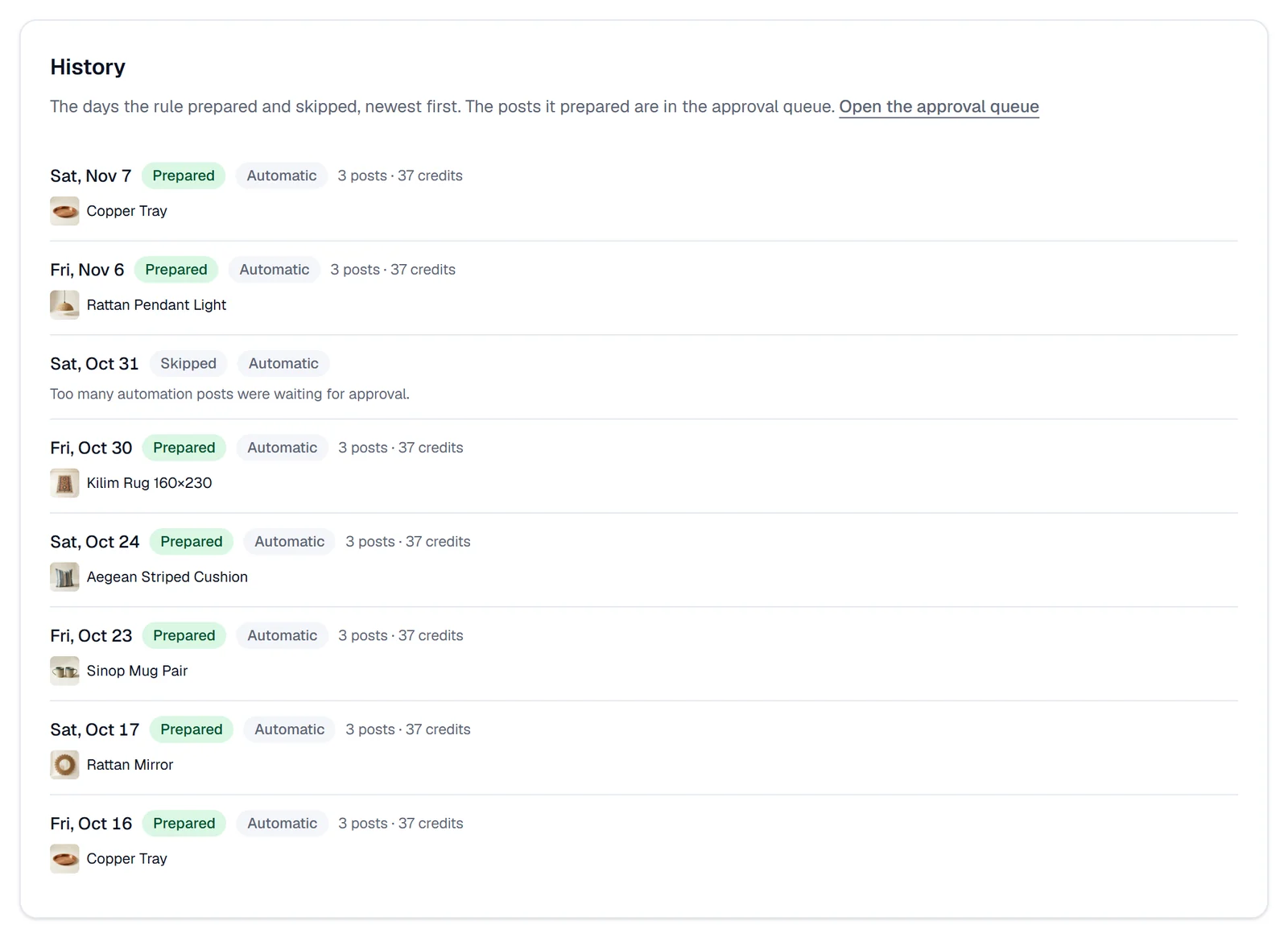
What a day shows
- The day the posts are for.
- Its status:
- Preparing: the posts are being made. The Generating card at the top of the Approval queue follows each product.
- Prepared: every product was made.
- Partly prepared: some products couldn't be made, and the credits for the steps they didn't reach came back. Try again on the Generating card finishes them, at the price on the button.
- Failed: no product could be made.
- Skipped: the day wasn't prepared. The line below says why, such as The month's credit cap was reached.
- Automatic, when the rule prepared the day by itself, or Run now, when someone pressed it.
- How many posts, and the credits: those reserved while the day is being prepared, then those charged.
- The products the rule picked, with their pictures: the first four, then how many more. For a rule that watches the store, each is marked, for example New product · post 1 or Back in stock.
The rule's card on the Automation page shows its latest day too: how many posts and credits, or that the day was skipped and why.
Find the rule's posts
- Its posts on the rule's card opens the Approval queue with only that rule's posts. In the queue you can also choose Automation under All sources, then the rule under All rules.
- Each post a rule prepared carries Automation · and the rule's name in the approval queue, the calendar's side panel and the post history, where pressing it opens the rule. The Generating card shows the rule's name too.
- When you delete a rule (the bin on its card, then Delete), the posts it prepared stay in the queue and on the plan, marked Automation · deleted rule. The rule's history is deleted with it.