Reference
Post history and statuses
Find any post, see what its status means and what to do next, and edit, plan or delete it from one list.
Post history, at the bottom of the Posts page, lists every post made in SemPost, by your team, the AI or automation, newest first. Each row is one post to one account. Posts that wait for their time or are on their way update by themselves.
Find a post
Search the text, or press Filters and choose any number of Status, Account and Written by values (Team, AI, Automation). The filters apply to all your posts, not only the rows on screen; Clear the filters shows everything again. Show more loads older posts.
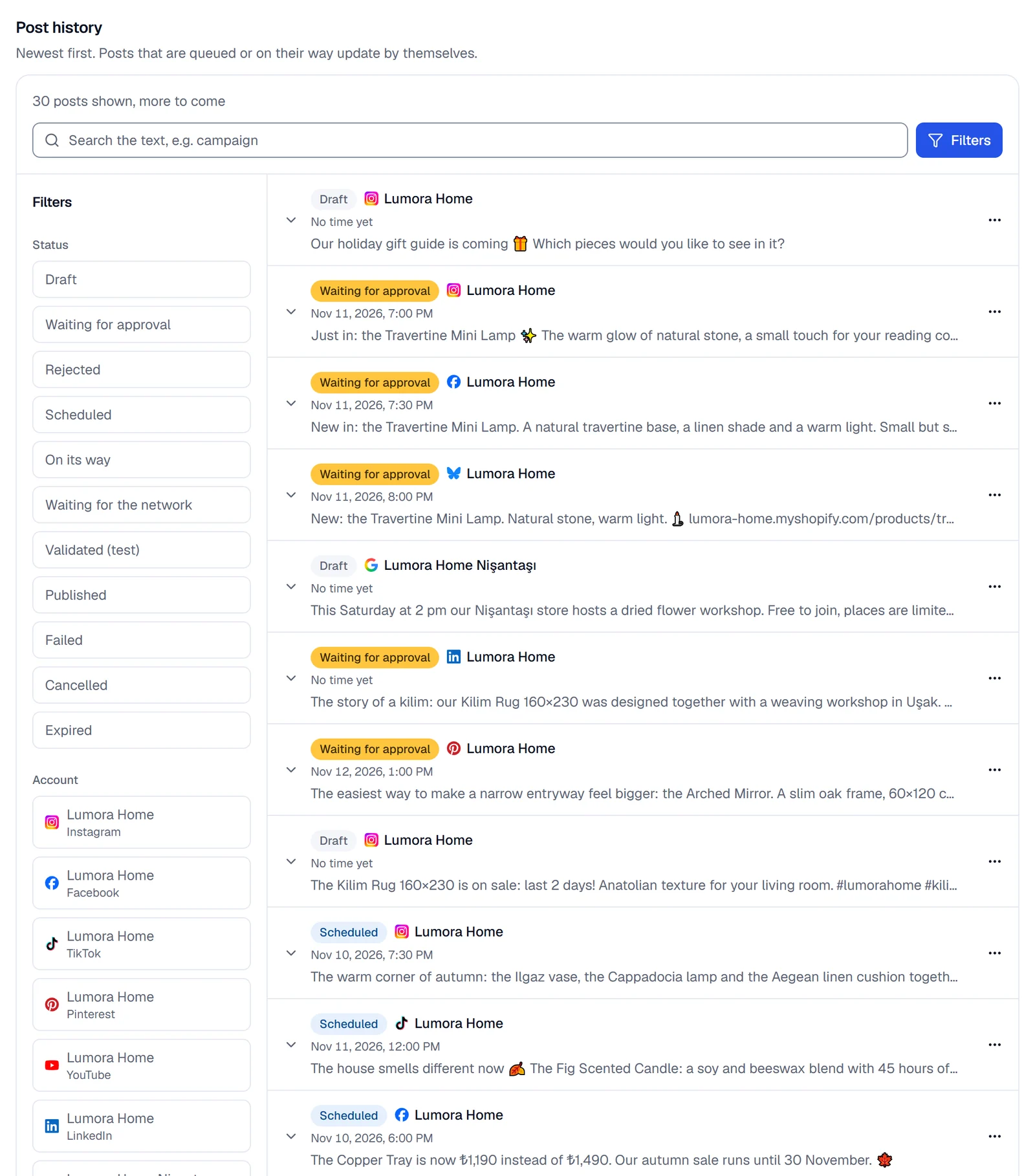
Press a row to open it: the account (Only this account filters by it), the time and whether it went out in test or live mode, Written by, Created, the whole text and the media, a rejection note, what to fix, why it failed, its Comment to DM, and Open the post once it's published. Times are in the workspace's time zone.
What each status means
- Draft: saved but not planned. It was saved with Save draft, taken off the plan, or written by the AI without a time. An automation post SemPost held back is a draft too; the Approval queue and the Calendar say why.
- Waiting for approval: in the Approval queue until an admin or the owner approves or rejects it.
- Rejected: an approver turned it down; the details show the note, if there is one. Fix it and send it again.
- Scheduled: on the plan, waiting for its time. If the account has reached the network's posting limit for that hour or day, it goes out as soon as there's room.
- On its way: being sent, or the network is still processing it. A post that isn't live within a day fails.
- Waiting for the network: SemPost's publishing service has a temporary problem. The post goes out by itself once it recovers.
- Validated (test): test mode checked the post against the network's rules; nothing was shared. The details list any warnings.
- Published: live on the network. Open the post opens it there.
- Failed: not published; the details say why (see below). For most failed live posts, owners and admins also get an email.
- Cancelled: an older post stopped before it went out. It won't be sent.
- Expired: an automation post still waiting for approval two hours after its time. SemPost never publishes it late.
The mode that counts is the one at the post's time. A validated test post isn't sent again when you switch to live: create it again. Owners and admins switch on Live publishing under Publish mode on the Posts page: see Test mode and live mode.
What you can do with a post
The … menu beside a row Editor holds what the post allows now:
- Edit: drafts, posts waiting for approval, rejected and scheduled posts, and posts waiting for the network. Change the text, the media, the time and the post's Comment to DM. A change to an approved post may go back for approval, by your workspace's rule.
- Plan or Send for approval: drafts and rejected posts.
- Take off the plan: scheduled posts and posts waiting for the network go back to the drafts. The content stays; the time and the approval go.
- Delete: asks first and can't be undone. A published post can't be deleted in SemPost: delete it on the network. A post that failed after it reached the publishing service has no Delete either: it stays in the history.
Posts on their way and published posts have no menu.
Why a post failed
| The details say | What to do |
|---|---|
| The account needs to be reconnected. / The account is no longer available. | Reconnect it in Settings › Social accounts, then create the post again. |
| The same content went to this account in the last 24 hours. | Change the text or the media, or wait a day. |
| The post does not meet the network's rules. / The network did not publish the post. / The publishing service did not accept the post. | Read what follows The network said:, fix the post and create it again. |
| The publishing service did not answer after several tries. | Create the post again a little later. |
| The post did not go live within a day. / The connection to the publishing service broke before it answered, so the post may have gone out. … | Look at the account on the network first; create the post again only if it isn't there. |
| Not sent: the workspace's plan is closed. | The owner buys a plan in Settings › Billing. |
| Not sent: confirm in Settings › Social accounts that this YouTube channel does not publish content made for kids. | Confirm it there, then create the post again. |
| Not sent: the rule that prepared it has no consent on record for this account's automatic posts. Give it on the account's card in the rule's Accounts step. | Give the consent in the rule: see networks that always need a person. The rule's next posts for the account go out. |
| Not sent: the video's library music can no longer be used on this network. | Use a video without library music for this network. |
| Not sent because the workspace is suspended. / Posts cannot be published to this account. / The publishing service's account limit was reached. | Write to [email protected]. |
Look before you post again
A post that may have gone out isn't retried, so it can't appear twice. Check the account on the network before you create it again.
Posts shared on the network directly
Posts you share directly on a network, outside SemPost, aren't in the post history. The Calendar shows them read only (Shared on the network directly), and Analytics counts them with yours.
Who wrote it
Written by shows Team or AI and, under it, the person who wrote the post or had the AI write it. When that person has deleted their SemPost account, it says Deleted member; the post stays. An automation post shows Automation · and its rule's name, or Automation · deleted rule once the rule is deleted.
If something goes wrong
- This post cannot be changed in its current state. The post is on its way or published, or it had already reached the publishing service before it failed. Such a post can't be edited, taken off the plan or deleted.
- No matching posts: try fewer filters or another search.