How-to guide
The calendar
See your posts by month, week, day or as a list, move them by dragging, and plan the ones that have no date yet.
The Calendar shows your posts at their times: planned, waiting for approval and published, and the posts you shared on the networks directly. Drag a post to move it, or drop a post that has no time onto the calendar to plan it.
Views and filters
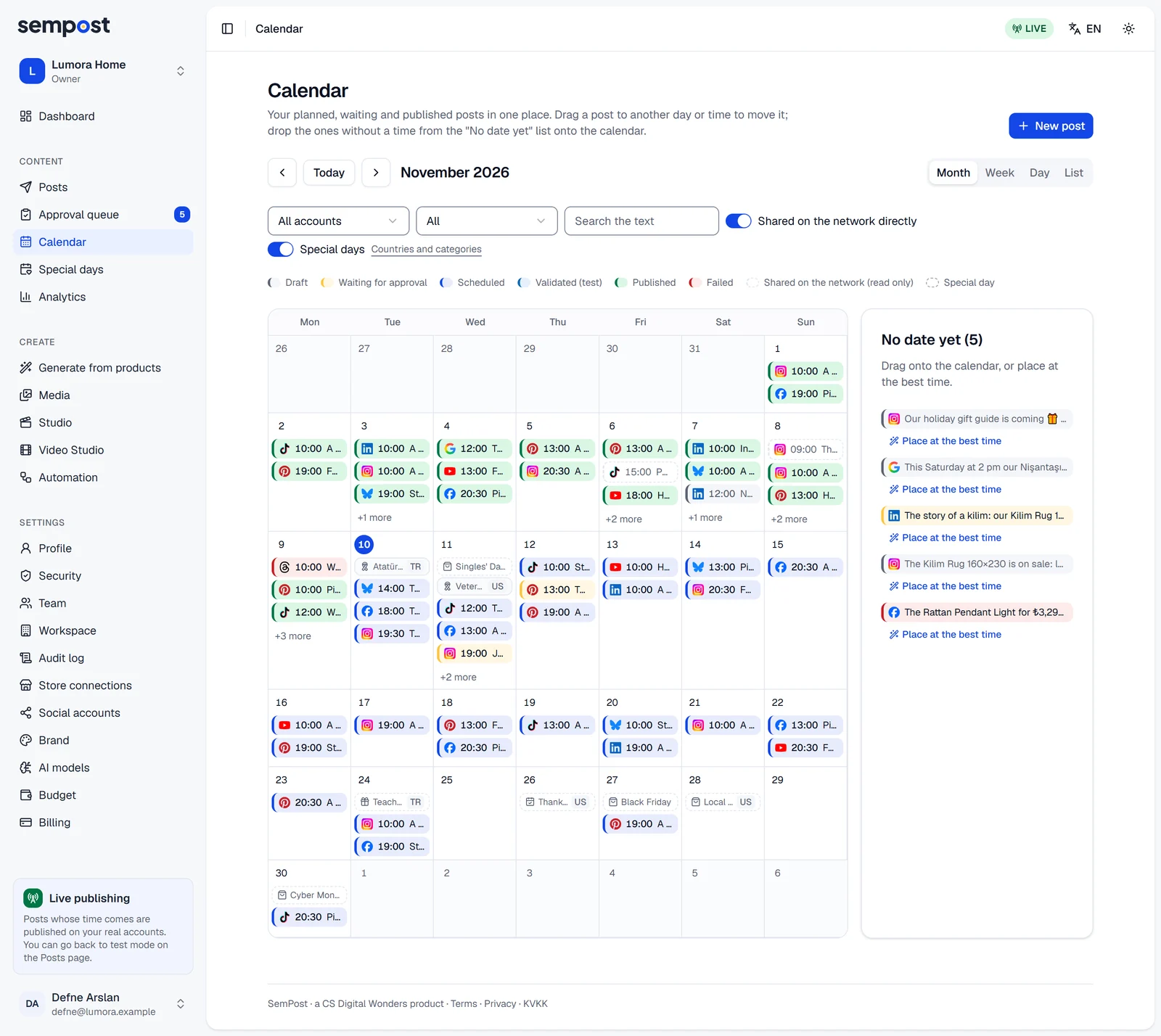
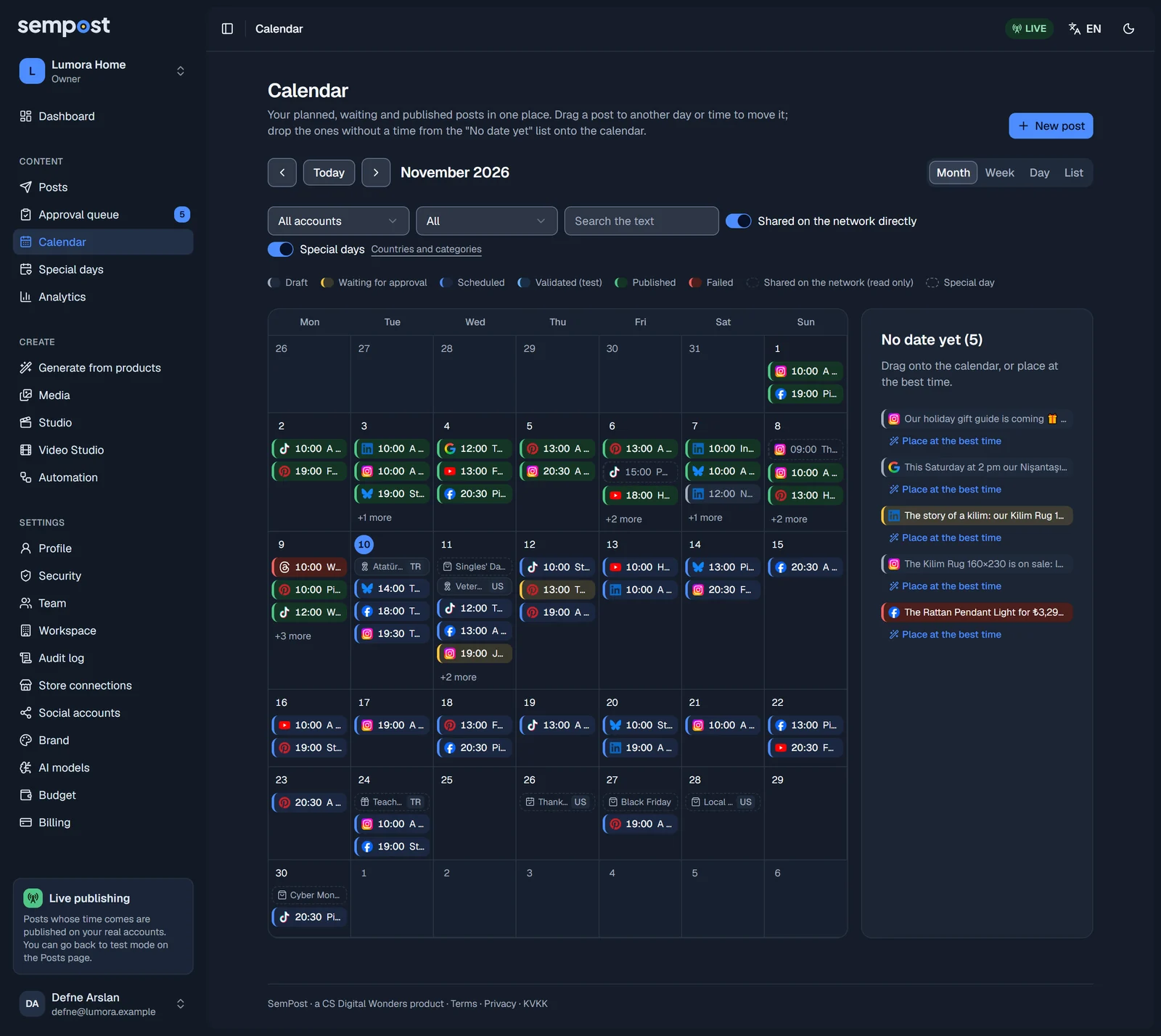
- Month starts on Monday and shows up to three posts a day. When a day has more, a link such as +2 more opens it; so does the day's number.
- Week and Day have a row for each half hour and open at 08:00. A red line marks the current half hour.
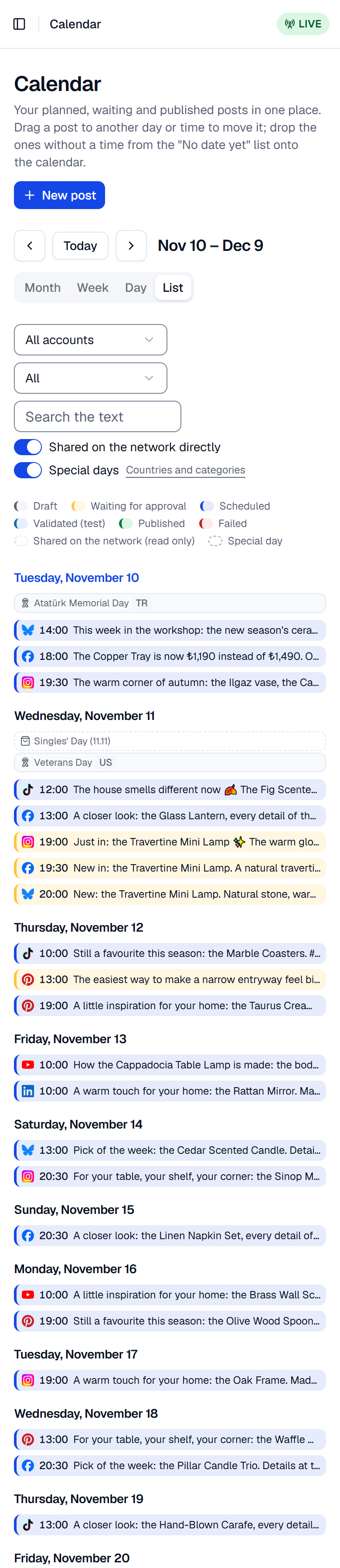
- List shows 30 days from the chosen day, grouped by day.
The arrows go back and forward, and Today comes back. Narrow what you see with All accounts, the state (All, Planned, Waiting for approval, Drafts and rejected, Published, Failed) and Search the text. With one account chosen, Week and Day shade its measured best hours, shown as Suggested hour in the legend.
The legend under the filters names each colour: drafts are grey, waiting posts yellow, scheduled ones blue, validated test posts light blue, published ones green and failed ones red. Shared on the network directly, on when the calendar opens, adds the posts you shared outside SemPost, with a dashed outline. They are read only and show under All. If your device is in another time zone than the workspace, Times in lets you show the calendar in either one. Where they are open for your workspace, Special days adds the holidays and other special days of your countries as small labels on their days: see Special days.
Move a post
Drag it
In Month, drag the post to another day: it keeps its time of day. In Week or Day, drop it on the half hour you want.
Read the answer
SemPost checks the new time: it must be at least five minutes away, and the account's daily count and the 4 hours between its posts apply. A message confirms the move; for a post that had a time, Undo puts it back.
You can move drafts, waiting, rejected and planned posts; posts that are published, failed or on their way stay where they are. A new time on a waiting post is a proposal until it's approved. When an editor moves a planned post that the approval rule covers, it goes back to the approval queue.
Posts with no date yet
The No date yet list holds drafts, waiting and rejected posts that have no time. Drag one onto a day in Month to give it that day's best free time, or onto a half hour in Week or Day. Place at the best time gives it its account's first free time.
A draft or rejected post placed this way is also sent on: it is planned, or sent for approval when the rule asks for it.
The side panel
Press a post to open its panel, with its picture, state, time, text and any rejection note.
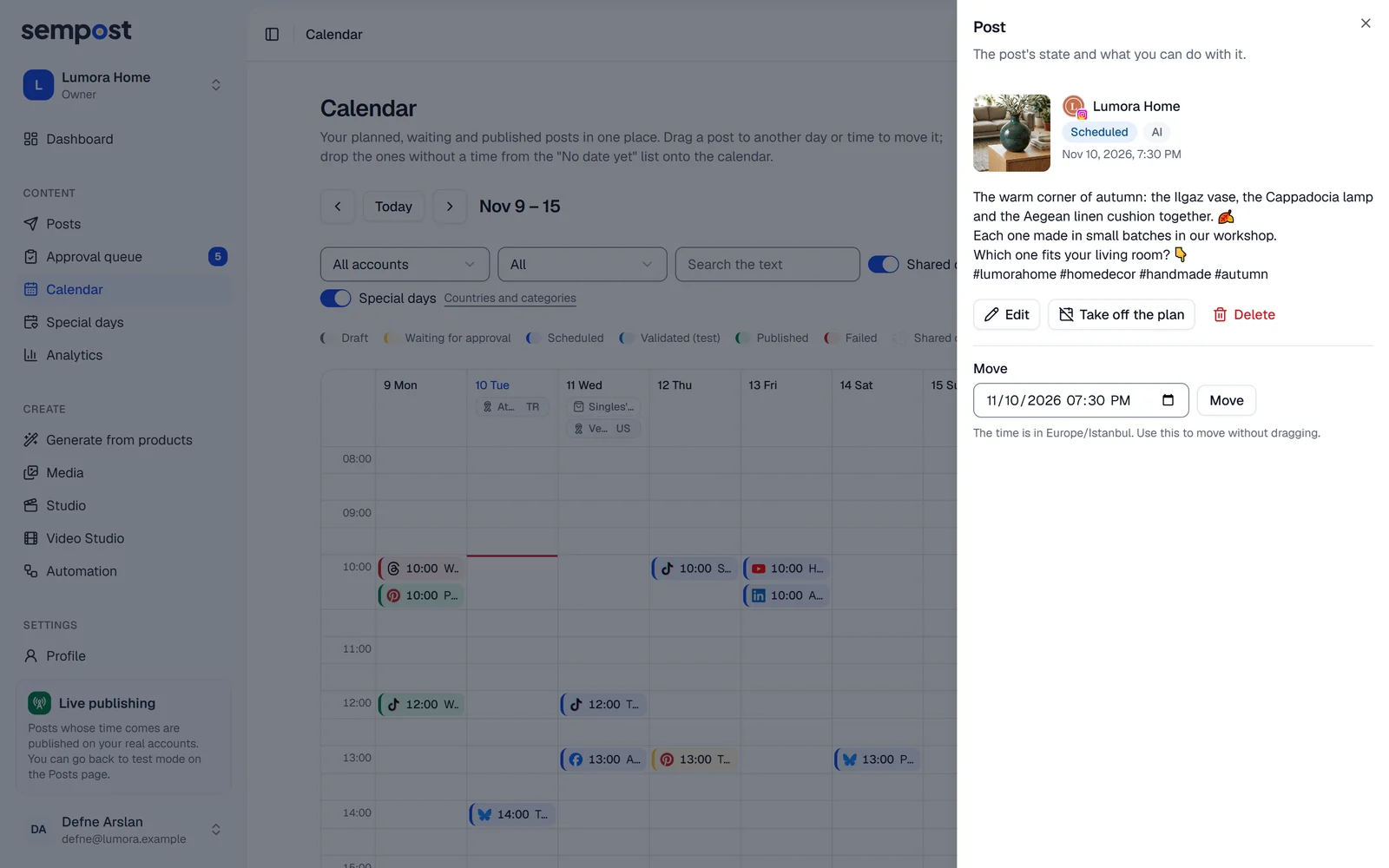
The buttons depend on the post: Approve and plan (admins and the owner), Edit, Take off the plan, which sends it back to the drafts with its text but without its time and approval, Delete and Open on the network. Move changes the time without dragging: pick a date and time and press Move. A draft moved this way only gets the time; send it from the Drafts tab of the approval queue.
Delete doesn't ask again
Delete in the side panel deletes the post at once. This can't be undone.
On a phone
The calendar opens in List, with the No date yet list below it. In Month, a post shows only its network's logo and its time. To move a post without dragging, open its panel and use Move.
If something goes wrong
- "Pick a time at least five minutes from now." The post was dropped on a time that has passed.
- "This account's posts for that day are full. Pick another day." Your workspace allows no more posts that day.
- "No free time that day; pick another day." The account has no free time left that day, or the day has passed.
- A post won't move. Viewers can't move posts, and posts that are published, failed or on their way stay put.