How-to guide
Write a post and schedule it
Write one post for several accounts, add pictures or a video, and send it right away, at the best time or at a time you choose.
On the Posts page you write a post yourself and send it to one or more of your connected accounts. SemPost makes one post per account, so you can later edit, move or delete each one on its own. Posts you write yourself use no credits.
Write and plan a post
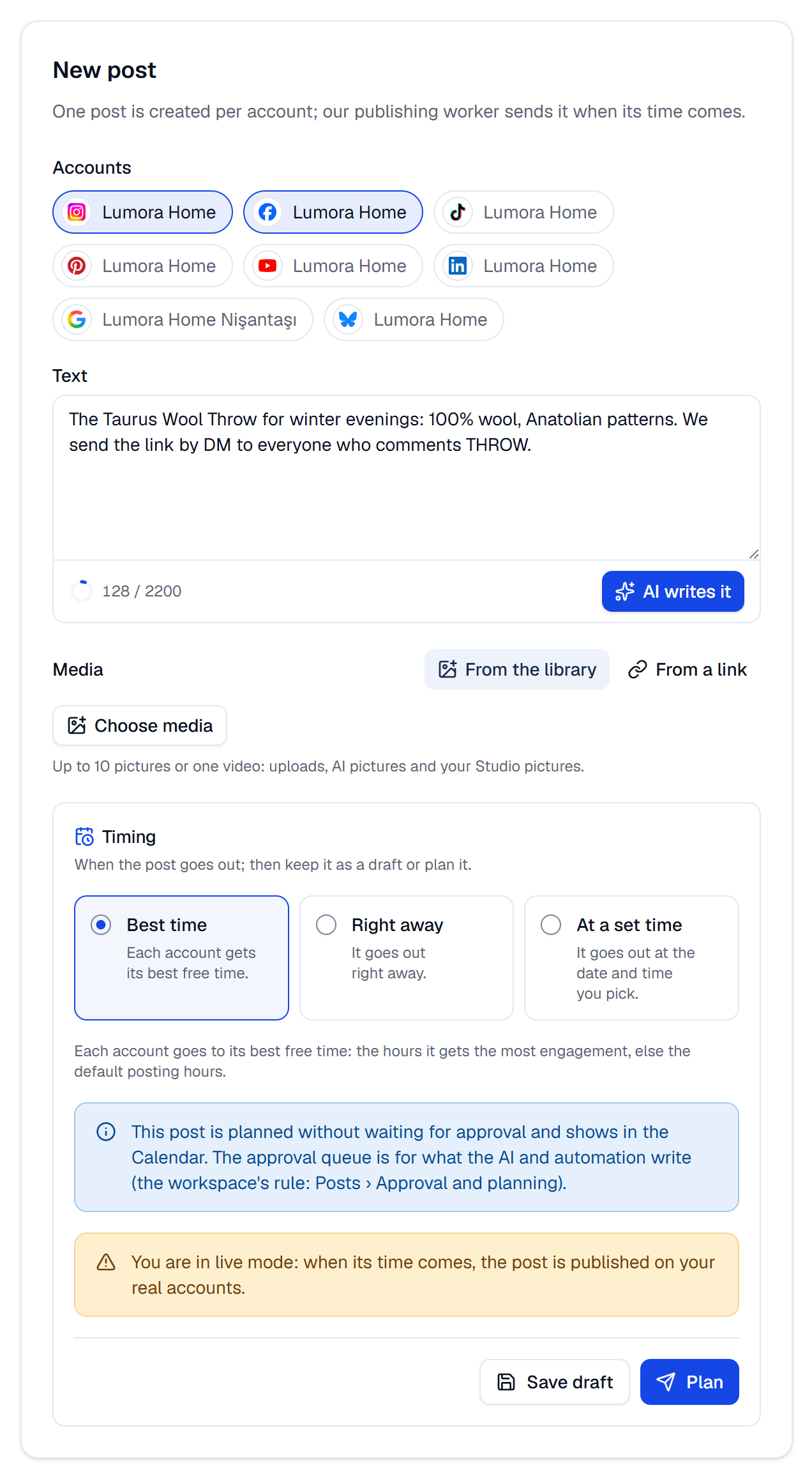
Choose the accounts
Open Posts. Under New post, in Accounts, press each account the post goes to. Accounts that need reconnecting aren't listed.
Write the text
Type in Text. Every chosen account gets the same text; to give one account its own version, edit its post afterwards in the post history. The counter under the box measures the text against the shortest limit of the chosen networks and turns red when it's too long. AI writes it writes the text for you: see Let the AI write the text.
Add a picture or a video
Under Media, with From the library selected, press Choose media: up to 10 pictures or one video, from your uploads, AI pictures and Studio pictures. SemPost picks a content type that fits each account (Automatic), such as a carousel for two pictures or more; you can pick another one in the account's list. Or press From a link and paste the public https address of one image or video.
Choose when it goes out
Under Timing, choose Best time, Right away or At a set time. Best time gives each account its own best free time: the hours it gets the most engagement, else SemPost's default posting hours. With one account chosen, the page shows that time.
Plan it
Press Plan: the post goes on the plan and shows in the Calendar. If your post has to wait for approval, the button says Send for approval instead.
What each network takes
| Network | Longest text (characters) | Picture or video |
|---|---|---|
| 2,200 | Required | |
| 10,000 | Optional | |
| TikTok | 2,200 | Required |
| 500 | Required | |
| 3,000 | Optional | |
| YouTube | 5,000 | A video is required |
| Threads | 500 | Optional |
| Google Business Profile | 1,500 | Optional; no video |
| Bluesky | 300 | Optional |
Stories show no text. When a picked content type has a title (a pin, a YouTube Short, a TikTok photo post), a Title field appears under the media.
TikTok gets a draft
When it goes out live, a TikTok post from this page arrives in the TikTok app as a draft: you finish and post it there.
Approval and test mode
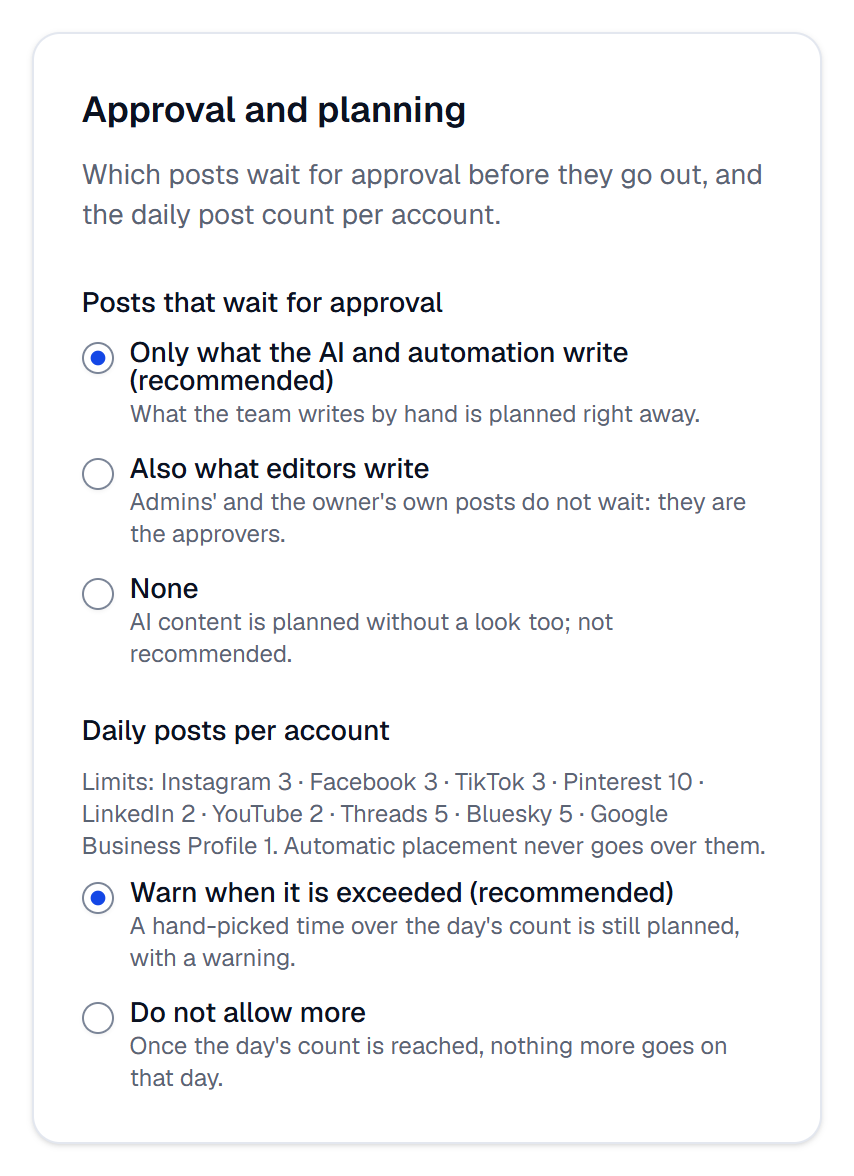
Whether you see Plan or Send for approval depends on the rule under Approval and planning on this page. With the recommended rule, what the team writes by hand is planned right away. With Also what editors write, an editor's post waits in the Approval queue and Right away isn't offered; admins' and the owner's own posts never wait. See Who approves what: the approval rule.
In test mode, a post is only checked against the network's rules at its time; nothing is shared. The note above the buttons says which mode you're in: see Test mode and live mode.
Drafts
Save draft keeps the post off the plan, with the time you picked, if any. A draft may still be incomplete. Drafts are in the Approval queue's Drafts tab and in the post history; plan one from its … menu with Plan or Send for approval.
Times and time zones
Times are in the workspace's time zone (Settings › Workspace), and must be at least five minutes ahead. When an account has a time zone of its own (Settings › Social accounts), a post's Edit window also shows the time on that account's clock. See Time zones, best times and daily limits.
If something goes wrong
- No connected account to post to: connect one in Settings › Social accounts.
- Instagram, TikTok need an image or a video. (it names the networks you chose): add media or remove those accounts. YouTube needs a video.
- The post is not ready: fix what it lists first. The text is too long for one of the networks (the counter is red), or YouTube has no video.
- An account can't take this media as chosen: pick another content type or other media. For example pictures for YouTube, or a video for Google Business Profile.
- No free time was found in the next three weeks. Pick a time. Choose At a set time.
- This account's posts for that day are full. Pick another day.
- A yellow notice after planning, such as This account has another post less than 4 hours away., is only a warning: the post is planned.