How-to guide
Let the AI write the text
The AI writes a post's text from its pictures, your notes or both, in your brand's voice and within every chosen network's limits.
In the New post box on the Posts page, AI writes it writes the text for the accounts you chose. It can look at the post's pictures or video, follow your notes, or both, and it keeps to the rules of every chosen network. It uses credits: the window shows the price before anything is written.
Write a text
Choose the accounts and the media
Pick the accounts first: the text follows their rules. For the AI to look at pictures, add them under Media with From the library; it can't look at a file added From a link.
Open the window
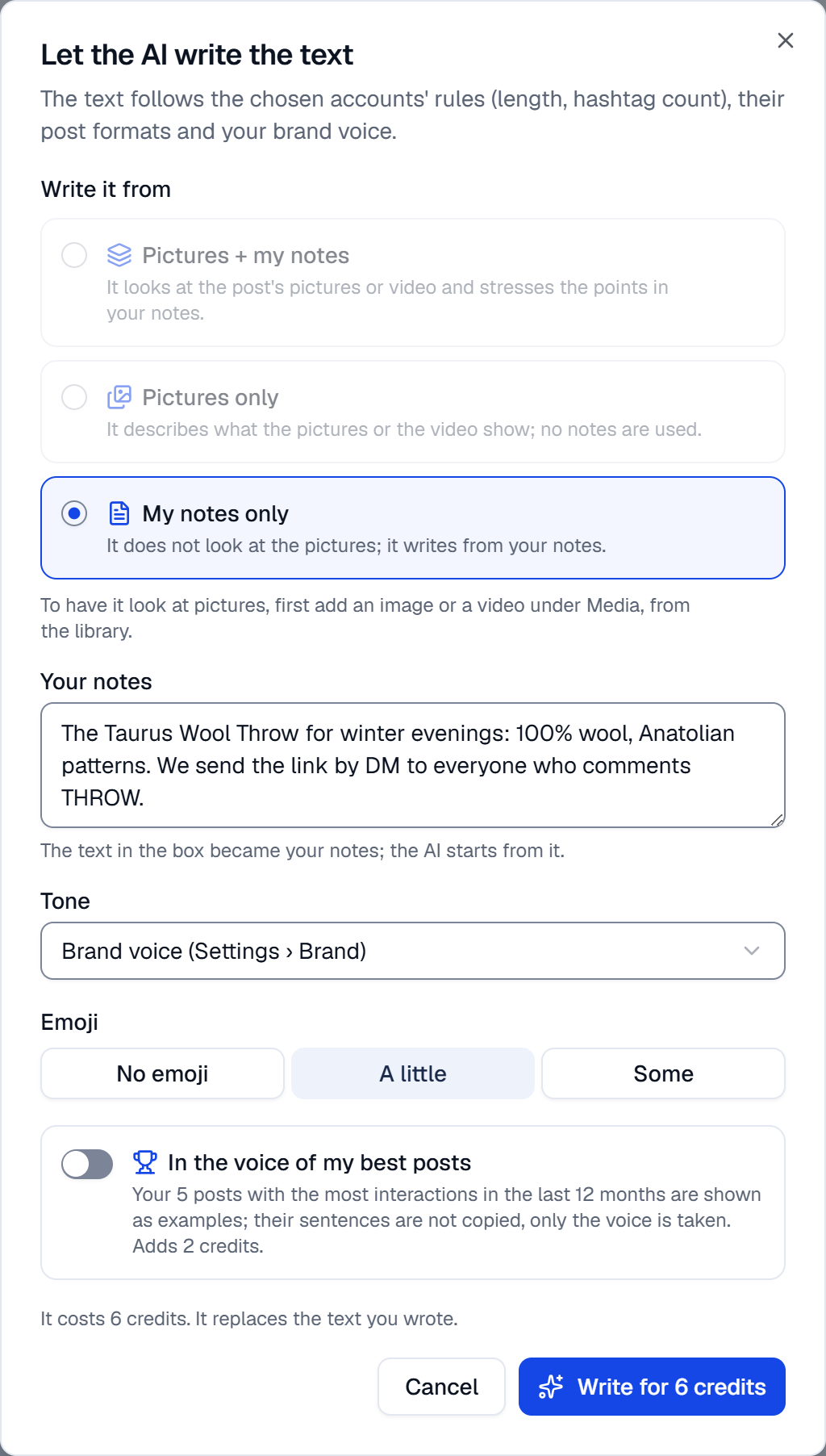
Press AI writes it under the text box. Anything already in the box becomes your notes.
Choose what it writes from
Under Write it from, choose Pictures + my notes, Pictures only or My notes only. The AI looks at the first four pictures, or at four frames spread over a video (a large video: its first frame only). My notes only needs notes; next to pictures they're optional.
Choose the tone and emoji
Tone is Brand voice (Settings › Brand) unless you pick Friendly, Professional, Playful, Elegant, Informative or Campaign. Under Emoji, choose No emoji, A little or Some.
Write
Press Write for … credits. The text replaces what was in the box. Change it as you like: nothing is saved until you plan the post or save it as a draft.
You can also start on the Media page: in a file's … menu, Write a post with AI opens the Posts page with that file, and the window opens as soon as you pick an account.
In the voice of my best posts
Switch on In the voice of my best posts and the AI also sees up to five of your posts with the most interactions (likes, comments, shares and saves) in the last 12 months. It takes their voice, such as how they open and close and their emoji habits, without copying their sentences, products, prices or hashtags.
- The chosen accounts' posts come first; if they have fewer than two, any connected account's. Posts you shared on the network directly count too.
- Posts on LinkedIn and Pinterest are left out: out of caution about those networks' terms, SemPost doesn't pass their posts to the AI.
- With fewer than two posts that got interactions, the switch stays off until Analytics has synced more.
What the text follows
- The chosen networks: the shortest text and the fewest hashtags among them, and each account's content type: a Reel opens with a strong first line, a carousel invites a swipe, a pin puts search words first. Stories show no text, so they set no limit.
- Your brand in Settings › Brand: the brand name, how you talk, words never to use and hashtag sets.
- The language: the chosen accounts' Post language (Settings › Social accounts) when they all share one, else the Workspace language (Settings › Workspace).
The AI is told to keep to what your notes and pictures show, with no made-up prices, discounts or dates and no links. Read the text before you plan it.
What it costs
The price is on the button and in the line above it. Looking at pictures costs more than notes alone, and In the voice of my best posts adds a little. The price follows the workspace's text model (Settings › AI models). Credits are taken only for a text you get: an answer that can't be used isn't charged, except after several of them in one day, and the message says so. See The exact credits before you start.
If something goes wrong
- The write button stays grey. Pick at least one account; with My notes only, write notes.
- Not enough credits: this needs … credits and … are available. The owner can buy credits in Settings › Billing.
- This would go over the workspace's credit budget. You can change it in Settings › Budget.
- The price changed. Look at the new total before generating. The button now shows the new price; press it again if it suits you.
- The AI's answer could not be used. No credits were taken; try again.