Reference
Scene styles, tones, languages and labels
Every choice in the Image and text step, from what each scene style makes to the tones, the post languages, the switches and the picture labels.
These are the choices in the Image and text step of Generate from products. They apply to every product and account in the run. The style, tone and emoji start from the defaults in Settings › Brand. After each run, the page remembers most of your choices in this browser; the discount code, the campaign, the extra instruction, the first comment, the badge and the motion clip are asked for each time.
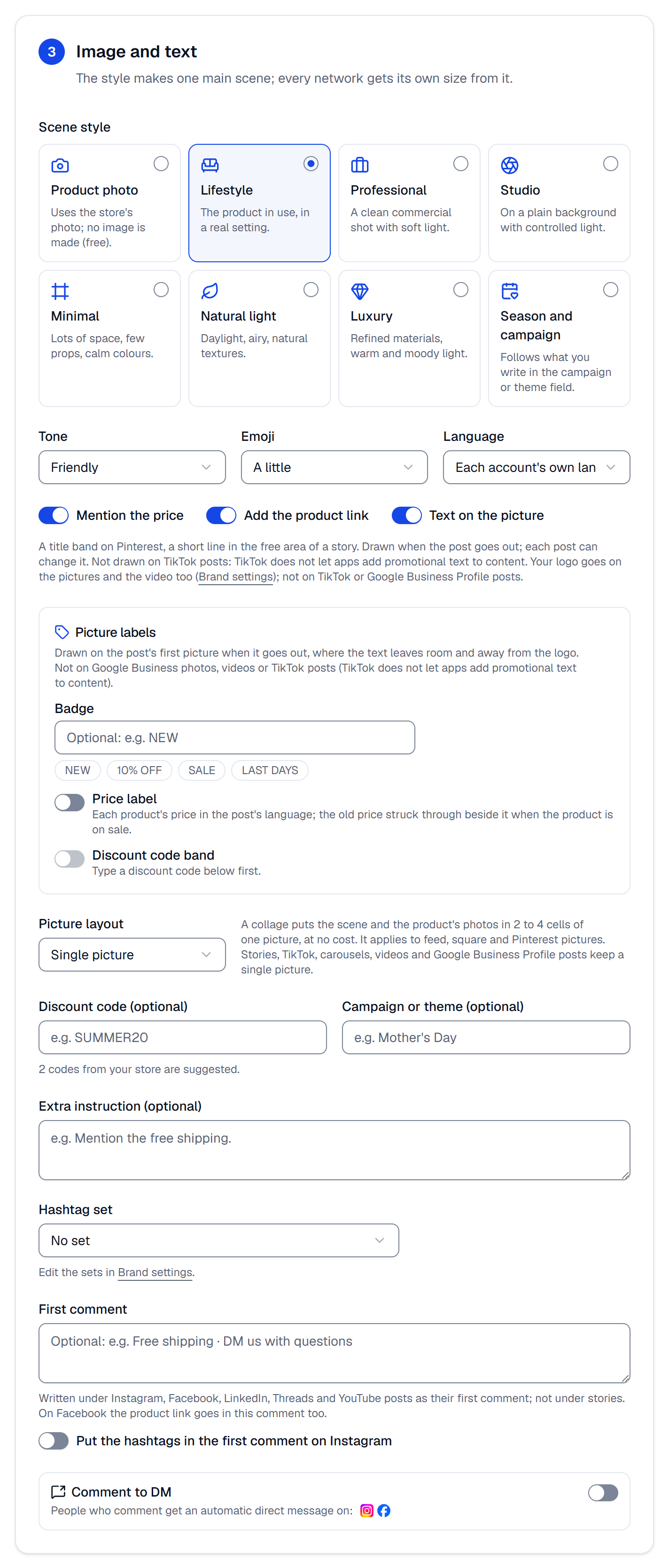
Scene styles
Every style except Product photo makes one AI scene per product from up to two of its own photos, and each network gets its own size cut from that scene. SemPost asks for a scene without people or writing in it: the words on a picture come only from Text on the picture and the labels below.
| Style | The picture |
|---|---|
| Product photo | The store's own photo. No picture is made, so it's free. |
| Lifestyle | The product in a real, lived-in setting, as if in use. |
| Professional | A clean commercial shot with soft light. |
| Studio | A plain background with controlled light. |
| Minimal | Lots of space, few props, calm colours. |
| Natural light | Daylight, airy, natural textures. |
| Luxury | Refined materials, warm and moody light. |
| Season and campaign | A setting built around what you write in Campaign or theme. |
Google Business Profile posts always take the product's own photo, whatever the style. A campaign or theme you write also shapes the scenes of the other styles, and the texts.
Tone and emoji
| Tone | How the texts sound |
|---|---|
| Friendly | Warm, like a shop owner talking to a regular customer. |
| Professional | Clear and confident. |
| Playful | Light, with a bit of humour. |
| Elegant | Refined, few words, no hype. |
| Informative | The useful facts first. |
| Campaign | Energetic, with a clear call to action. |
Emoji is No emoji, A little (one or two) or Some (a few, never more than one per sentence). Every text also follows the brand voice and the Words never to use in Settings › Brand.
Language
Each account's own language writes each post in its account's Post language, set in Settings › Social accounts. An account left on the workspace's language gets the language of the Shopify market the product was picked in, if it has one of the eight below, and the workspace's language otherwise. You can also write every post in one language: Turkish, English, German, French, Spanish, Italian, Dutch or Arabic. One AI call writes all of a product's posts, so languages cost nothing extra.
Price, link and text on the picture
- Mention the price: the AI gets the product's price, as the store shows it when the posts are made, to write in the post's language. When it's off, the AI doesn't get the price, and the price label and a video's closing card show none.
- Add the product link: the product's page, with UTM tags, where each network lets people tap it: in the text on LinkedIn, Threads, Bluesky and YouTube, in the first comment on Facebook, as the pin's link on Pinterest and as the post's button on Google Business Profile. Instagram and TikTok posts carry no link; on Instagram the text points to the link in your bio instead.
- Text on the picture: a title band on Pinterest pins and a short line in the free area of a story, written by the AI and drawn when the post goes out.
Your logo goes on the pictures and the videos when it's switched on in Settings › Brand. TikTok's rules don't let apps add a logo or promotional text, so TikTok posts get no logo, no text on the picture and no labels. Google Business Profile photos get no logo or labels either.
Picture labels
Labels are drawn on the post's first picture when it goes out, where the text leaves room and away from the logo. Videos don't get them.
- Badge: a short text of up to 24 characters, or one of NEW, 10% OFF, SALE and LAST DAYS. It goes on every product of the run, so choose words that are true for all of them.
- Price label: each product's price in the post's language, with the old price struck through when the product is on sale. It needs Mention the price.
- Discount code band: the discount code on a yellow band across the bottom. Type the code in Discount code (optional) first.
Picture layout
Single picture, or a collage: Collage: automatic, Collage: 2, Collage: 1 + 2 or Collage: 2 × 2. A collage puts the scene and the product's photos in 2 to 4 cells of one picture, at no cost, without cutting the product off. It needs at least two pictures, and it applies to feed, square and Pinterest pictures; stories, TikTok, carousels, videos and Google Business Profile posts keep a single picture.
The other fields
- Discount code (optional): the texts can name it, and it goes on the Discount code band and a video's closing card when they're on. When all the products come from one store, that store's codes are suggested.
- Campaign or theme (optional), such as Mother's Day, and Extra instruction (optional), such as "Mention the free shipping": both go to the AI with every product.
- Hashtag set: a set from Settings › Brand. The AI prefers its hashtags, within each network's limit; Pinterest, Google Business Profile and story posts get none.
- First comment and Put the hashtags in the first comment on Instagram: see First comment, hashtags, link and UTM. With the box empty, the AI may write a first comment for Instagram and Facebook posts.
- Comment to DM, where it's offered, answers comments on Instagram and Facebook posts with a direct message: see Send a DM to people who comment.