How-to guide
Generate posts from your products
Pick products and accounts, choose the look and the words, and see the exact credits before SemPost writes a post for every account.
Generate from products turns the products in your store, or product pages you own, into finished posts: one for each account you pick, with a picture and a text made for its network. You see the exact credits before anything starts.
Make the posts
Open Generate from products
In the sidebar, under Create, choose Generate from products. The Approval queue has the same button.
Pick the products
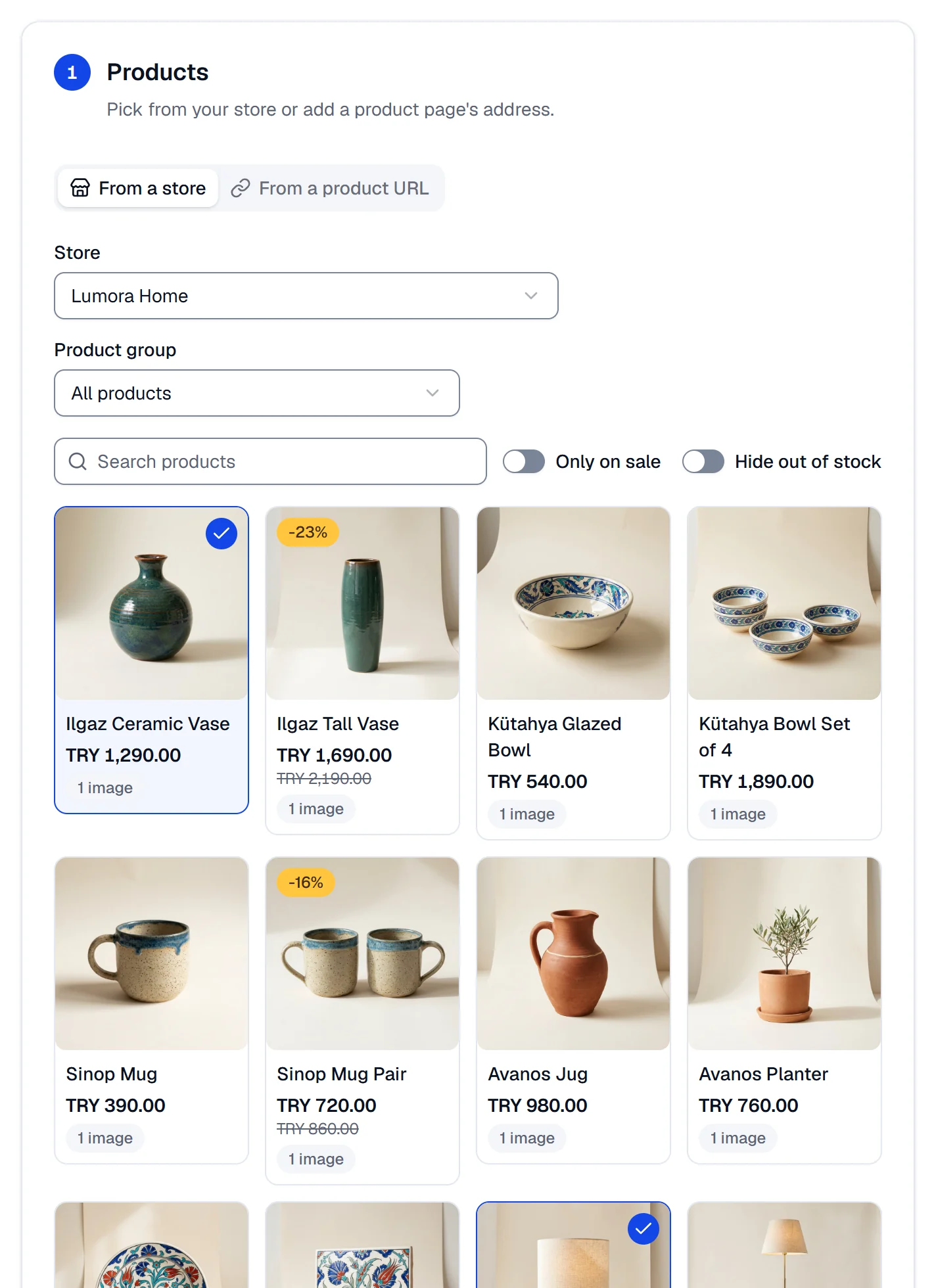
Under Products, the From a store tab lists your store's products; with more than one store connected, choose it under Store. Narrow the list with Product group, Search products, Only on sale and Hide out of stock, then select the products you want. On the From a product URL tab, paste a Product page address and press Add: SemPost reads the page's name, price and photos. You can pick up to 20 products. A product without a photo can't be picked.
Choose the accounts
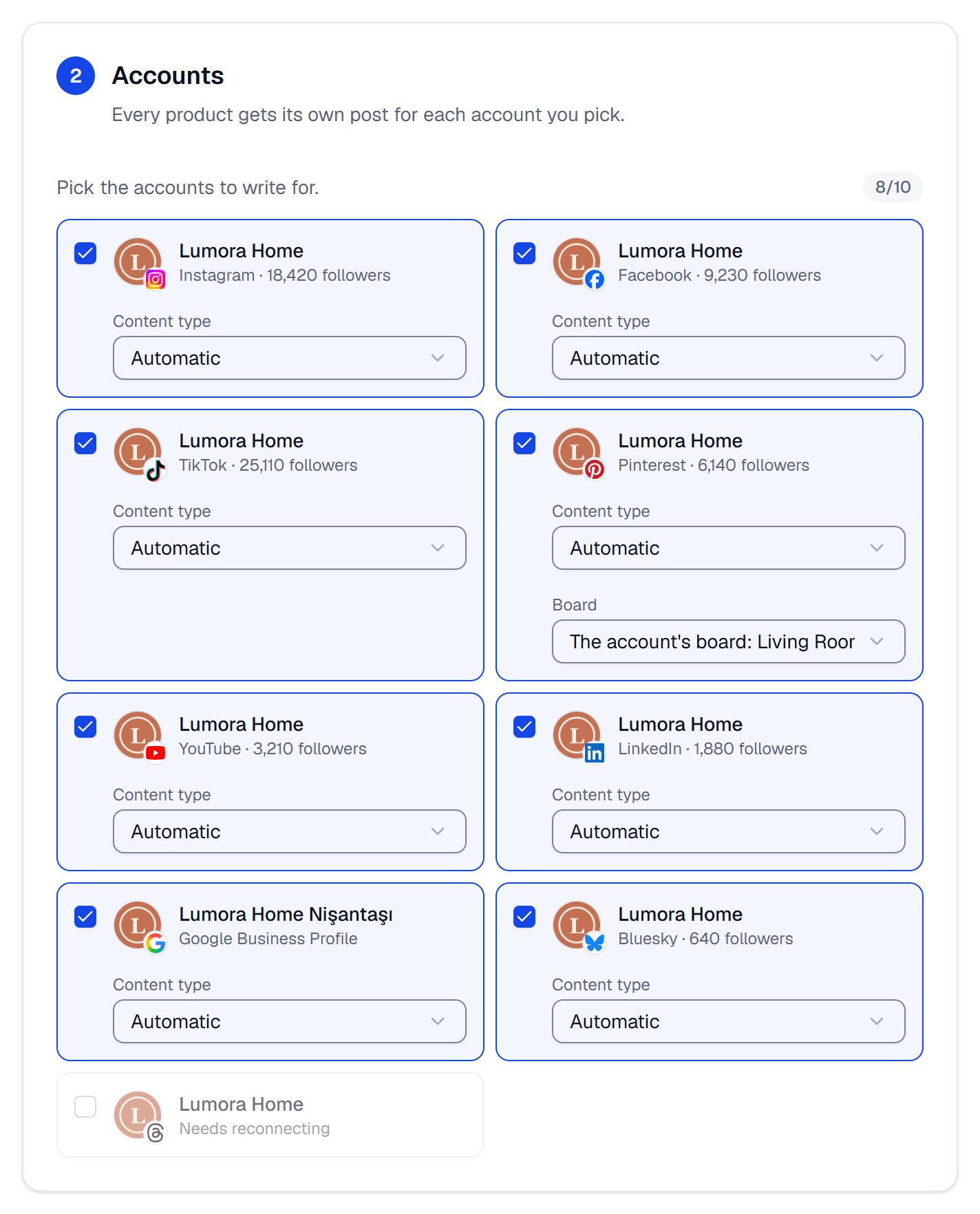
Under Accounts, the accounts that can take posts come ticked, up to 10. Each ticked account gets its own post for every product. Content type starts on Automatic, which makes a carousel on Instagram, Facebook and Threads for a product with three photos or more, a single-picture post otherwise, and a Short on YouTube. You can pick another type, such as a story or a Reel. Pinterest pins go to the account's board unless you choose another Board.
Choose the image and text
Under Image and text, pick the Scene style, Tone, Emoji and Language, and set the switches for the price, the link and the text on the picture. Each option is explained in Scene styles, tones, languages and labels. When an account has a video type, a Video cut section appears: see Videos and motion clips.
Set the timing
Under Timing, choose No time, Best time (each account's best free time) or Start time. With a start time, the first product's posts get that time and each next product's come later by the Between products gap. The note under the choices says whether the posts will wait for approval.
Check the summary and start
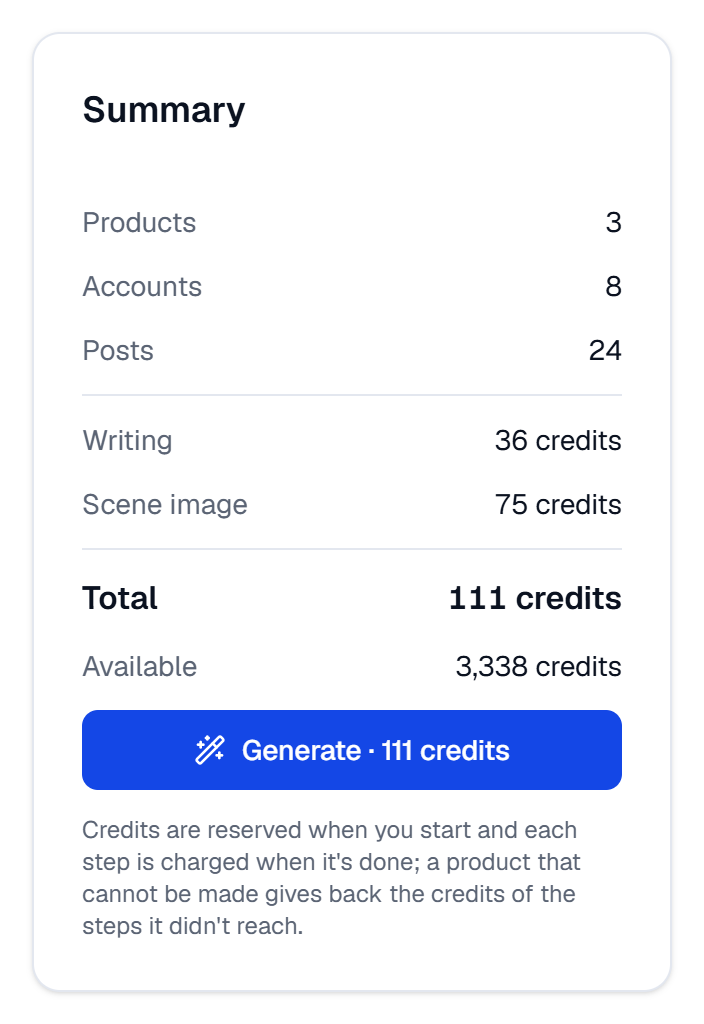
The Summary shows the number of posts and the exact credits, and the Generate button carries the total. Press it: the credits are reserved and the Approval queue opens. See how the credits are counted.
While the posts are made
At the top of the Approval queue, the Generating card follows each product: Reading the product, Writing the text, Making the image, Making the video for video posts, then Creating the posts. Each product's posts are created as soon as that product is done, and the work goes on if you close the page. Cancel the waiting ones stops the products that haven't started yet and gives their credits back.
Where the posts land
Generated posts carry an AI badge. They wait in the Waiting tab until an admin or the owner approves them, unless your workspace turned approval off (the approval rule). With approval off, posts with a time go straight onto the plan and posts with No time stay in Drafts. TikTok posts reach TikTok as drafts: you finish and publish them in the TikTok app.
A product that can't be made
If a product fails, its row on the card says why, for example that its photos couldn't be read. The credits of the steps it didn't finish come back. Try again on that row reserves only the steps that are left, at the price on the button.
If something goes wrong
- This workspace already has jobs running. Try again when one has finished. A workspace runs two jobs at a time: start yours when one has finished.
- The price changed. Look at the new total before generating. Something changed the price after the summary was shown, such as the workspace's AI model. Nothing was taken: check the new total and press Generate again.
- No product details could be read from this page. SemPost can't find the product's details on that page: pick the product on the From a store tab instead. Etsy doesn't allow its pages to be read.
- The summary says you don't have enough credits. See when credits run short.