How-to guide
Pause everything, and days without automation
Stop every automation rule at once in a crisis, keep chosen days free of automation posts, and give a rule its own start day and season.
A wrong price on your site, sad news, a crisis: sometimes no automation post should go out for a while. Pause all stops every rule at once. For dates you know ahead, such as holidays, add Days without automation. Both are on the Automation page and apply to every rule in the workspace.
Pause all automation
Open the window
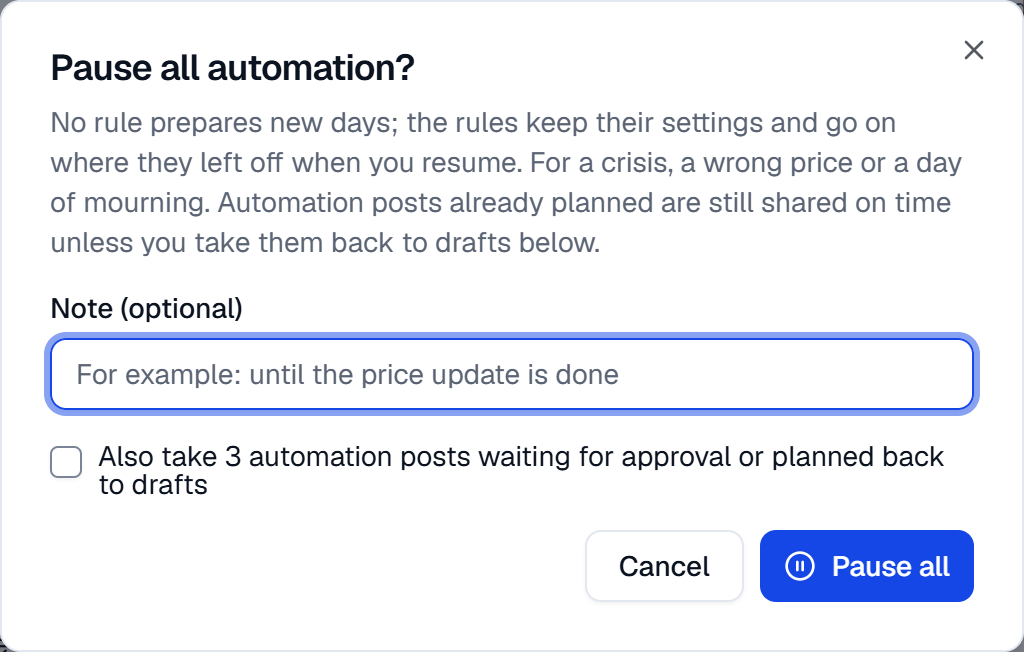
On the Automation page, press Pause all. The button is there once the workspace has a rule.
Choose what happens to waiting posts
Add a Note (optional) if you like, such as why you paused. If automation posts are already waiting for approval or planned, a box gives their number: Also take 3 automation posts waiting for approval or planned back to drafts. Tick it to take them off the plan: their text stays, their time and approval go. Unticked, they still go out on time.
Pause
Press Pause all. SemPost says Automation paused., with the number of posts taken back to drafts if you ticked the box.
While automation is paused, a banner says Automation is paused and No rule has prepared a day since …, with your note. No rule prepares anything, and the rules that are on show Waiting. Pausing and resuming are written to the Audit log.
Resume
Press Resume on the banner. SemPost says Automation resumed., and the rules that are on go on where they left off. Posts you took back to drafts stay in the Drafts tab of the Approval queue: send them on from there, and each gets a new time (Pinterest and LinkedIn posts go for approval first, whatever your approval rule), or delete them. Until then, the rule doesn't pick those products again for those accounts.
Days without automation
Add days
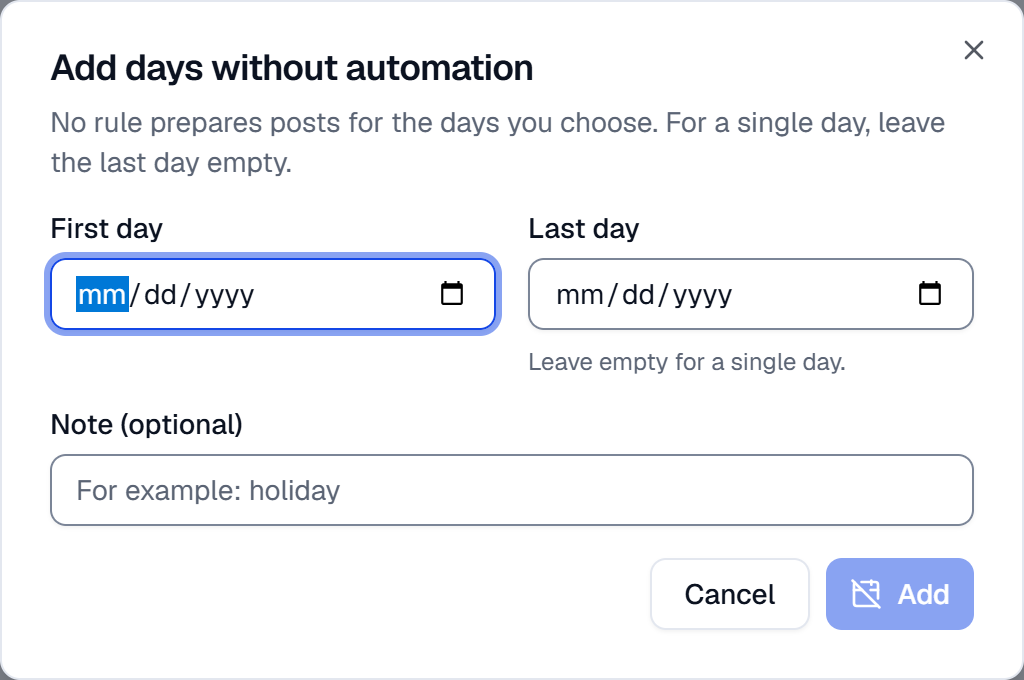
In the Days without automation card on the Automation page, press Add days.
Pick the days
Choose the First day. For more than one day, choose the Last day too; leave it empty for a single day. A Note (optional), such as "holiday", shows in the list.
Check what's already planned
If automation posts already wait for approval or are planned on those days, the window says how many before you add the days. Tick Take them back to drafts to take them off; otherwise they still go out.
Add
Press Add. No rule prepares posts for these days; a rule simply goes on with its next day.
The card lists the days from today on. Remove these days, the bin beside them, opens them to automation again: the rules that are on look again at once and prepare the days they haven't prepared yet.
A rule's own start day and season
In a rule's Schedule step:
- Start and end: with Start (optional), the rule prepares nothing before that day; with End (optional), it stops by itself after that day.
- Season (optional): pick months, and the rule works only in those months. In the others it waits and goes on by itself when the season comes. All year clears the months.
Outside these days the rule prepares nothing, and its card shows Next preparation: with the time it next prepares posts.
If something goes wrong
- Automation is paused for the workspace. Resume it first. You pressed Run now while automation is paused. Press Resume first.
- This value isn't valid. when you add days: the last day is before the first, the days have already gone, or they span more than a year.
- This rule's end date has passed. Move the end date to switch it on. Move End (optional) later in the rule's Schedule step.
- There's no Pause all button. Only owners and admins see it, once there's a rule. While automation is paused, Resume on the banner takes its place.