Explanation
Store checks, reconnecting and removing
Keep your stores working: what the nightly check does, how to fix a store that needs reconnecting, and what removing a store changes.
Every night SemPost asks each connected store whether it still answers with the details you gave. A store that doesn't shows Needs reconnecting, and the workspace's owners and admins get an email.
The store's row
In Settings › Store connections, each store's row shows its products and currency, when it was Last checked:, and a badge: Connected or Needs reconnecting.
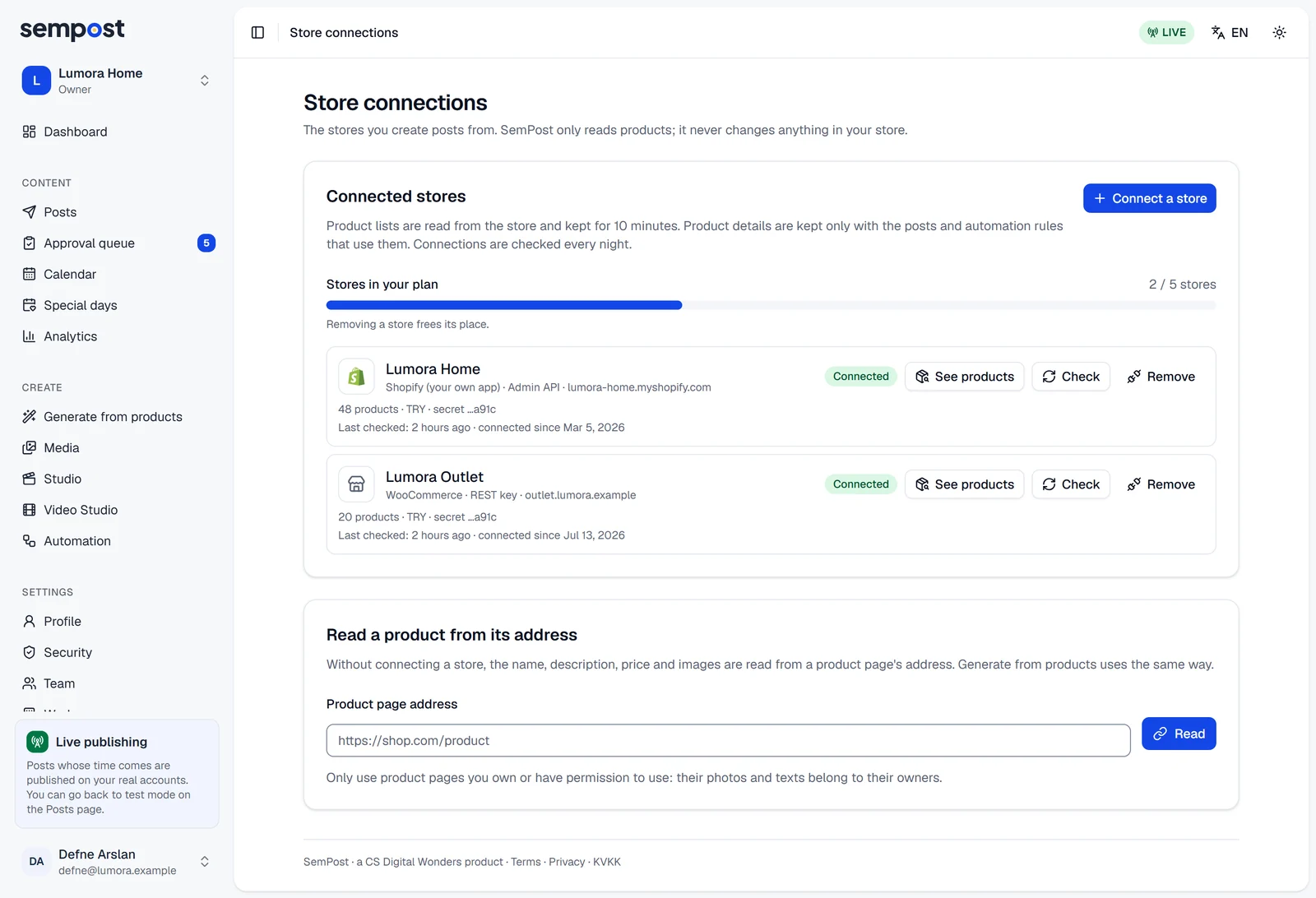
Check asks the store right away and updates its name, currency and number of products; a message says whether the store answered. Editors can press Check too. Connecting and removing stores is for admins and the owner.
When a store needs reconnecting
A store is marked when it refuses SemPost's details, lacks a required permission, or no longer answers as a store at its address: for example, after a new Client Secret, an app uninstalled from the store or a deleted WooCommerce key. The row shows the reason, then Fix it in your store and press Check. Only if that doesn't help, remove the store and connect it again with current details; rules that used it then stop. A store that is only slow or briefly offline isn't marked; SemPost asks it again later.
The owners and admins get one email about it, and another one a month later if the store is still waiting. Meanwhile:
- Generate from products and the Studio don't list the store's products. A product from it that is still waiting in a generation fails, and its credits come back.
- Automation rules that use the store skip the days they can't prepare and try again every hour: Waiting for the store connection to be renewed; it goes on by itself after that. Posts they prepared before still go out.
Bring it back
- You fixed it in the store, for example added the missing permission or installed the app again: press Check. Once the store answers, it shows Connected and everything that waited goes on by itself. If you don't press it, the nightly check does the same.
- The details changed, such as a new Client Secret or a new WooCommerce key: remove the store (see below for what that changes) and connect it again with the new details, for Shopify or for WooCommerce. Then, in each automation rule that used the store, press Edit, choose the store again in Products and save; press Switch on if the rule stopped.
The store that came with the SemPost app in Shopify, Shopify (SemPost app), has no Remove button. Open SemPost from your Shopify admin: that connects the store again. It goes away only when you remove the app in Shopify.
Remove a store
Press Remove on the store's row and confirm. The connection and its stored keys are deleted, and its place in your plan is free again. Posts you've already made keep their text and pictures, but:
- automation rules that take products from the store stop, and the owners and admins get an email;
- an automation post made from the store's products that hasn't gone out yet is held as a draft at its time, because its product can no longer be checked (see Fix a post a safeguard held);
- a product from the store that is still waiting in a generation fails with This product's store was removed.
How many stores you can connect
Stores in your plan shows how many stores are connected and how many your plan allows, such as 2 / 5 stores. A store that came with the SemPost app in Shopify counts too. When all are in use, Connect a store can't be pressed: remove a store or move to a bigger plan. Each plan's number of stores is in Plans and what they include. Before you move to a plan with fewer stores, remove the ones over its limit: see Change your plan.
If something goes wrong
The reason on a store's row says what to fix:
- The store did not accept these details. Check them and try again. Install the app again and press Check, or connect the store again with its current details.
- The app lacks a permission SemPost needs. Add it in Shopify and try again. Add the permission to the app, release a new version and press Check.
- The app and the store must belong to the same Shopify organization. Create the app in the store's organization. Connect the store again with an app made in its organization.
- No store answered at this address. or No WooCommerce store answered at this address. If the store moved or WooCommerce was switched off, connect the store again at its current address.
- Check says the store didn't answer, but the row shows no reason: the store was slow or briefly offline. It stays Connected; try again in a moment.