How-to guide
Connect Shopify with your own app
Add your Shopify store to your SemPost workspace with an app you create in Shopify's Dev Dashboard and its Client ID and Client Secret.
SemPost can read your Shopify store's products through an app you create in Shopify yourself. This is how you add a Shopify store to a workspace you made at app.sempost.ai, next to your other stores, up to the number your plan allows. SemPost only reads products; it never changes anything in your store.
If you installed SemPost from the Shopify App Store, you don't need this: that app connects your store by itself, as Shopify (SemPost app), and its workspace doesn't take stores connected by hand. See Start from the Shopify App Store.
Connect the store
Open the Shopify tab
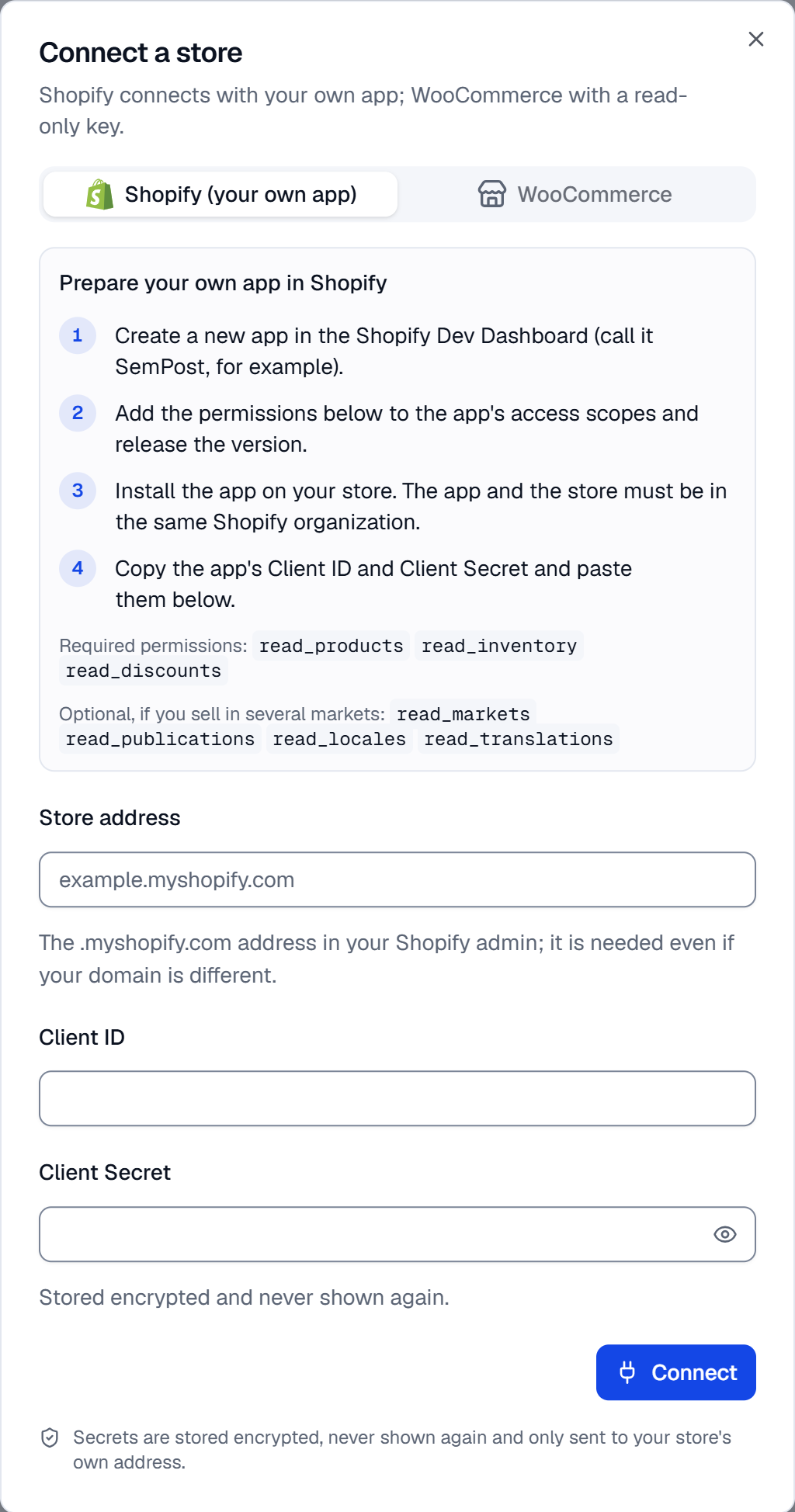
Go to Settings › Store connections and press Connect a store. The dialog opens on the Shopify tab, with the steps and the permissions under Prepare your own app in Shopify.
Create the app in Shopify
In the Shopify Dev Dashboard, create a new app in the organization your store belongs to; you can call it SemPost. Add the permissions below to the app's access scopes, then release the version.
Install it on your store
Install the app on your store. The app and the store must be in the same Shopify organization, or Shopify won't give SemPost access.
Enter the details and connect
Back in SemPost, enter the Store address: your store's .myshopify.com address, such as example.myshopify.com, even when your shop uses its own domain. Copy the app's Client ID and Client Secret from the Dev Dashboard into their fields and press Connect. SemPost asks Shopify for access straight away; when that works, the store shows under Connected stores as Connected.
The permissions
Three permissions are required:
read_products: products and their photos, collections, tags and brands.read_inventory: stock, so sold-out products can be hidden or skipped.read_discounts: your discount codes, which Generate from products suggests and automation checks before a post goes out.
The other four are optional: read_markets, read_publications, read_locales and read_translations. Add them if
you sell in several Shopify markets. With read_markets and read_publications, the Market and Catalog groups
appear and products come with each market's price, language and address: see Product groups, markets and
catalogs. The SemPost app from the Shopify App Store asks for all seven itself.
When a required permission is missing, the store's row names it after Permissions the app lacks:. Add it to the app's access scopes, release a new version and press Check on the row.
What SemPost keeps
- The Client Secret is stored encrypted and never shown again: the store's row shows only its last four characters, such as secret …a91c.
- With the secret, SemPost gets a short-lived access key from Shopify and renews it when it runs out. The key is stored encrypted too.
- The secret is only ever sent to your store's own .myshopify.com address.
- Products aren't copied: SemPost reads them from the store when it needs them.
- Check on the row asks Shopify for a new access key with the secret, so you see at once whether the secret still works. Removing the store deletes the secret and the access key.
If something goes wrong
- Enter the store's .myshopify.com address (for example example.myshopify.com). Enter the .myshopify.com address, not your shop's own domain.
- The store did not accept these details. Check them and try again. Copy this app's Client ID and Client Secret again, and check that the app is installed on this store.
- The app and the store must belong to the same Shopify organization. Create the app in the store's organization.
- The app lacks a permission SemPost needs. Add it in Shopify and try again. Add the three required permissions to the app, release the version and press Connect again.
- This store is connected to another workspace. A Shopify store connects with its own app to one workspace only: remove it from the other workspace first.
- Connect a store can't be pressed: every store your plan allows is in use. See Store checks, reconnecting and removing.