How-to guide
Connect a WooCommerce store
Connect your WooCommerce store with a read-only REST key, or without a key through the Store API, and see what SemPost reads in each case.
SemPost reads your WooCommerce store's products from the store's own address. With a read-only REST key it reads your products and your coupons; without a key it reads only what the shop shows publicly. Either way, SemPost never changes anything in your store.
Connect the store
Open the WooCommerce tab
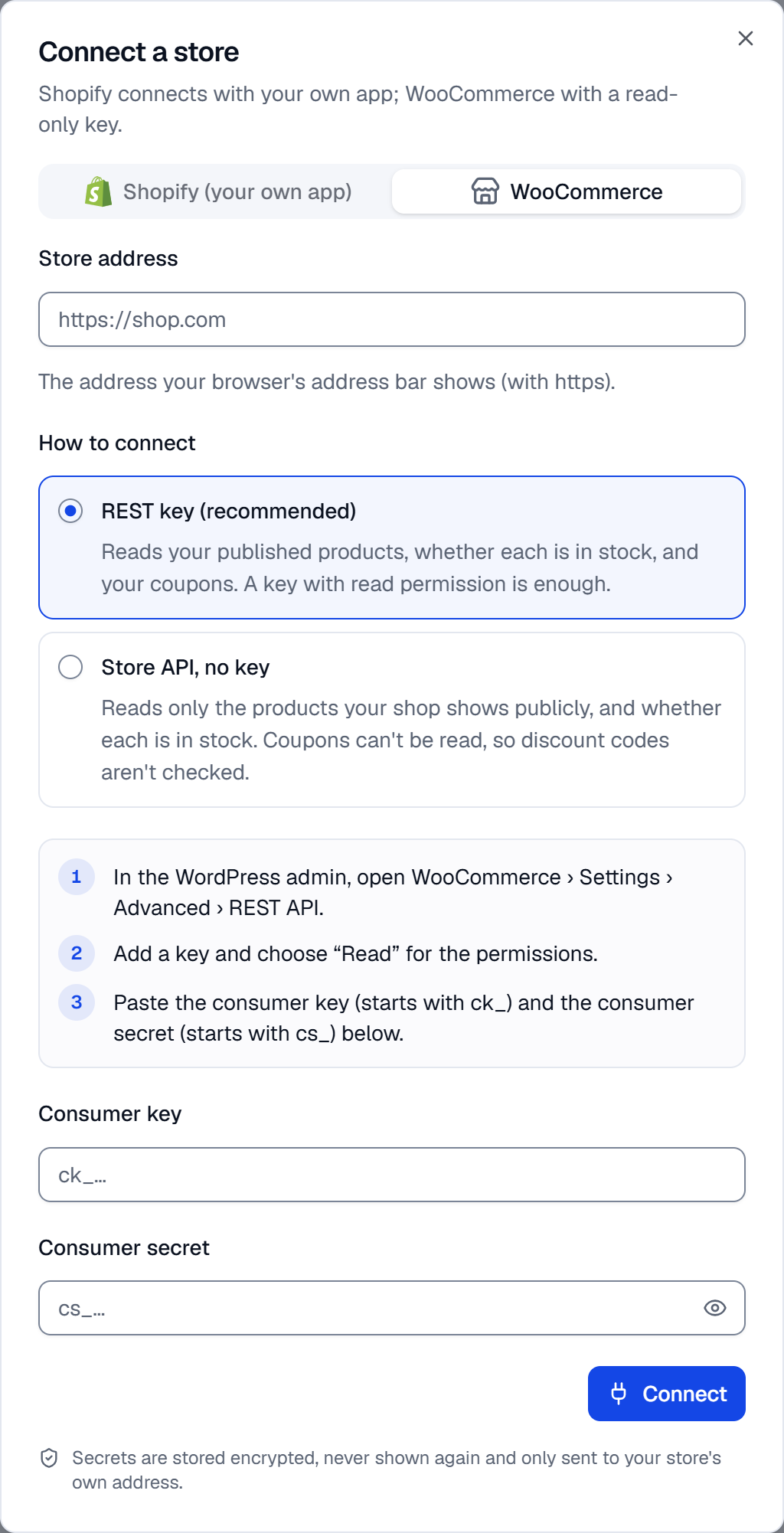
Go to Settings › Store connections, press Connect a store and choose the WooCommerce tab.
Enter the store address
In Store address, enter your site's home page address as your browser shows it, starting with https, such as https://shop.com. If WordPress is installed in a folder, such as https://example.com/store, include the folder.
Choose how to connect
Under How to connect, keep REST key (recommended), or choose Store API, no key and skip the next step. The difference is explained below.
Create a read-only key
In the WordPress admin, open WooCommerce › Settings › Advanced › REST API and add a key with Read permissions.
Paste its consumer key (it starts with ck_) into Consumer key and its consumer secret (it starts with cs_) into
Consumer secret.
Connect
Press Connect. SemPost reads the store once with these details; when that works, the store shows under Connected stores with its number of products and its currency.
REST key or Store API
| REST key (recommended) | Store API, no key | |
|---|---|---|
| Products | Every published product, except those hidden from the shop | Only the products the shop shows publicly |
| In stock or not | Read | Read |
| Coupons | Read | Not available |
With a REST key, SemPost reads the store's published coupons: Generate from products suggests their codes, and automation checks a code before a post that names it goes out. Without a key, SemPost can't see any coupon. It suggests no code, and it can't check one: an automation post that names a code goes out without that check, so make sure the code works in your store.
What SemPost reads
For each product: the name, the short description (or the description when there's no short one), the price and regular price, whether it's in stock, up to 10 photos, the categories and tags, and the product page's address. SemPost also reads the store's name and currency. Products aren't copied into SemPost: they're read from the store when they're needed.
The consumer key and secret are stored encrypted and never shown again; the store's row shows only the secret's last four characters. They're only sent to the address you entered: if the store sends the requests on to another address, SemPost doesn't follow with the key.
If something goes wrong
- Enter the store's address starting with https. SemPost only connects to stores that open with https.
- No WooCommerce store answered at this address. Enter your site's home page address, without a page's path such as /shop, and check that WooCommerce is active on the site.
- The store sends requests to another address. Enter the address your browser's address bar shows. For example, you entered shop.com and the site opens at www.shop.com. Enter the address exactly as the browser shows it.
- The store did not accept these details. Check them and try again. Paste the consumer key and secret again, and check in WooCommerce that the key still exists and has Read permissions.
- The store did not answer. Try again in a moment.