How-to guide
Product groups, markets and catalogs
Browse a connected store's products by group, search and filter them, and read Shopify markets and catalogs with their own prices and language.
See products on a store's row opens the store's products: the same list that Generate from products, the Studio and automation rules pick from. You can narrow it to a group, search it, and leave out what isn't on sale or in stock.
Browse the products
Open the list
In Settings › Store connections, press See products on the store's row. A store that needs reconnecting has no See products button until it works again.
Choose a group
Product group starts on All products. For a collection, category, tag, brand, market or catalog, pick the type, then the group itself under Choice. A group shows its number of products when the store gives it.
Search and filter
Type a word from the product's name in Search products. Switch on Only on sale to see only discounted products, and Hide out of stock to leave out sold-out ones. Load more brings the next products.
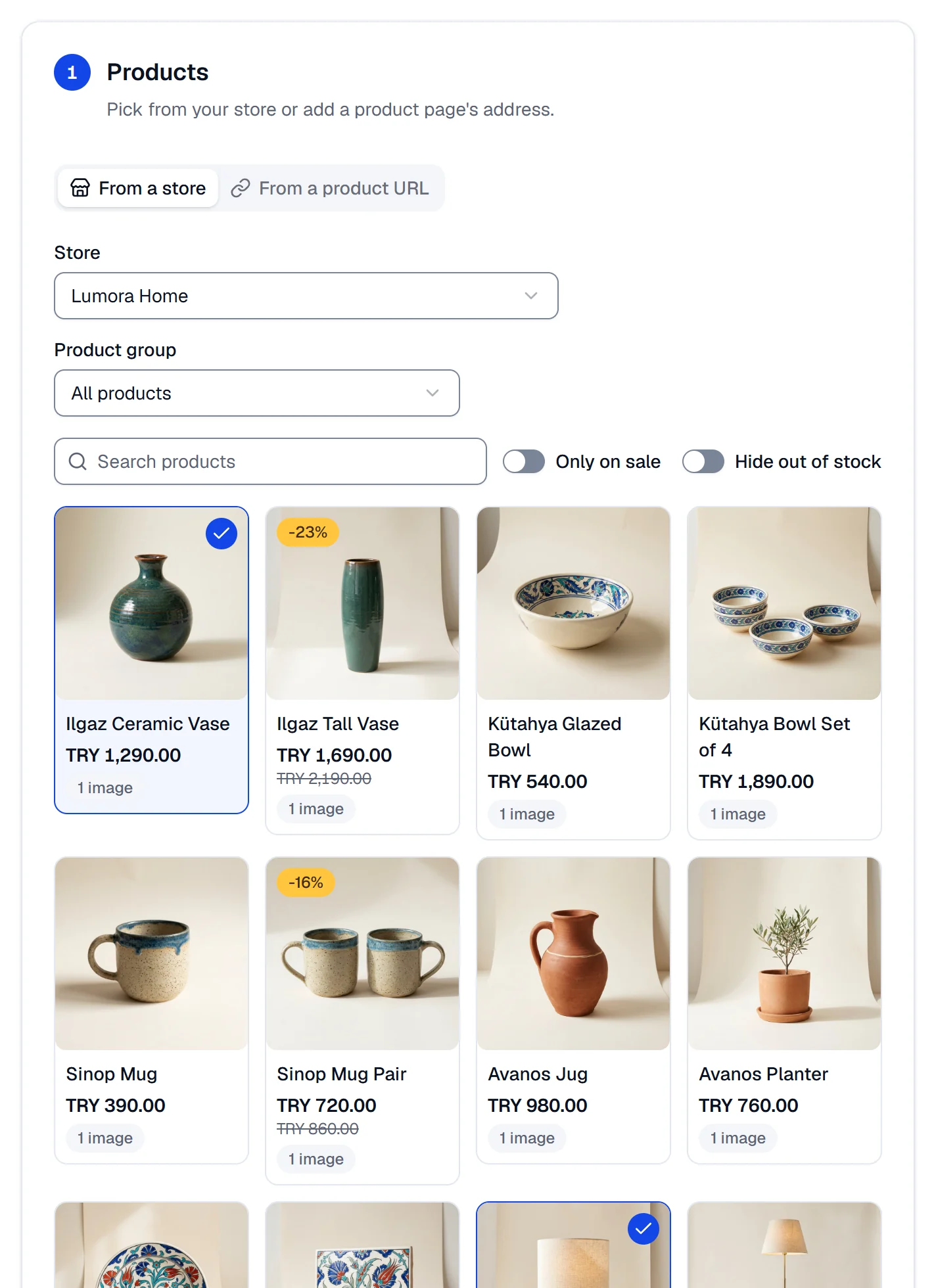
Each card shows the first photo, the name and the price. A discounted product has its old price struck through and a badge such as -23%; a sold-out one shows Out of stock. The card also counts the photos.
The groups
| Store | Groups |
|---|---|
| Shopify | All products, Collection, Tag, Brand (the product's vendor in Shopify), Market, Catalog, On sale |
| WooCommerce | All products, Category, Tag, On sale, Featured |
Only products your store has published appear: Shopify drafts and archived products don't.
Markets and catalogs
If you sell in several countries with Shopify Markets, Market lists your active region markets and Catalog your active market catalogs, each with its currency, such as Europe (EUR). Company (B2B) catalogs aren't listed.
A product read in a market comes with that market's price and currency, as Shopify works them out for a buyer there, and with its page address in that market. Posts are written in the market's language unless the account has its own: see Scene styles, tones, languages and labels. The same product picked in two markets counts as two products, each with its own price and language.
These two groups need the read_markets and read_publications permissions. The SemPost app from the Shopify App
Store has them. For a store connected with your own app, add them to the app in
Shopify: until then, the store's row names them and the two groups don't appear. Then press Check on the row.
How fresh the list is
SemPost doesn't copy your products. It reads the list from the store and keeps it for up to 10 minutes, so a change you just made in your store can take a few minutes to show. To read the store again at once, press Check on its row. When posts are made, each product is read again, so they use its current price and stock.
If something goes wrong
- No products in this choice: choose another group, clear the search or switch the filters off.
- Markets and catalogs need the read_markets and read_publications permissions. Add them to the app in Shopify, then press Check on the store. The app is missing one of these permissions: add it. The rest of the store keeps working.
- This store must be connected again before it can be read. See Store checks, reconnecting and removing.
- Too many requests. The message says how long to wait: SemPost limits how often a workspace can read its stores in a minute.
- The store did not answer. Try again in a moment.