How-to guide
Start from the Shopify App Store
Install SemPost in your Shopify admin, pick a plan that goes on your Shopify bill, and work inside Shopify or in a tab of its own.
SemPost is also an app for the Shopify admin. Install it, open it once, and everything is set up: a workspace for your shop, your SemPost account and the connection to your store. You work inside the Shopify admin, and you can open the same workspace in a tab of its own whenever you want a wider screen.
Install and open SemPost
Install the app
Install SemPost from the Shopify App Store. Shopify lists the permissions SemPost asks for: each of them only reads your store's data, such as products, stock and discounts. SemPost changes nothing in your store.
Open it in the Shopify admin
Open SemPost from your Shopify admin's sidebar. The first time, it sets up:
- a workspace named after your shop, in your shop's time zone;
- your SemPost account, with your Shopify account's email address, which Shopify must have verified. If you already have a SemPost account with that address, SemPost uses it and adds the shop's workspace to it as a separate one: its plan is picked and paid through Shopify, and your other workspaces and their plans stay as they are;
- your shop, under Settings › Store connections as Shopify (SemPost app).
The shop owner becomes the workspace's owner, even when a staff member opened SemPost first; that staff member runs it as an admin until the owner comes, then goes on as an editor. Other staff who open SemPost join as editors, each in a free seat of your plan; when every seat is taken, they see SemPost's team for this shop is full. The owner or an admin can change roles in Settings › Team.
Pick a plan
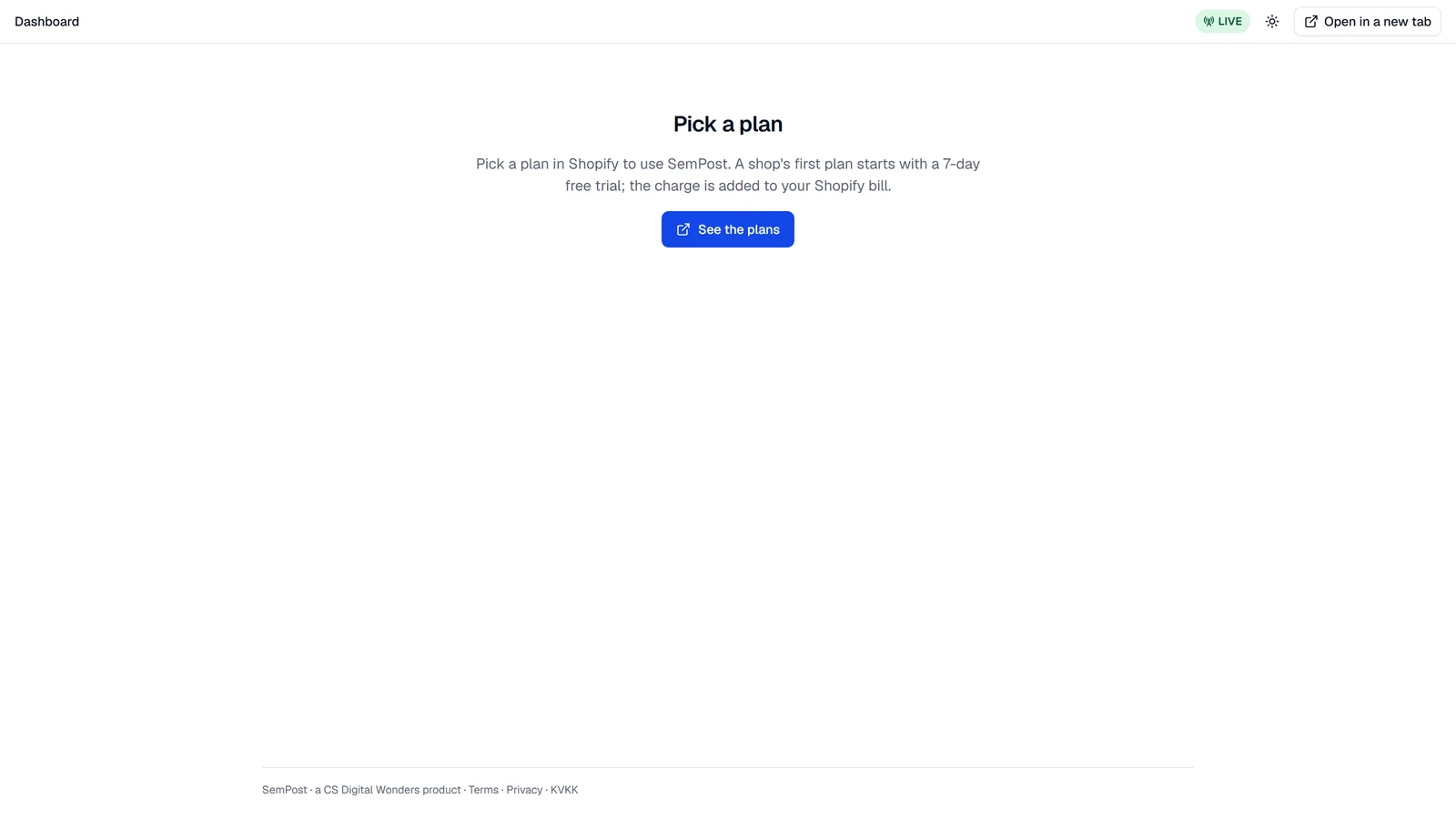
Until you pick a plan, SemPost shows Pick a plan in place of its pages. Press See the plans to open Shopify's plan page, then choose a plan and approve it there. Shopify brings you back to Settings › Billing, where your plan shows.
Follow the dashboard's list
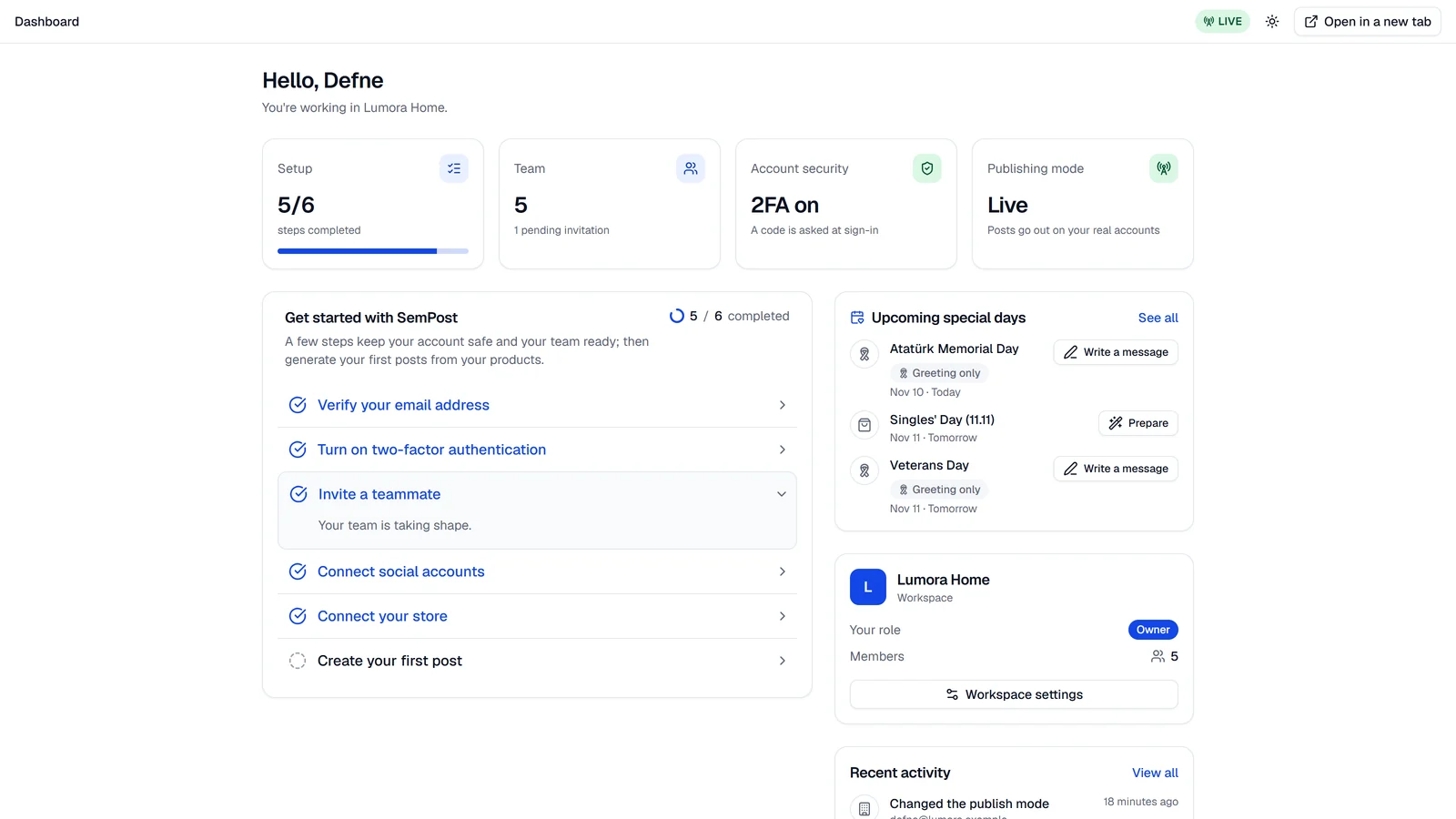
The dashboard's Get started with SemPost list shows what's left, such as connecting your social accounts; Connect your store is already ticked. The workspace starts in test mode, so nothing is published until you switch on live publishing.
Paying through Shopify
The plan goes on your Shopify bill, and so do credit packs and extra social accounts. You change or cancel the plan on Shopify's plan page: Change plan in Settings › Billing opens it. The free trial's credits come once per shop, so installing the app again doesn't bring them back.
Working inside the Shopify admin
- SemPost's pages are in the Shopify admin's sidebar, with a single Settings entry; the settings sections show as tabs at the top of each settings page.
- SemPost uses the Shopify admin's language: Turkish when the admin is in Turkish, English otherwise.
- Shopify signs you in, so there's no sign-out and no workspace switcher here. If you turned on SemPost's own two-factor authentication, the app asks for the code from your authenticator app when it opens; recovery codes work only at app.sempost.ai.
- Open in a new tab, at the top right, opens the page you're on at app.sempost.ai, signed in to the same workspace. It's handy for the Studio and other wide pages. If the browser blocks the new tab, press Open in the notice.
- Connecting a social account opens a new tab too, because the networks' sign-in pages don't open inside Shopify. Come back to the Shopify tab when you're done: the account shows up there.
Signing in at app.sempost.ai
An account SemPost made in Shopify has no password. Open in a new tab signs you in at app.sempost.ai in the same browser. To sign in anywhere else, set a password first: on the sign-in page at app.sempost.ai, press Forgot your password?, enter your Shopify account's email address and follow the link in the email. Saving the password signs you out everywhere, the Shopify admin included; sign in to Shopify again to open SemPost there.
If something goes wrong
- Shopify has not verified your e-mail. Verify your email address in your Shopify account, then open SemPost again.
- Shopify did not answer. Press Try again, or open SemPost from the Shopify admin again in a moment.
- This session was ended. Sign in to the Shopify admin again. Sign out of the Shopify admin, sign in again and open SemPost.
- This link could not be opened. A link from Open in a new tab works once, for a minute. Press Open in a new tab again.
- SemPost opens in the Shopify admin. You opened the app's Shopify address on its own. Open SemPost from the Shopify admin, or go to app.sempost.ai.