How-to guide
Two-factor authentication
Ask for a code from your phone at every sign-in, keep recovery codes for a lost phone, and require it for the whole team.
With two-factor authentication (2FA), signing in to SemPost takes your password and a 6-digit code from an authenticator app on your phone, such as Google Authenticator, 1Password or Authy. A stolen password alone can't open your account.
Turn it on
Open Security
Go to Settings › Security. Under Two-factor authentication, press Turn on 2FA.
Confirm it's you
Enter your current password and press Continue.
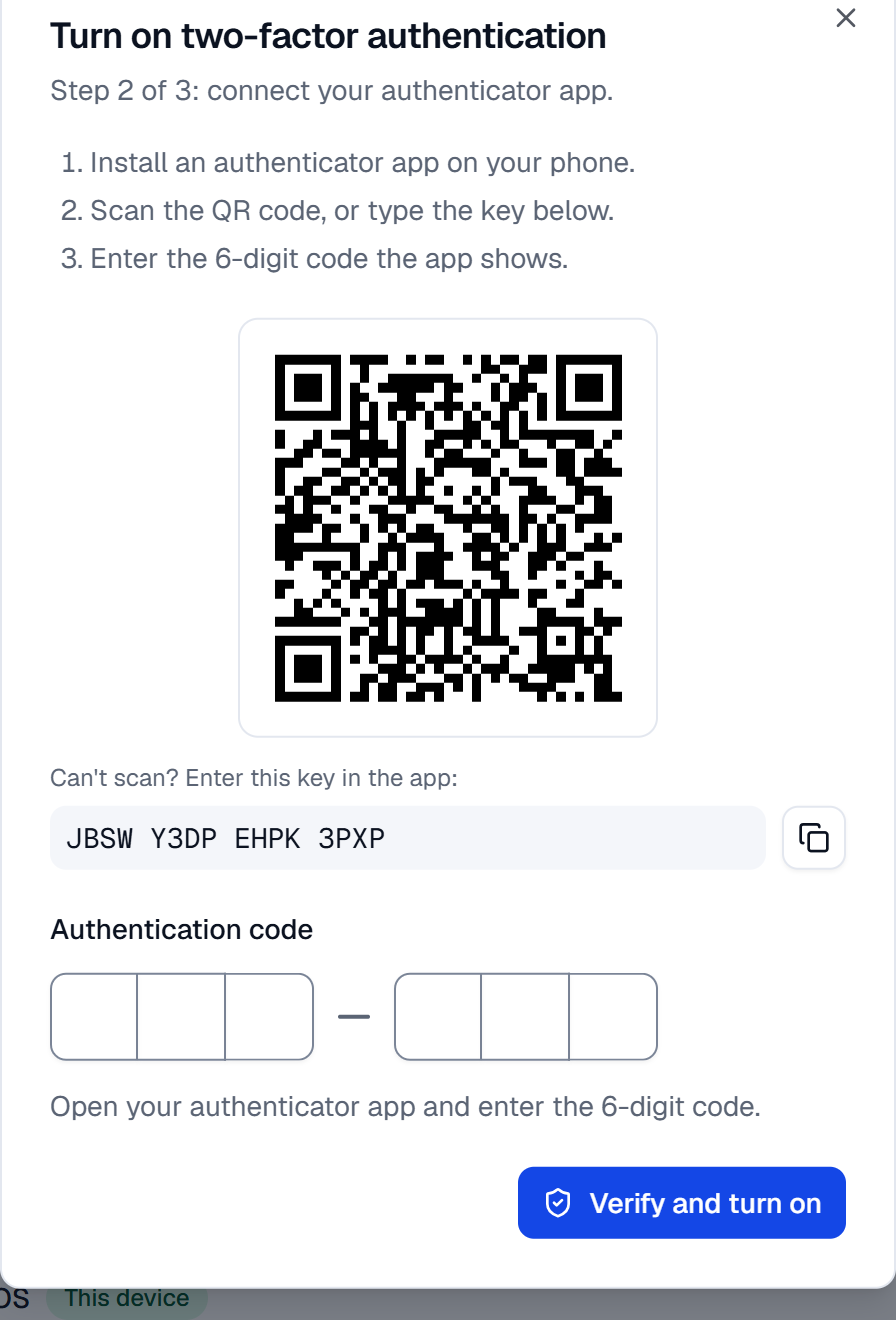
Connect your authenticator app
Scan the QR code with the app, or type the key shown under it. Enter the 6-digit code the app shows and press Verify and turn on.
Save your recovery codes
SemPost shows ten recovery codes, and only this once. Copy them or download them as a .txt file and keep them somewhere safe, away from your phone. Tick I saved my recovery codes somewhere safe. and press Done.
Signing in
After your password, SemPost asks for the 6-digit code from the app. Without your phone, choose Use a recovery code instead and enter one of the codes you saved. Each recovery code works once.
New recovery codes
Used most of your codes, or lost the list? Under Two-factor authentication, press New recovery codes and confirm with your password and a code. Your old codes stop working at once, and an email tells you new codes were made.
Turn it off
Press Turn off 2FA and confirm with your password and a code. While a workspace you belong to requires 2FA, it can't be turned off: the page names the workspace.
Require it for your team
An admin or the owner can require 2FA for everyone in the workspace: in Settings › Workspace, switch on Require two-factor authentication for the team and save. A member without 2FA is then taken to Settings › Security and sets it up before opening anything else.
Set up your own first
If you don't have 2FA yet, saving takes you to Security instead and the requirement stays off. Turn on your own 2FA, then come back and switch the requirement on.
Inside the Shopify admin
When you open SemPost in the Shopify admin, your Shopify account signs you in, so the workspace's requirement isn't asked there: turn on two-step authentication in your Shopify account to protect that sign-in too. The requirement applies at SemPost's own address, app.sempost.ai, also when you open it from Shopify in a new tab. If you turned on your own 2FA in SemPost, it asks for its code when the app opens in Shopify as well.
If something goes wrong
- The code is refused. Codes follow your phone's clock: set the phone's time to update automatically, then try the next code. A code that was just used isn't accepted a second time.
- You lost your phone. Sign in with a recovery code. Then turn 2FA off and on again with the new phone, or create new recovery codes.
- You lost your phone and your recovery codes. Write to [email protected] from your account's email address. Support makes sure it's you before turning 2FA off, which also signs you out on every device.