How-to guide
Invite your team and choose roles
Invite people by email, give each one the right role, and manage pending invitations, roles and seats.
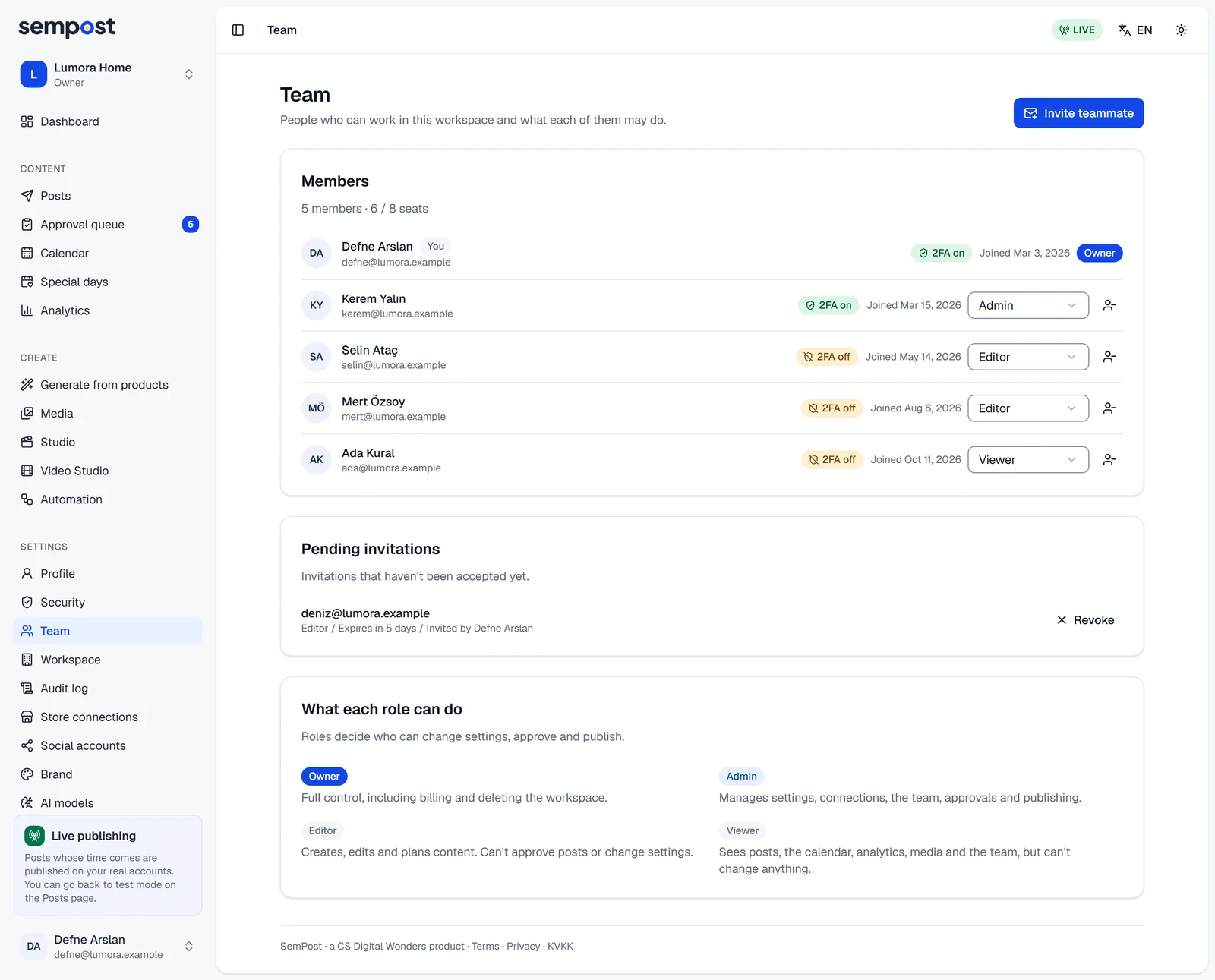
Everyone who works in a workspace is a member with one of four roles. The owner and admins invite people by email from Settings › Team, and each person joins with an account of their own.
The four roles
- Owner Everything an admin does, plus buying plans and credits and deleting the workspace.
- Admin Everything an editor does, plus the workspace's settings, store and social account connections, the team, automation rules and the publish mode. Admins approve and reject posts.
- Editor Generates and writes posts, works in the Studio, the Video Studio and the media library, schedules posts and sends them for approval. Can't approve posts, connect stores or accounts, or change settings.
- Viewer Sees the posts, the approval queue, the calendar, analytics, media and the team. Changes nothing.
The workspace's approval rule decides which posts wait for an admin or the owner. By default, what the AI and automation write waits for approval, and what your team writes by hand on the Posts page is planned right away.
Invite someone
Enter the email and the role
Enter the person's Email and choose a Role: Admin, Editor or Viewer. The line under the menu says what the role can do. Press Send invitation.
They accept
The person gets an email with an Accept invitation button. Without a SemPost account, they enter their name and a password, accept the terms and press Create account and join; there's no separate email check. With an account, they press Sign in to accept, sign in and press Accept invitation.
Pending invitations
An invitation works for 7 days. Until it's accepted, Pending invitations lists it with its role, when it expires and who sent it. Revoke stops its link at once. An expired invitation leaves the list by itself. To send the email again, revoke the invitation and invite the person again.
Change a role or remove someone
In a member's row, pick the new role from the menu: it changes at once. To remove someone, press the button at the end of their row and confirm with Remove from team. They lose access to the workspace right away; you can invite them again later. Nobody can change their own role or remove themselves.
Admins manage admins, editors and viewers; only an owner can make someone an owner or change an owner's role. An invitation can't make someone an owner: invite the person first, then choose Owner in their row once they've joined.
The owner
Whoever creates the workspace is its owner. A workspace can have several owners and always keeps at least one. To hand the workspace over, make another member an owner; they can then change your role or remove you.
Seats
Each member and each pending invitation takes a seat; expired and revoked invitations don't. How many seats you have depends on your plan (see pricing). Members shows how many are in use, such as 6 / 8 seats. When they're all taken, Invite teammate is greyed out: revoke a pending invitation or remove a member, or the owner can move to a plan with more seats.
Each row also shows whether the member uses two-factor authentication: 2FA on or 2FA off.
If something goes wrong
- This person already has a pending invitation. Find it under Pending invitations: revoke it and invite again, or wait for them to accept.
- You're already a member of this workspace. When you see this while inviting, the address belongs to a member already. Change their role in their row instead.
- A workspace needs at least one owner. Make someone else an owner first. Make another member an owner before you change the last owner's role or remove them.
- The invitation link doesn't work. The person sees This invitation has expired. Ask for a new one. or This invitation wasn't found. It may have been revoked. Send them a new invitation.
- The person is signed in with another account. The invitation page says so: they press Sign out and switch account, then accept with the invited address.