Tutorial
Your account and workspace
Create your SemPost account and first workspace, then find your way around the dashboard, the workspace switcher and the workspace's settings.
Your SemPost account is your own: your email address, your password and your language. A workspace is where the work happens: it holds one business's store, social accounts, posts and team. You can belong to several workspaces and switch between them.
Create your account
Sign up
Press Start free at the top of this site, or go to app.sempost.ai/register. Enter your Full name, Email and a Password, and pick your Language: SemPost shows its pages and sends you emails in it. Tick I accept the Terms of Service., complete the security check and press Create account.
Verify your email address
SemPost sends you an email: press Verify my email in it. The link works once, for 48 hours, and you can't sign in until your address is verified. Nothing arrived? Look in your spam folder, or press Send the verification link again on the Check your inbox page.
Create your workspace
Sign in. SemPost asks for a Workspace name: usually your store's or your brand's name, and you can change it later. Press Create workspace. You're the workspace's owner.
The first workspace you create starts a 7-day free trial; a workspace you create later doesn't get another one. The plans are on the pricing page.
The dashboard
The dashboard opens when you sign in. Four cards sum up the Setup, the Team, your Account security (whether two-factor authentication is on) and the Publishing mode, test or live.
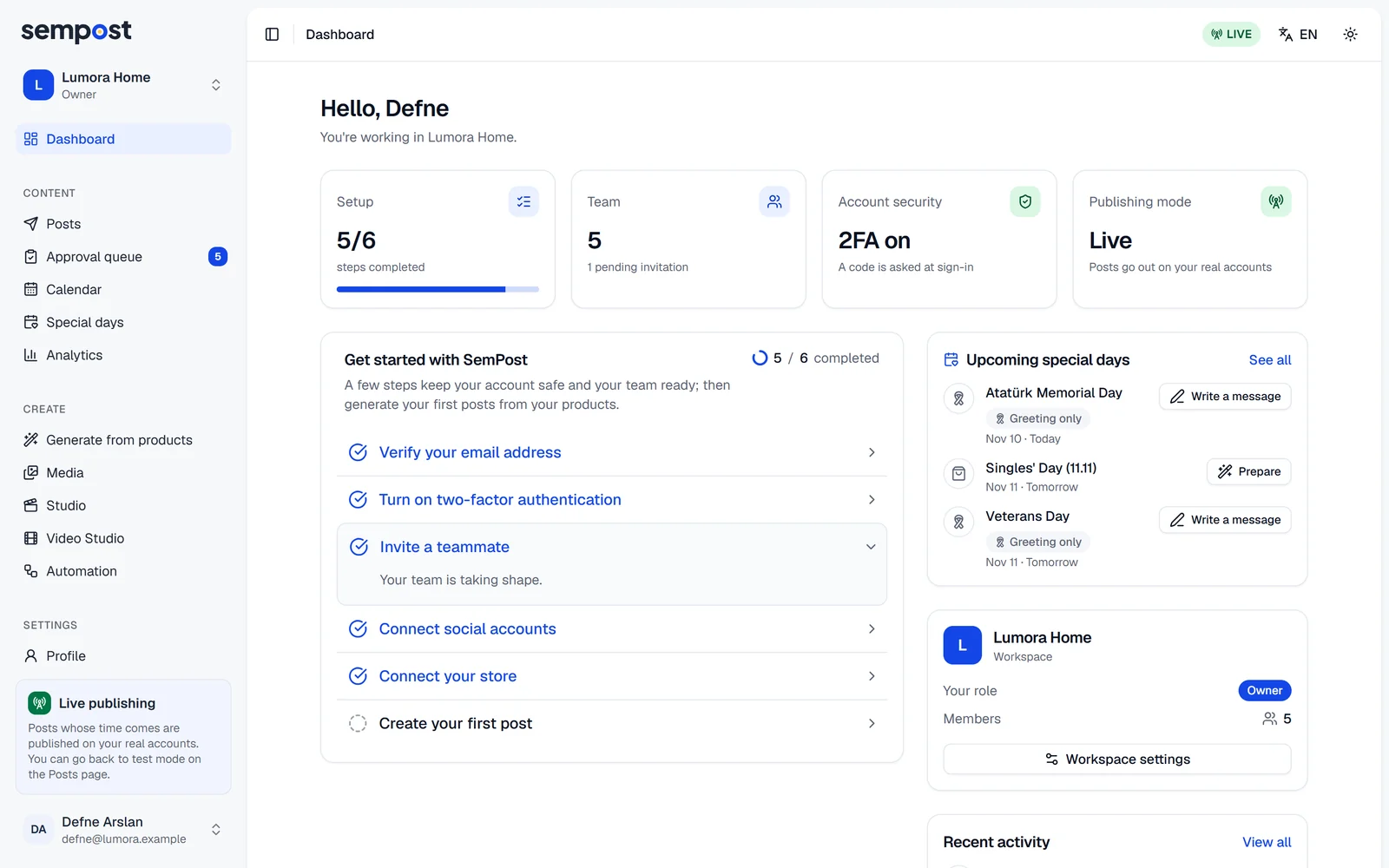
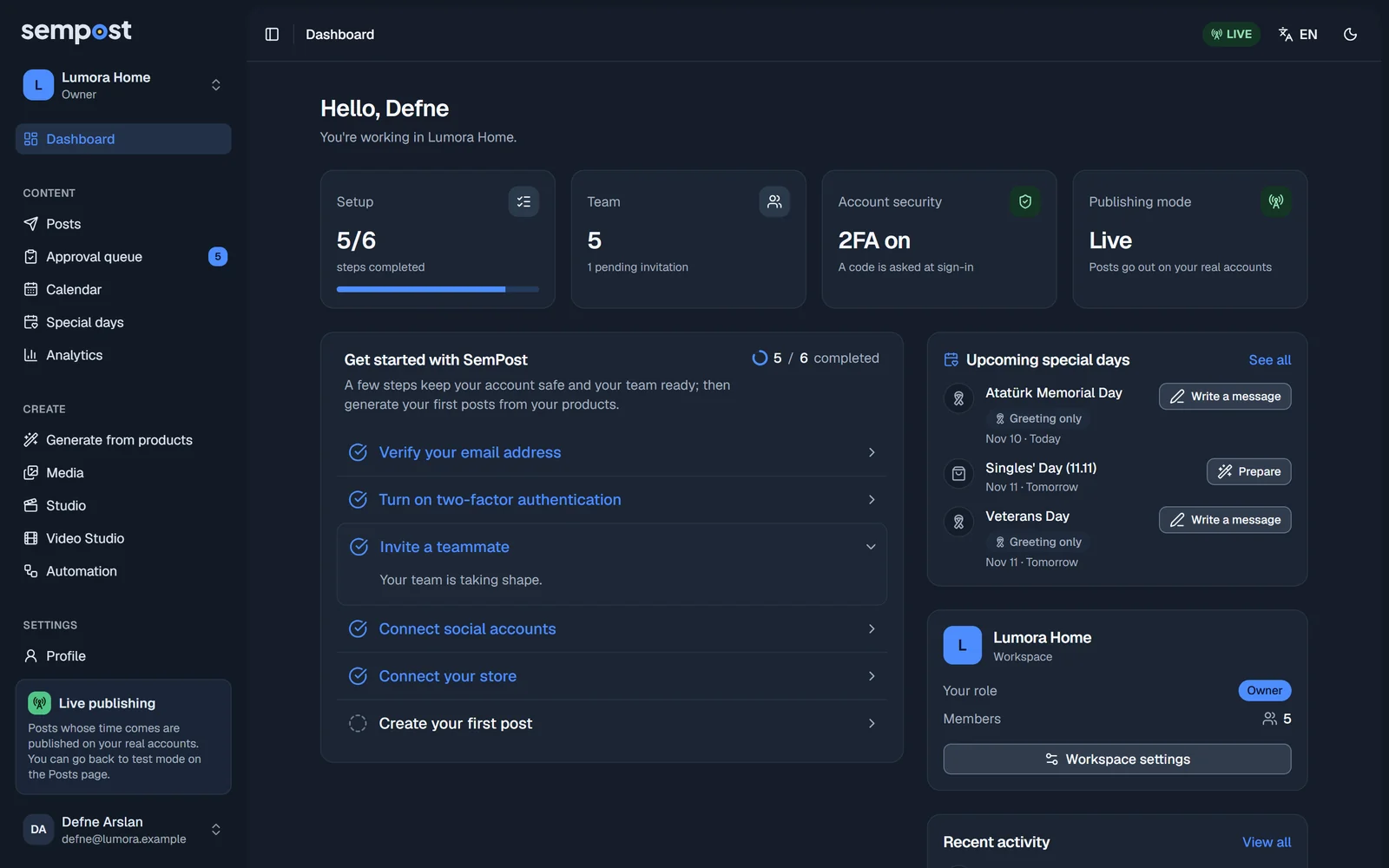
Get started with SemPost lists the first steps and ticks each one when it's done. Press a step to open it: a step that isn't done has a button that takes you there.
- Verify your email address
- Turn on two-factor authentication
- Invite a teammate
- Connect social accounts
- Connect your store: Shopify, WooCommerce or a product page address.
- Create your first post: opens Generate from products, and is ticked once your first generation has started.
The list follows your role. Admins and the owner see every step; editors see the two account steps and the first post; viewers see the account steps only.
Beside the list, the workspace card shows Your role and the number of Members; Workspace settings opens the settings below. Admins and the owner also see Recent activity, the latest entries of the workspace's audit log.
Switch between workspaces
The workspace you're in sits at the top of the sidebar, with your role under its name. Press it: Workspaces lists every workspace you belong to and your role in each. Pick one to switch to it. On a phone, open the sidebar with the button at the top left first.
To add a workspace, choose Create a workspace at the bottom of the list, enter its name and press Create workspace.
The workspace's settings
Go to Settings › Workspace. The owner and admins can change these settings; other members can only look at them.
- Workspace name: what your team sees, also in emails.
- Time zone: the calendar and scheduled posts follow it. A workspace you create here starts in Europe/Istanbul; if your business keeps another time, change it before you schedule anything.
- Business country: some features are offered by region, such as Comment to DM. Without a country, your time zone's country counts.
- Workspace language: the default language of emails and new content. It starts as your own language. Each person still picks their own panel language in Settings › Profile.
Press Save changes. The same page holds the rule that requires two-factor authentication for the whole team.
If something goes wrong
- We couldn't verify your email. The link is old or was already used. Ask for a new one under Get a new verification link on the same page.
- Verify your email address before signing in. Open the link in your inbox first; the sign-in page can send it again.
- An email says you already have a SemPost account. That address has an account already: sign in, or choose Forgot your password? on the sign-in page.
- Sign-up is closed. New accounts can't be created right now. If you were invited, use the link in your invitation email.