How-to guide
Change your plan
Move to a bigger or smaller plan, or between monthly and yearly billing, and see what you pay and when each change starts.
With a running subscription, the workspace's owner changes the plan or the billing interval in Settings › Billing. Before anything changes, a window shows what you pay today, the credits you get now and what the next renewal costs.
Change the plan
Pick the plan
In Settings › Billing, choose Monthly or Yearly above Plans, then press Change plan on the plan you want. To switch only between monthly and yearly billing, choose the other one and press Change plan on the card marked Your plan.
Read the window
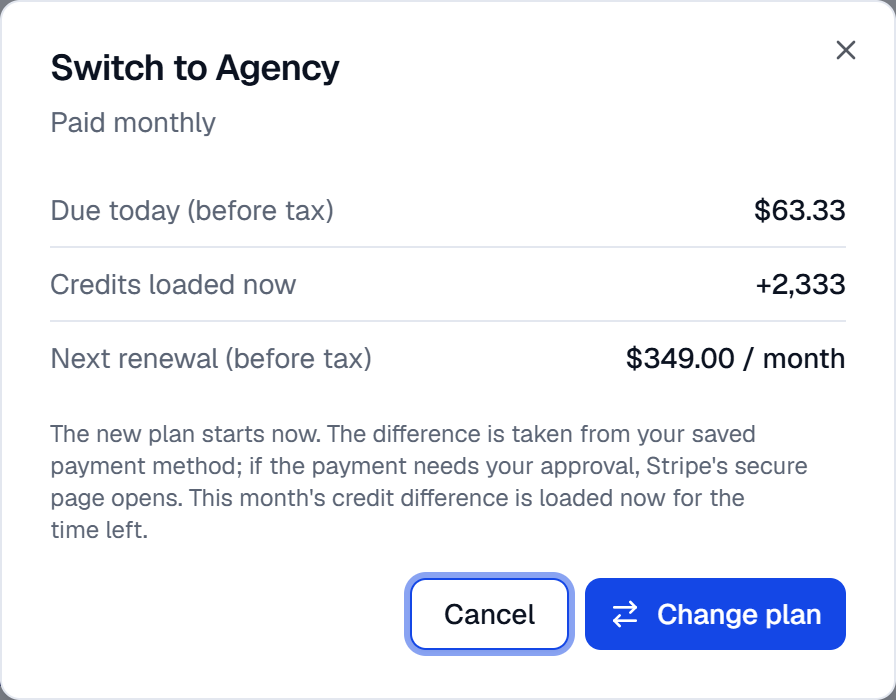
Switch to … shows Due today (before tax) and Credits loaded now for a change that starts now, or Takes effect on for one that waits, and the Next renewal (before tax). The note under them says what happens.
Remove what doesn't fit
A smaller plan lists what the workspace uses beyond its limits, under Before switching to …: stores, seats (members and pending invitations), active automation rules and social accounts. Each line links the page to fix it, and Change plan stays off until nothing is listed. For social accounts, you can instead tick Keep the … accounts over the plan as extra accounts: they're billed as extra social accounts from the renewal.
Press Change plan
The page says Your plan has changed. or The plan change takes effect on …. If your bank asks to approve the payment, Stripe's secure page opens: see below.
What each change does
- A bigger plan starts now. The difference for the rest of the period is taken from your saved payment method, and the credit difference for what's left of the month loads at once.
- Monthly to yearly starts today, with a new yearly period. The unused part of this month comes off the yearly price, and the rest is taken at once. This month's remaining plan credits end, and the new period's first month of credits loads. If you used more of this month's credits than the days that passed allow, that much comes off the new credits; the window says how many. You can move to a bigger plan in the same step.
- A smaller plan starts at the end of the period you paid for, and nothing is charged now. Your plan stays until then, but the accounts, stores, members and rules you add must fit the smaller plan. Its analytics period and media library size apply from its first day.
- Yearly to monthly starts when the yearly period ends and keeps the plan. For a smaller monthly plan, first change to the smaller plan with Yearly chosen, then switch to monthly. While the switch waits, no other change can be made.
Monthly to yearly can come with a bigger plan. Any other change of both the plan and the interval is made one at a time.
Take a change back
A change that waits shows on the Your subscription card, such as Your plan becomes … on …. Press Take back the change: the subscription goes back to what you paid for this period, and so does the number of extra accounts.
When Stripe asks for approval
If the payment for a bigger plan needs your approval, Stripe's secure page opens for the difference. It stays open for an hour; if you don't pay, nothing changes. If your plan or its period changes before you pay, the payment can't apply: the page says Your payment went through, but your subscription changed in the meantime, so it could not be applied. We will refund the payment. and the plan stays as it was.
A workspace that pays through Shopify changes its plan on Shopify's plan page: see Paying through Shopify.
If something goes wrong
- The subscription is cancelled. Renew it under Manage subscription before changing the plan.
- The last payment failed. Update the payment method before changing the plan. See When a payment fails.
- A switch to monthly billing waits for the end of the yearly period. Take it back before another change.
- This change cannot be made now. Change the plan and the billing interval one at a time, or contact support.
- The payment could not be taken; the plan did not change. Update the payment method and try again.