How-to guide
Set up your brand
Give the AI your brand's name, voice and words to avoid, put your logo on pictures and videos, and set your defaults and hashtag sets.
Settings › Brand holds what makes your posts sound and look like your shop: your logo, the voice the AI writes in, the words it must not use, the choices Generate from products starts with, and your hashtag sets. Everyone in the workspace can see the page; admins and the owner change it.
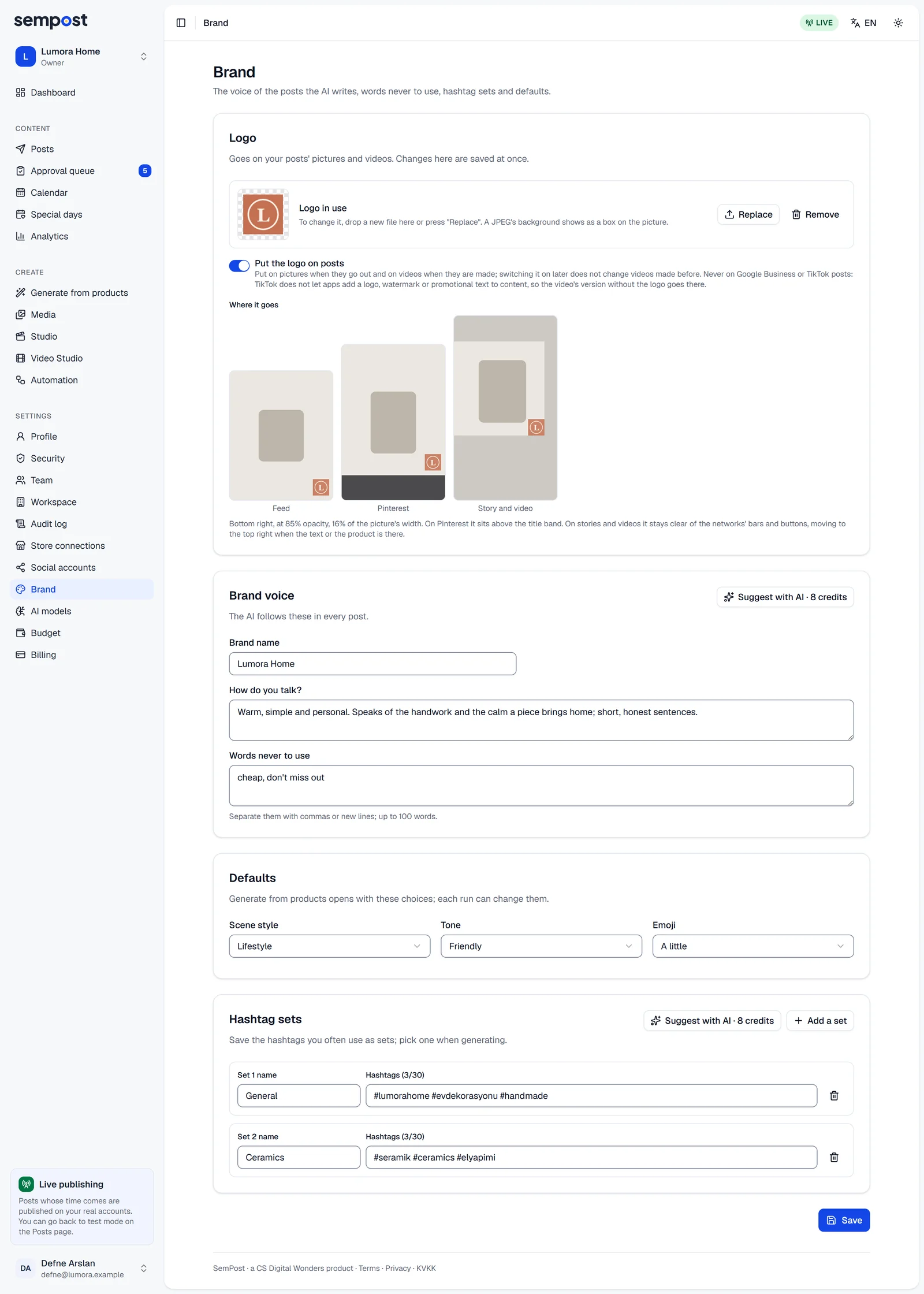
Put your logo on posts
Upload the logo
Under Logo, drop the file in the box or click the box to choose it: PNG, WebP or JPEG, up to 5 MB and at least 64 pixels on its longer side. A PNG with a transparent background looks best; a JPEG's background shows as a box on the picture. The logo is saved at once, without Save. To change it later, press Replace.
Switch it on
Switch on Put the logo on posts. Where it goes shows its place: bottom right, at 85% opacity, 16% of the picture's width. On Pinterest it sits above the title band; on stories and videos it stays clear of the networks' bars and buttons, and moves to the top right when the text or the product is there.
A picture gets the logo when it goes out, so a change reaches every picture published after it, also in posts that are already planned. A video SemPost makes gets the logo when it's made: switching the logo on, replacing it or removing it doesn't change videos made before. A video you upload, and a picture added to a post From a link, go out as they are. Remove also turns the switch off. TikTok and Google Business Profile posts never carry the logo: TikTok doesn't let apps add one, so its posts get the version without it.
Describe your brand voice
Under Brand voice:
- Brand name: your brand as customers know it.
- How do you talk?: a few sentences on your tone, how you address customers and what you stress or avoid, up to 500 characters.
- Words never to use: separated by commas or new lines, up to 100 words. The AI is told never to use them.
The AI follows these whenever it writes posts: in Generate from products, in automation rules, in the Studio when the AI writes the posts, and with Rewrite the text. The AI writer on the Posts page follows the voice unless you pick another tone there.
Suggest with AI reads up to 30 products of your connected store (the first one, if you have several) and writes a voice and up to eight words to avoid, in the workspace's language. The voice replaces what's in the box, the words are added to yours, and the brand name is filled in if it's empty. It costs credits, shown on the button. Nothing changes until you press Save.
Choose the defaults
Scene style, Tone and Emoji under Defaults are what Generate from products and a new automation rule start with; each run can change them. SemPost default means Lifestyle, Friendly and A little. After a run, Generate from products remembers your last choices in that browser, and those come first. When the AI writes posts in the Studio, it always uses the default tone and emoji. What each choice does: Scene styles, tones, languages and labels.
Save hashtag sets
Press Add a set, name it and type its hashtags, with or without #, separated by spaces or commas: up to 30 in a set, and up to 20 sets. A set without a name or hashtags isn't kept. Suggest with AI here adds two to four sets made from your products.
Your sets are used in three places:
- In Generate from products, pick one under Hashtag set: the AI prefers its hashtags, within each network's limit.
- In the Studio, Add from a brand set adds a set's hashtags, and Let the AI suggest prefers them.
- The AI writer on the Posts page uses them when they fit.
Press Save at the bottom of the page to keep the brand voice, the defaults and the sets.
If something goes wrong
- Upload the logo as a PNG, WebP or JPEG image. Other formats, such as SVG, aren't taken: export the logo as a PNG.
- The logo can be at most 5 MB and 12 megapixels. Make the picture smaller and upload it again.
- The logo is too small: use one at least 64 pixels on its longer side.
- Suggest with AI is greyed out. Suggestions are made from your products: connect a store first.
- Only owners and admins can change the brand settings. Your role can only look at this page: ask an admin or the owner.