How-to guide
Connect your social accounts
Connect your accounts on Instagram, Facebook, TikTok and six more networks so SemPost can publish to them, and see what each network asks for.
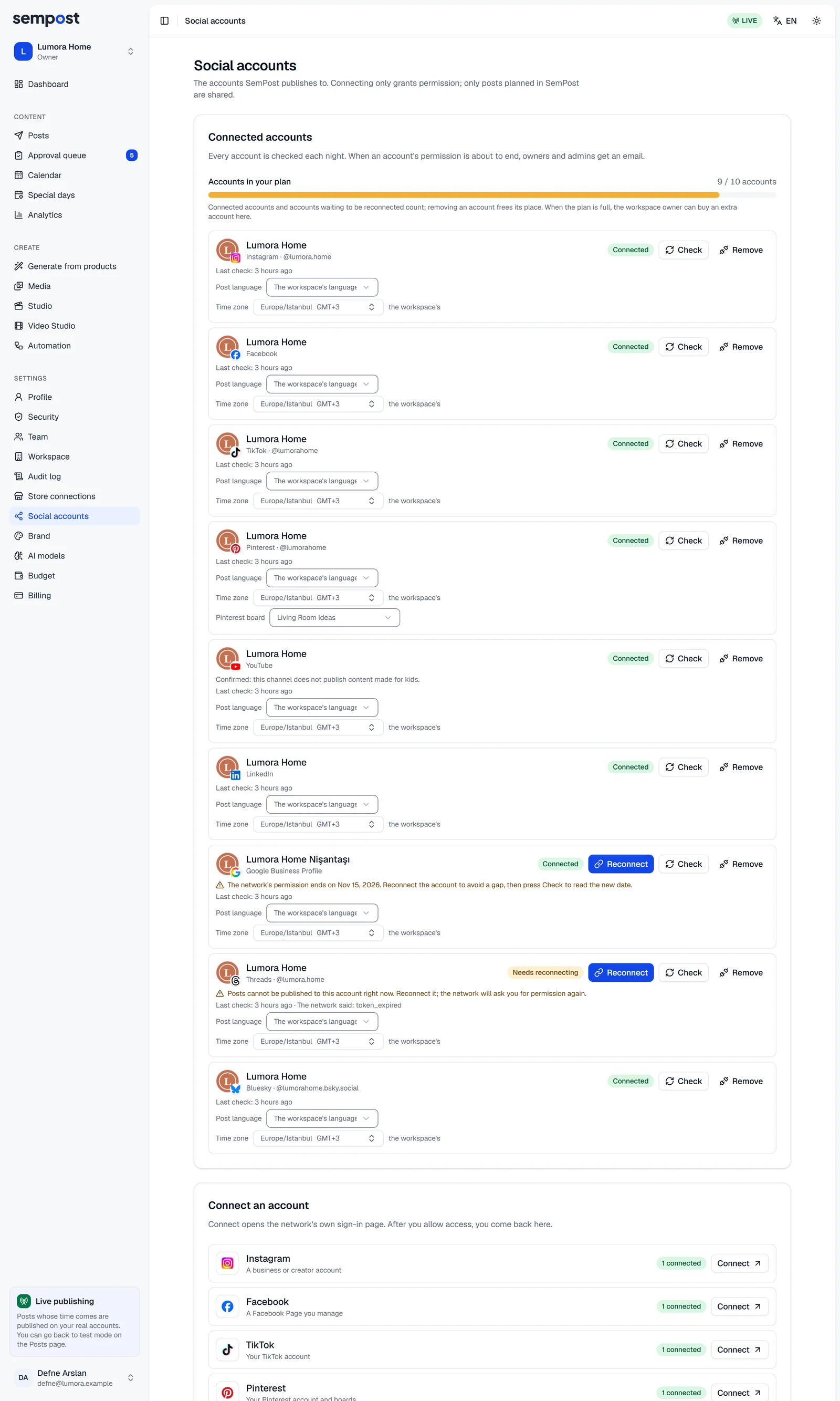
SemPost publishes to the accounts you connect in Settings › Social accounts. Connecting only gives permission: nothing goes out until a post is planned for the account. You can connect accounts on nine networks (Instagram, Facebook, TikTok, Pinterest, LinkedIn, YouTube, Threads, Google Business Profile and Bluesky), and several accounts on the same network.
Connect an account
Choose the network
Go to Settings › Social accounts. Under Connect an account, each network shows what you can connect and how many of its accounts are connected. Press Connect next to the network.
Read the dialog and continue
A dialog says what happens next. The network's permission screen shows the app of our publishing partner Zernio, not SemPost; on Instagram it's called "Social Media Connector". You type your password only on the network's page.
The network connects the account that's signed in in this browser. To connect another one, press Open in a new tab: … under Signed in with the right account?, switch accounts on the network, then come back to the dialog. For YouTube and Google Business Profile, you pick the account in Google's account chooser instead.
Press Continue to …, for example Continue to Facebook.
Allow access
Sign in if the network asks, choose what to connect, such as one of your Facebook Pages, and allow access.
Come back to SemPost
The network sends you back. SemPost checks its answer and opens Social accounts again with a notice such as "Lumora Home connected": the account is now under Connected accounts.
What each network asks for
- Instagram: a business or creator account. The dialog asks How should Instagram connect? With Facebook (recommended) needs the Instagram account to be linked to a Facebook Page, which you pick on Facebook; its Reels can then carry tracks from Instagram's music library. With Instagram needs no Facebook Page, but Reels can't carry Instagram music. An account connected With Instagram and later With Facebook may show up twice: remove the old row.
- Facebook: a Facebook Page you manage.
- Pinterest: after you allow access, SemPost shows Choose the Pinterest board. Pick a board and press Connect with this board: the account's pins go there. You can change it later under the account, in Pinterest board, or choose another board for a single job when generating.
- LinkedIn: your profile or a company page you manage.
- YouTube: your channel, once you confirm that it doesn't publish content made for kids: see Connect a YouTube channel.
- Google Business Profile: your Business Profile location.
- TikTok, Threads and Bluesky: your account.
Every account you connect takes one place in your plan: see How many accounts you can connect.
Who can connect
Owners and admins connect and remove accounts. Other members see the same page without the Connect buttons; editors can still press Check on an account.
Inside the Shopify admin
The networks' sign-in pages don't open inside Shopify. When you continue in the dialog there, SemPost opens app.sempost.ai in a new tab, signed in to the same workspace, and shows the same dialog: continue in it. When you're done, come back to the Shopify tab; the account shows up there. If the browser blocks the new tab, press Open in the notice.
If something goes wrong
- The … connection was not finished (with the network's name): you didn't come back from the network, which usually happens when the account is switched on its consent screen. Sign in to the network with the account you want, then press Try again.
- This connection step has expired or was already used. Start again. A connection has 15 minutes to finish and works once. Press Connect again.
- The account could not be connected. The network said: … The network's reason follows, for example when access wasn't allowed. Connect again and allow access.
- This Pinterest account has no boards. Create one on Pinterest, then connect again.
- All … social accounts in your plan are in use. See How many accounts you can connect.
- Connecting accounts is off right now: the publishing service is being set up or is under maintenance, so the Connect buttons are off. Your connected accounts are not affected; try again later.