Prompts that keep your product unchanged: logo, color and shape
A good product prompt names what must not change as precisely as it describes the new scene. You get a copyable lock list, a five-point check and a reusable template for every product.
By SemPost EditorialWritten with AI
Published 9 min read
In this article
You already know how to ask for a place, a light, a surface and an angle. The scene looks great. Then you notice the logo on the bottle now reads something slightly different, the navy has turned purple, and the handle is a little thicker than the real one.
This article gives you a method to prevent that and a check to catch what slips through. A prompt can reduce drift. It cannot remove it, so the check matters as much as the prompt.
How AI pictures change a product without telling you
Drift is rarely dramatic. It is small, and it is easy to miss on a phone screen. These are the usual kinds:
- A redrawn or garbled logo. Letters swap, a symbol loses a stroke, or the logo moves a few millimeters and changes size.
- A shifted color. Warm sunset light pushes a navy product toward brown. A green surface tints a white one.
- A changed proportion. The mug gets taller, the strap gets thinner, the lid sits differently.
- A lost or invented detail. A stitch disappears, a button is added, a care label turns into unreadable gibberish.
In plain words, the cause is this. When you ask an image tool for a new scene, it often repaints the whole picture, product included. Whatever you did not name as fixed is open to change. The tool is not being careless. It is filling in what you left unsaid.
For a shop this matters because the buyer receives the real product. A picture that differs from it, even slightly, creates returns, complaints and a loss of trust that is hard to win back. One drifted logo on a best seller can cost more than a plain photo ever would.
Start from the right job: edit the scene, don't redraw the product
Before you write any prompt, decide what job you are giving the tool. There are three, and the right one depends on the product.
| Situation | Best job | Why |
|---|---|---|
| Sturdy product, clear shape, simple logo (a mug, a bottle, a plain tote) | Keep the real photo, change only the background or surroundings | The product pixels stay yours, so drift risk is lowest |
| You need a different angle, a lifestyle setting or a scene the original photo cannot support | Generate a new scene from a reference photo | The tool redraws the product, so the lock list and the check matter most |
| Tiny print, fine text, transparent or reflective products (glassware, jewelry, polished metal, ingredient labels) | Shoot a real photo instead | Small text and reflections are exactly where redrawing fails |
Two habits help whichever job you choose.
Use a clean reference photo. Sharp focus, even light, no harsh shadows across the logo, the whole product in frame. The less the tool has to guess, the less it invents. Google's image generation documentation (opens in a new tab) describes working from a text prompt together with a reference image, and the same logic applies: the reference carries the facts, and the prompt tells the tool what to do with them.
Pick the lightest job that gets the result. If a new background is enough, do not ask for a new angle too. Every extra change gives the tool more room to redraw.
For how this works inside SemPost, see Edit pictures and make scenes (opens in a new tab) and Rewrite the text or make a new image (opens in a new tab).
The lock list: say what stays, then say what changes
The method is simple. Write one "keep exactly" sentence before the scene sentence. Then describe the free part briefly. Then add a short "avoid" line.
What the "keep exactly" sentence covers
- Logo: where it sits, how large it is, its exact spelling and its color.
- Colors: named in words, for the body, the trim and the print.
- Shape and proportions: straight or tapered, round or square, the position of handles, straps and lids.
- Material and finish: matte, glossy, brushed, woven, ribbed.
- Visible details: stitching, buttons, zippers, labels, seams.
Describe the real product, not an impression of it
Adjectives like "beautiful" or "premium" tell the tool nothing it can hold on to. Plain facts do. Compare:
- Weak: "a beautiful navy bottle"
- Stronger: "matte navy bottle, white logo centered on the front, straight sides, black screw cap"
If you can point at it on the real product, write it down.
Keep the free part short
The scene sentence only needs place, light, surface and angle. Our earlier article on prompting a product scene covers those four in detail, so we will not repeat it here. The rule for this article is that the scene gets one or two sentences, and the product gets more words than the scene.
An example with a lock list
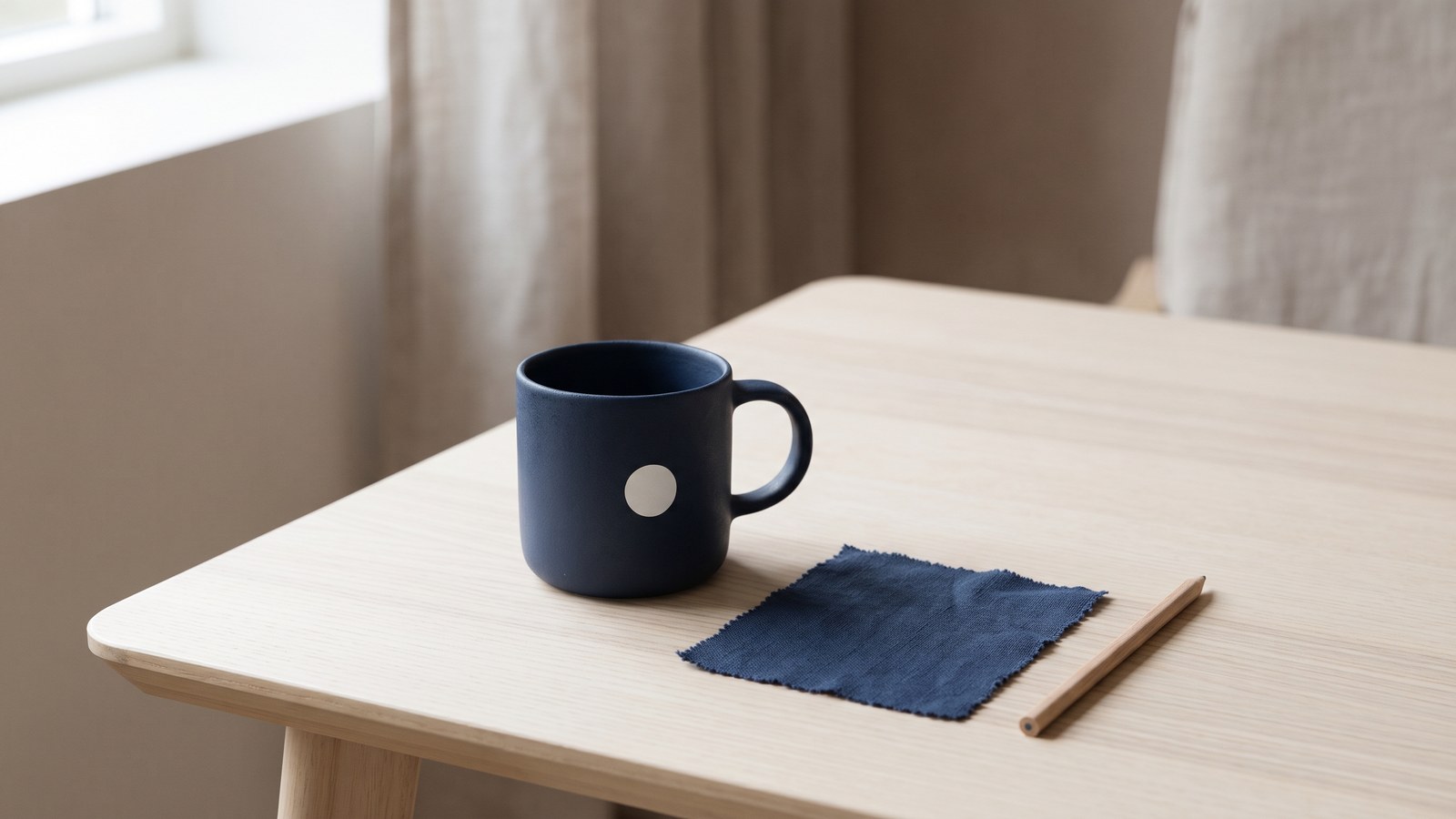
This example uses a made-up brand, Kestrel Goods.
KEEP EXACTLY: the matte navy ceramic mug with straight sides and a
round handle on the right. The white logo reads "KESTREL GOODS" in
capital letters, centered on the front, same size and position as in
the reference photo. Keep the matte finish and the thin white line
inside the rim. Do not alter the shape or proportions.

CHANGE ONLY THE SCENE: place the mug on a pale oak table beside a
window, soft neutral daylight from the left, shot from a slight angle
above.

AVOID: added text, extra logos, any change of color, extra parts,
a different handle.
Here is a weaker version of the same request:
Create a beautiful lifestyle photo of this mug on a rustic wooden
table with warm, cozy sunset light. Make it look premium.
Why it drifts: nothing is named as fixed, so everything is open. "Warm sunset light" invites the navy to slide toward brown or purple. "Premium" invites the tool to improve the product, which means changing it. And the logo is never mentioned, so it is treated as part of the picture to repaint.
Add what to avoid
The "avoid" line works as a second fence. The usual entries are: no added text, no extra logos, no change of color, no extra parts. Add anything you have seen go wrong before on that product.
Tip
When a drift appears, do not rewrite the whole prompt. Add the failed point to the lock list in specific words, such as "the handle stays round and thin, never square", and run it again. Specific corrections work better than general ones like "be more accurate".
Color: the light in the scene changes the color of the product
Color is the drift that is hardest to see and most expensive to ignore. Warm or colored light, and colored surfaces nearby, change how a product looks, in real photography as well as in AI scenes. A tool that simulates that light will shift your product's color along with it.
What to do:
- Name the product's color in words inside the lock list: "deep navy", "off-white", "forest green". Add "color stays exactly as in the reference photo".
- Choose neutral or softly lit scenes when accuracy matters most: a brand color, a dye lot, a product sold in a range of shades, or a sizing chart where color coding carries meaning.
- Keep surfaces and props quiet. A bright red tablecloth will tint a white product. A pale wood or light gray surface is safer.
- Compare with the real product in daylight, not only on a screen. Screens differ in brightness and color settings, so two people can see the same file differently. Hold the physical item by a window and look at both.
Watch out
A prompt reduces color drift. It does not remove it. Treat the check in the next section as part of the process, not an optional extra.
The five-point check before you post
Run this on every AI picture of a product, every time. It takes a minute.
- Logo: spelled correctly, placed and sized as on the real product.
- Color: matches the real product, checked against the item in daylight.
- Shape and proportions: match the real product, with nothing stretched, thickened or shortened.
- No inventions: no added parts, no new text, no extra logos, no missing details.
- Buyer's view: the product looks the way the buyer will receive it.
Two habits make the check reliable. First, zoom in on edges, text and small parts, because that is where drift hides. Second, hold the original photo beside the result, on the same screen or on a printout, and compare feature by feature. Memory is a poor judge here.
What to do on a miss
You have three options, in this order:
- Regenerate with the failed point written into the lock list.
- Crop or reframe so the problem area is out of the picture, if it is a small, non-essential part and the remaining picture is still honest.
- Fall back to the original photo with a simple, clean background. A plain truthful picture beats a beautiful wrong one.
Pictures made or edited with AI may also need to be marked as such, depending on the network and your market. See AI labels on your pictures and videos (opens in a new tab) for how labeling works in SemPost.
Honest pictures: a general note
Beyond trust, there is a legal side. In many countries, advertising rules require that a picture does not mislead the buyer about the product. In the United States, the Federal Trade Commission (opens in a new tab) deals with deceptive advertising. In the EU, rules on unfair commercial practices cover misleading presentation. Other markets have their own versions.
The main risk with AI product scenes is simple: a picture that shows a feature, color or size the real product does not have. A redrawn logo that looks like a different brand mark, a bag that appears larger than it is, or a finish the product lacks can all fall into this category. The lock list and the five-point check are practical protection against exactly that.
Check the rules that apply in your own market, including any rules on labeling AI-made images, and keep the check habit even when a picture "looks close enough".
Note
This is general information, not legal advice. For questions about your own shop, ask a qualified professional in your market.
Your lock-list template
Save this once per product and reuse it every time that product appears in a prompt.
Product name:
Logo: exact text or symbol, position, size, color
Exact colors: body, trim, print (in plain words)
Shape and proportions: outline, handles, straps, lids, relative size
Material and finish: matte, glossy, woven, brushed
Details that must stay: stitching, buttons, labels, seams
Must not appear: added text, extra logos, color change, extra parts
Keep the filled-in template with the product's reference photo, in the same folder or the same record, so everyone on the team prompts the same way and nobody rewrites it from memory. If you set up your brand details in SemPost, Set up your brand (opens in a new tab) is the place to keep the shared facts together.
Your next step: write the lock list for your three best-selling products today, run one scene for each, and apply the five-point check before anything is posted.