Explanation
Use SemPost inside Shopify
What works the same in your Shopify admin, what's different there, and when to open SemPost in a tab of its own.
When you install SemPost from the Shopify App Store, it opens inside your Shopify admin. It's the same SemPost, with the same pages, working in your shop's workspace. Shopify signs you in, so a few things work differently, and a few pages are only at SemPost's own address, app.sempost.ai. Installing and picking a plan are in Start from the Shopify App Store.
Shopify signs you in
Opening SemPost from the Shopify admin signs you in with your Shopify account: there's no SemPost sign-in page, password or sign-out here. SemPost goes by your Shopify account's email address, which Shopify must have verified.
- If you already have a SemPost account with that address, it's the same account, with its password, its two-factor authentication and its other workspaces. The shop's workspace is added to it.
- If you don't, SemPost makes an account for you, without a password. To sign in at app.sempost.ai from another browser, set a password first, as Start from the Shopify App Store explains.
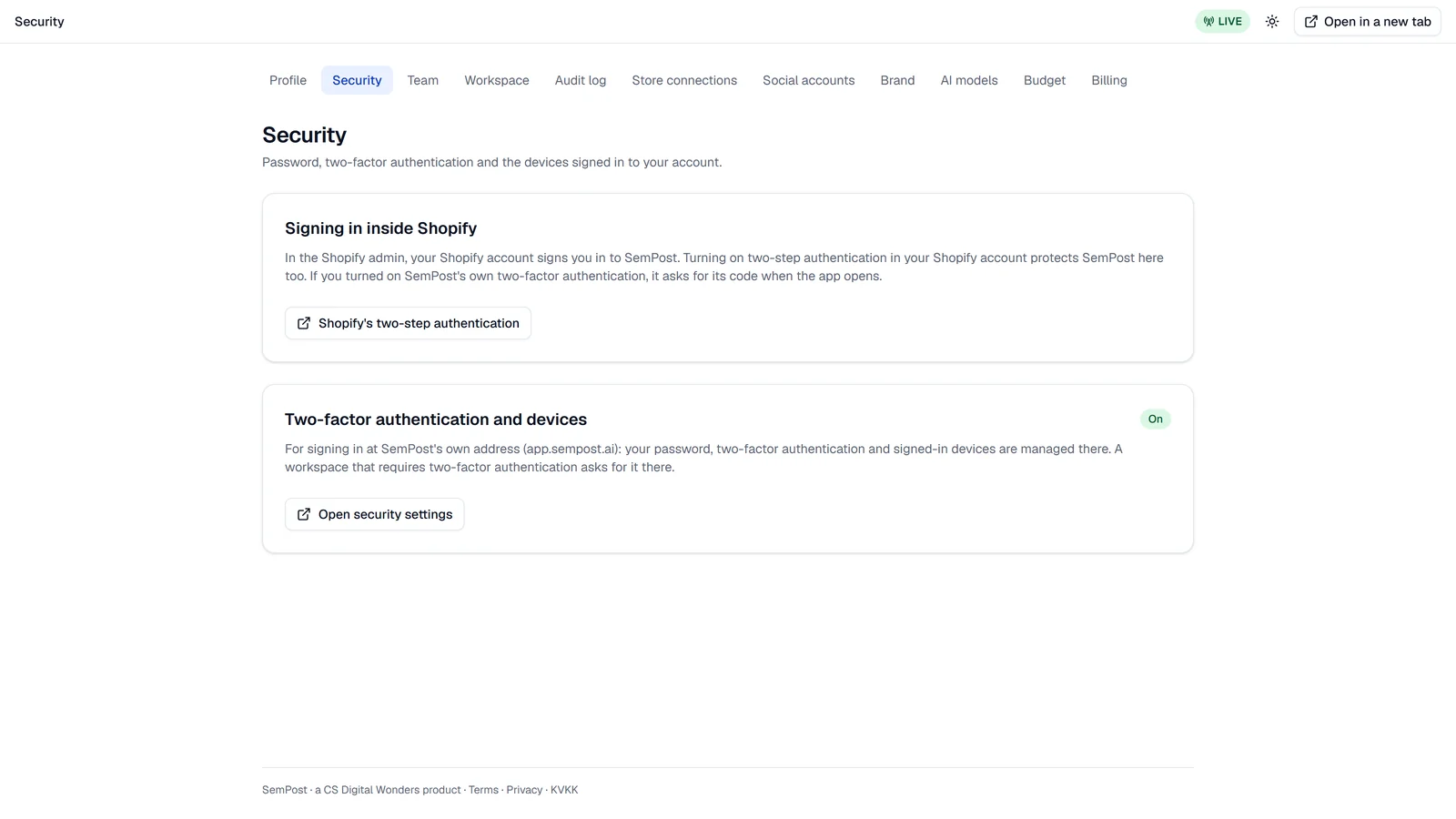
If your SemPost account uses two-factor authentication, SemPost asks for the 6-digit code from your authenticator app on its Two-factor authentication screen when it opens. Recovery codes work only at app.sempost.ai. A workspace's rule that requires two-factor authentication for the team isn't asked here, because Shopify's sign-in stands in for it; the rule applies at app.sempost.ai. Settings › Security says so, and its Shopify's two-step authentication button opens Shopify's help on protecting your Shopify sign-in.
Your shop's workspace
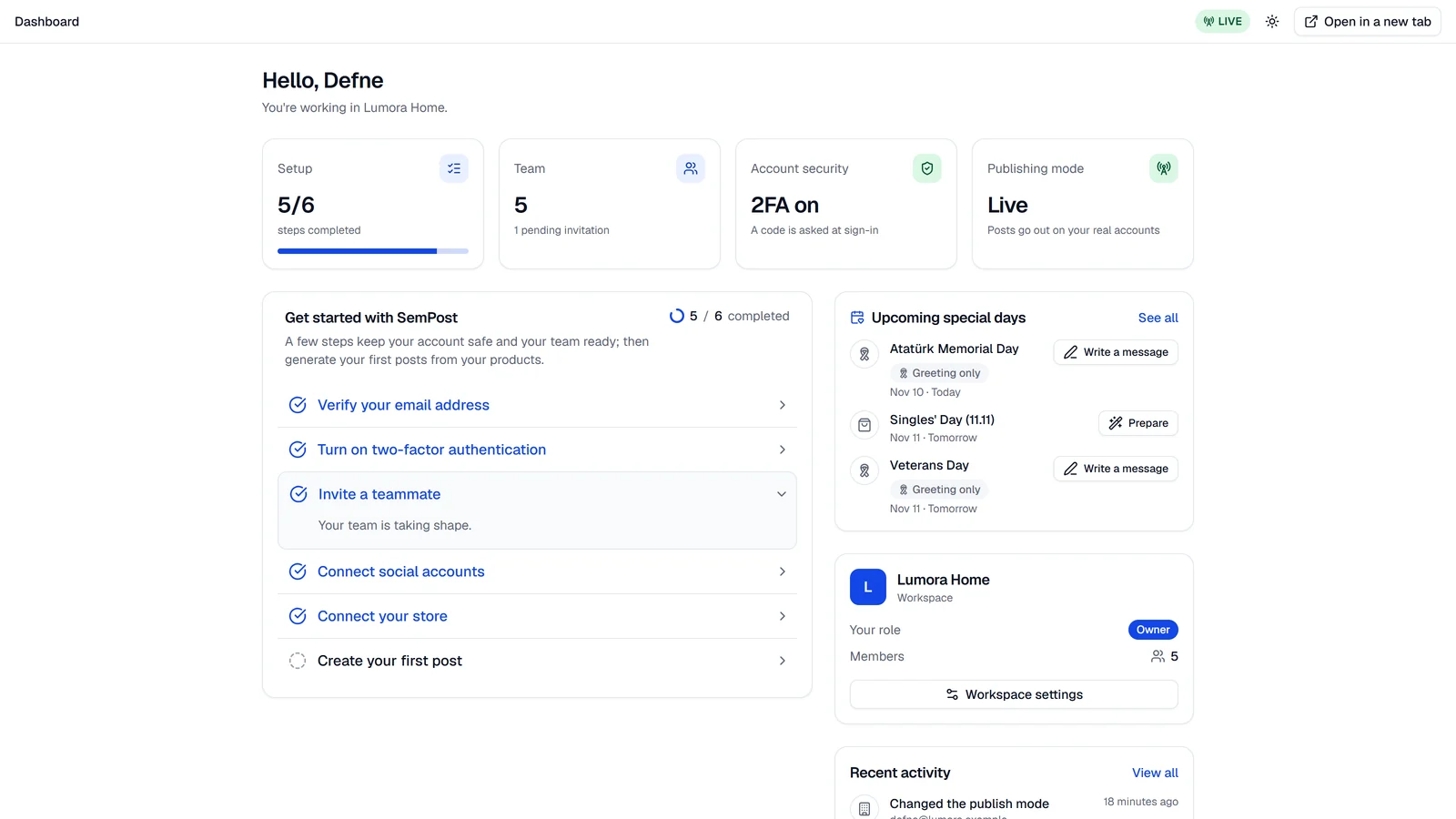
Inside the Shopify admin, SemPost opens only the workspace of the shop you're in, so there's no workspace switcher. Your other workspaces, such as one you pay for on the web, open at app.sempost.ai.
The shop's workspace is separate from those: its plan is picked and paid through Shopify, and your other workspaces keep their own plans. If you have workspaces at app.sempost.ai, the Pick a plan screen and Settings › Billing here say so: Your sempost.ai workspaces stay separate.
The shop is the workspace's store: Settings › Store connections lists it as Shopify (SemPost app), and no other store can be connected beside it. The plan, credit packs and extra social accounts go on your Shopify bill: see Paying through Shopify.
Finding your way
- SemPost's pages are under SemPost in the Shopify admin's sidebar, with a single Settings entry. The settings sections are tabs at the top of each settings page. The app's name opens the Dashboard.
- The bar at the top shows the page's name, the publish mode (Test mode or Live), the theme button and Open in a new tab.
- SemPost speaks the Shopify admin's language: Turkish when the admin is in Turkish, English otherwise. The language you pick in Settings › Profile applies at app.sempost.ai.
What opens at app.sempost.ai
Some work needs SemPost's own address. SemPost takes you there for it, signed in to the same workspace:
- Connecting a social account. The networks' sign-in pages don't open inside the Shopify admin, so Connect opens app.sempost.ai in a new tab: The connection opened in a new tab. Come back to this tab when you are done; the account shows up here.
- Your password, two-factor authentication and signed-in devices. Open security settings in Settings › Security opens that page at app.sempost.ai.
Some pages don't exist inside the Shopify admin at all: signing in or up, resetting a password, accepting an invitation, creating another workspace and deleting your SemPost account. Opening their address there takes you to the dashboard. Export my data in Settings › Profile works here as it does at app.sempost.ai. A workspace that pays through Shopify isn't deleted in SemPost either: see Remove the app from Shopify.
Open SemPost in a tab of its own
Press Open in a new tab at the top right. The page you're on opens at app.sempost.ai, signed in to the same workspace, without a password: handy for the Studio, the Video Studio and the calendar on a wide screen. The new tab names your account and the workspace first: press Open the workspace. If that browser is signed in to SemPost as someone else, it says so; that account signs out there. The link behind it works once, for a minute. If the browser blocks the tab, the notice The browser blocked the new tab. appears: press Open in it.
At app.sempost.ai, the workspace's rules apply as after any sign-in. If the workspace requires two-factor authentication and you don't have it yet, SemPost takes you to Settings › Security first. Turning it on asks for your password, so an account made in Shopify needs a password before that.
If something goes wrong
- This link could not be opened: a link from Open in a new tab works once, for a minute. Press Open in a new tab again.
- SemPost opens in the Shopify admin: you opened the app's Shopify address on its own. Open SemPost from the Shopify admin, or go to app.sempost.ai.
- This session was ended. Sign in to the Shopify admin again. Changing your password or signing out all other devices at app.sempost.ai ends your session in the Shopify admin too. Sign out of the Shopify admin, sign in again and open SemPost.
- For other messages when SemPost opens, see Can't sign in.