How-to guide
Create pictures and clips with AI
Make four pictures or a short clip from a description or from your product's own pictures, see the price first, and keep the one you like.
Create with AI makes new pictures or a short clip for your posts, from a description or from your product's own pictures, which keep the product exactly as it is. You see the price first and keep only what you like.
Where it opens
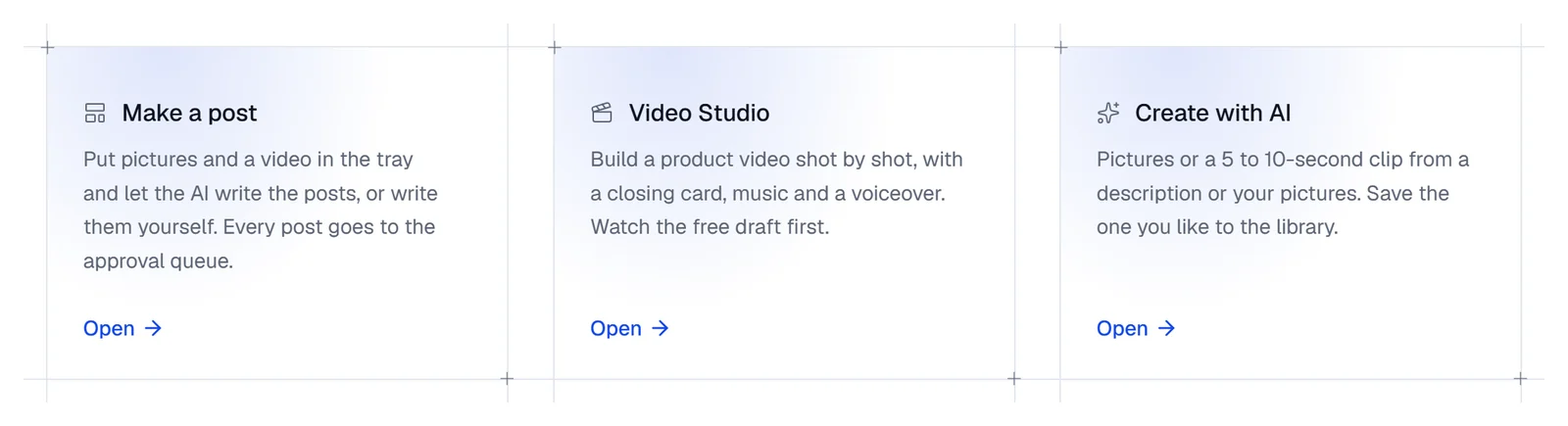
- In the sidebar, under Create, choose Studio, then the Create with AI card: its panel opens on the right. Use in a post, under a picture you keep, opens the Studio's Make a post screen with it in the tray.
- On that screen, With AI under Media opens it too, and what you keep goes into the tray.
- In the Choose media window on the Posts page, and in the window for a topic's own picture in Generate from products, a Create with AI button opens it; what you keep joins your choice.
- When short video is open for your workspace, the panel you open from the Studio's home also shows the Short video (3 hooks) link: Make a short video.
Make pictures
Choose what to start from
With Pictures chosen, pick what to start from:
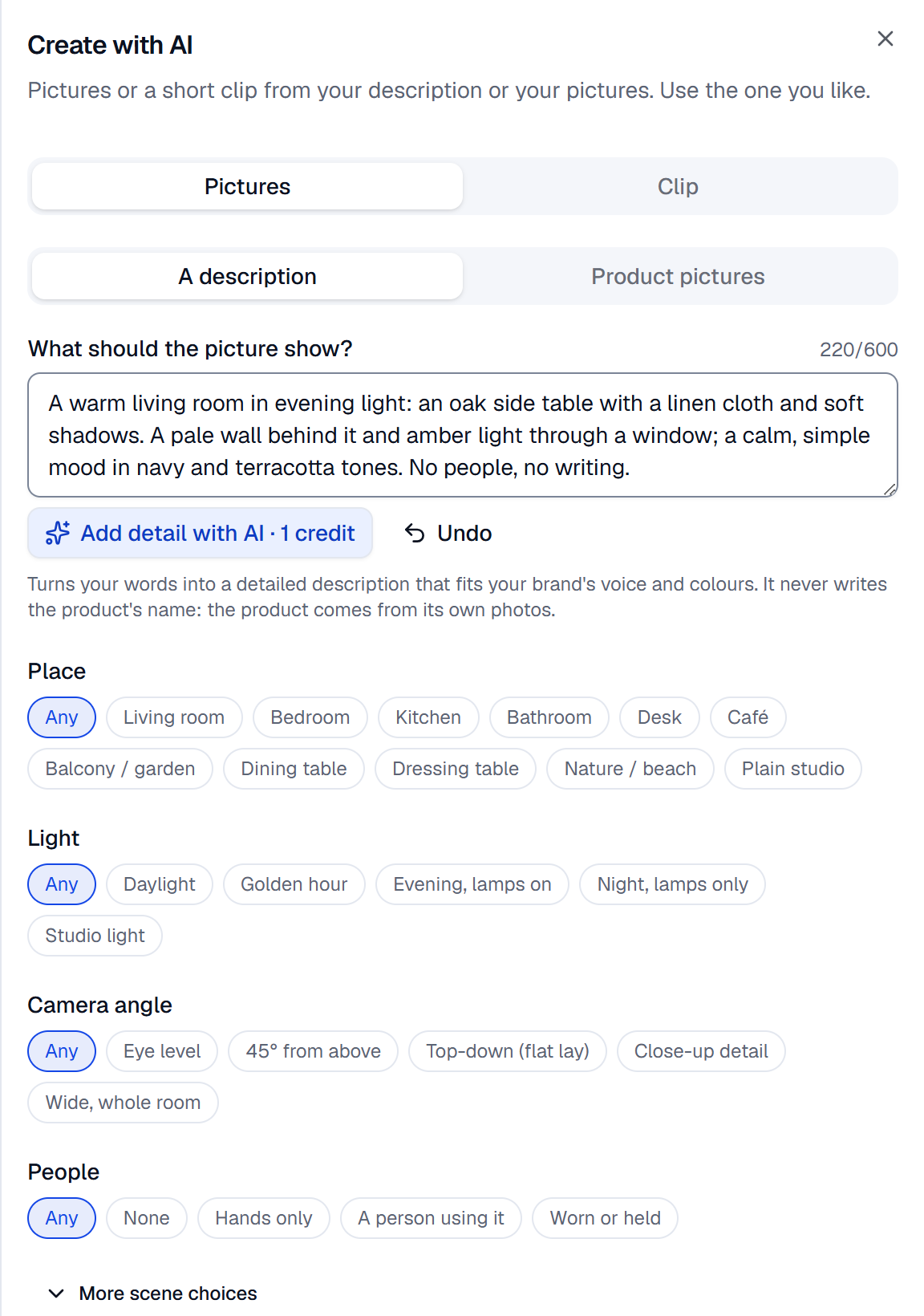
- A description: write What should the picture show? It suits a scene, a background or a poster, because words can't show your product as it really is.
- Product pictures: Choose pictures takes one or two pictures of your product from Media. Add a Scene idea (optional), or a Print-on-demand scene to show your design on a T-shirt, a mug, a poster, a phone case or a tote bag.
Set the scene and the shape
Choose a Place, a Light, a Camera angle and People; More scene choices adds Surface, Season / occasion, Props and Colours. Any leaves the choice to the AI. Under Shape, choose Square 1:1, Portrait 4:5, Story 9:16 or Wide 16:9.
Choose the quality and create
Under Quality, each card (Economy, Balanced, Quality) shows the price of the four pictures and of one. Press Create 4 pictures · … credits.
Use the one you like
The pictures arrive one by one. Use saves a picture to your library and sends it where you opened the panel from. Make similar · … credits makes four new pictures like that one, at its own price. New request takes you back to the form.
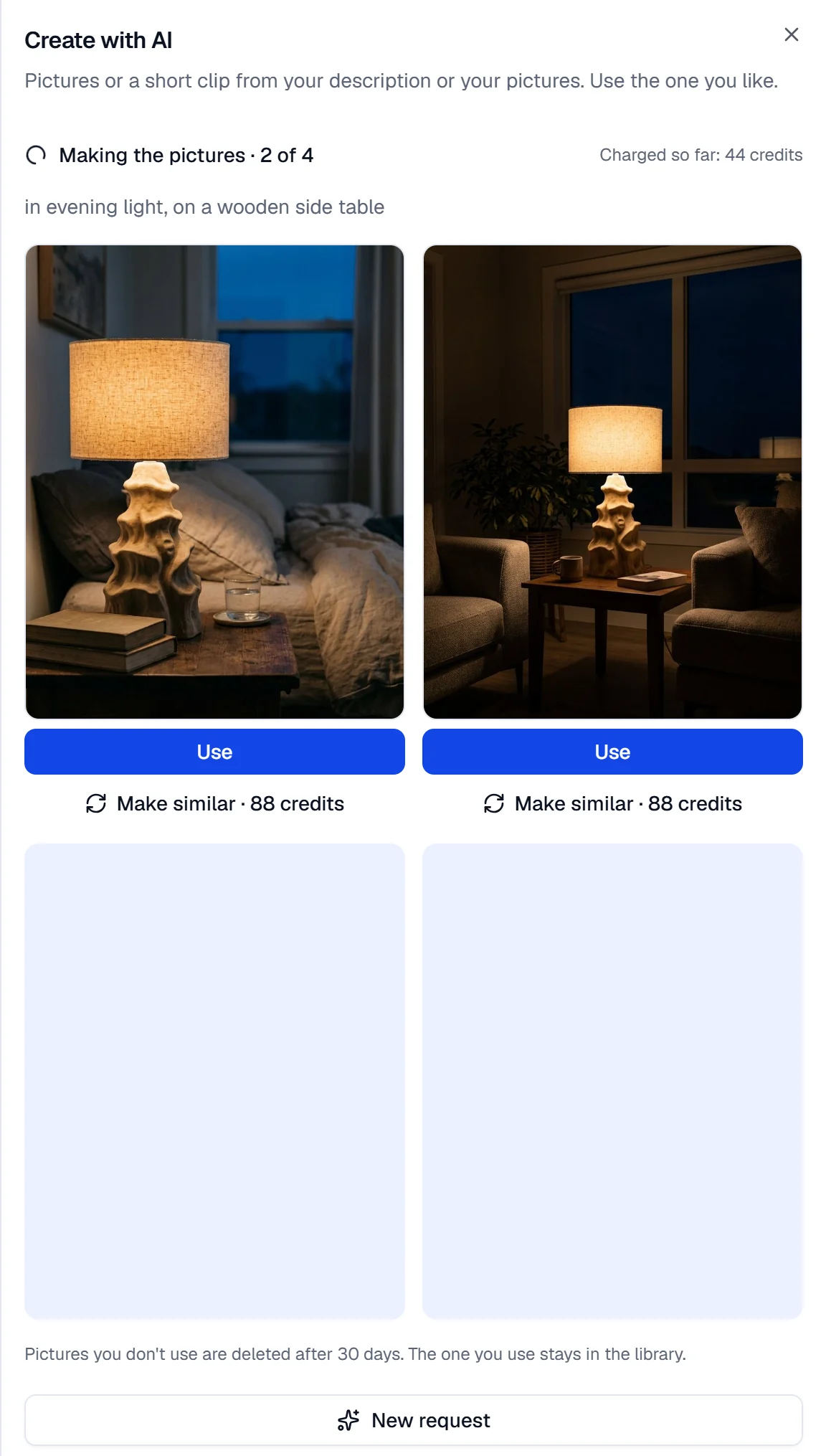
You can close the panel meanwhile: Recent requests opens a request again. What you don't use, and finished requests, are deleted after 30 days; what you use stays in the library.
Add detail with AI
Add detail with AI · … credits, under the description, turns a few words into a detailed description in your brand's voice and colours, without the product's name or your Words never to use (Settings › Brand). It only fills the field: change it as you like, or press Undo to get your words back.
Admins and the owner keep up to 5 Brand colours in Settings › Brand: press Add a colour, pick it or type its code (such as #1F3A93), then press Save the colours.
Make a clip
Choose Clip. From A description, write What should the clip show?, set the scene, and choose Story 9:16 or Wide 16:9. From a picture, choose a Motion: Calm push-in, Hero loop, or Two-angle move, which needs two pictures, the start first. A clip from a picture is always vertical (9:16). Pick the Length (5 s or 10 s) and the quality, then press Create a 5-second clip · … credits. One clip is made.
What is checked and what you pay
- SemPost's content check reads your words and pictures before anything is made: a refused request takes no credits. See Content rules for AI generation.
- Each picture is checked and charged on its own as it's made: one that can't be made says Not made, not charged, and Charged so far shows the total.
- A clip is checked before it's charged; an unusable one is made once more. Unusable answers, such as a description that names the product, aren't charged, within the limits for unusable answers.
- Call off the request stops a request still Waiting to start, for free.
- A post with something made here gets the network's AI label where SemPost can set one: see AI labels on your pictures and videos.
If something goes wrong
- The price changed. Look at the new total before generating. Check the new price on the button and press it again.
- This request can't be made: it contains … Change what the message names; nothing was taken.
- What the AI made was not saved: it contained … That picture or clip isn't kept, and its credits came back.
- This product carries a licensed character or another brand, so no AI picture or video is made of it. … A store product like this gets no AI picture or clip: use its own photos.
- The AI's answer could not be used. No credits were taken; try again.
- The pictures couldn't be made or The clip couldn't be made: the note under it says why. What wasn't made isn't charged.
- The pictures chosen for this request are no longer in the library. A picture you started from was deleted for good before the request was made. Nothing was charged: choose another picture and send the request again.
- These pictures are being made now. You can put them away once they're ready. A request that has started can't be called off.
- No model in this tier on a card: choose another tier. No image model is available on the button (No video model is available for a clip): no tier can be used right now.
- This feature is not available for your workspace. Create with AI is closed to your workspace for now.
- Not enough credits: this needs … credits and … are available. Your credits don't cover the price on the button, so nothing started: the owner can buy credits in Settings › Billing.