Explanation
How credits work
Where your credits come from, what costs credits and what is free, which credits go first, when they expire and how to cap spending.
Credits pay for the AI's work in SemPost: writing posts, making scenes, motion clips, voiceovers and ambient sound. Everything around that work is free. Your workspace's credits, and every movement of them, are in Settings › Billing.
Where credits come from
- Plan credits. Each month the plan loads its monthly credits: on a monthly plan once that month's payment goes through, on a yearly plan every month on the day of the month the yearly period began. They're for that month: what's left expires at its end and doesn't carry over.
- Credit packs. One-time credits on top of the plan's, for a workspace on a plan. They last 12 months from the day you buy them. While the plan is closed they can't be used and their 12 months stop; they run on once a plan is bought again.
- Trial credits. The free trial's credits. They expire when the trial ends.
- Bonus from SemPost. Credits SemPost adds for you.
Moving to a bigger plan in the middle of a month also adds credits for the rest of that month: see Change your plan.
What costs credits
Each kind of AI work runs on the model chosen for it in Settings › AI models, and the model sets the price. What each kind of work costs on its default model, and across the other models:
| Action | Credits | Other models |
|---|---|---|
| AI texts for one product's posts | 15 | 1–15 |
| An AI scene from your product photo | 22 | 15–54 |
| A 5-second motion clip | 40 | 40–300 |
| A voiceover of about 35 seconds | 4 | 3–4 |
| Ambient sound for a 20-second video | 60 | |
| Scheduling, publishing, analytics and slideshow videos | Free |
Generate from products shows the exact credits before a run starts: see The exact credits before you start. Whatever the work, a job never takes more credits than it reserved when it started.
Which credits go first
Spending takes the credits that expire first; credits without an end date go last. Most of the time, that means the month's plan credits first, then packs. Credit batches in Settings › Billing lists what you have in that order: where each batch came from, how many credits are left and when they expire. A pack that waits for a plan shows Paused while the plan is closed.
When a job starts, its credits are reserved. Available credits is your balance less what is reserved, and In running jobs shows what is reserved now. The credits are taken when the job finishes and released if it fails.
Credit activity
Credit activity lists every movement, newest first: its date, type, details, amount and the balance after it.
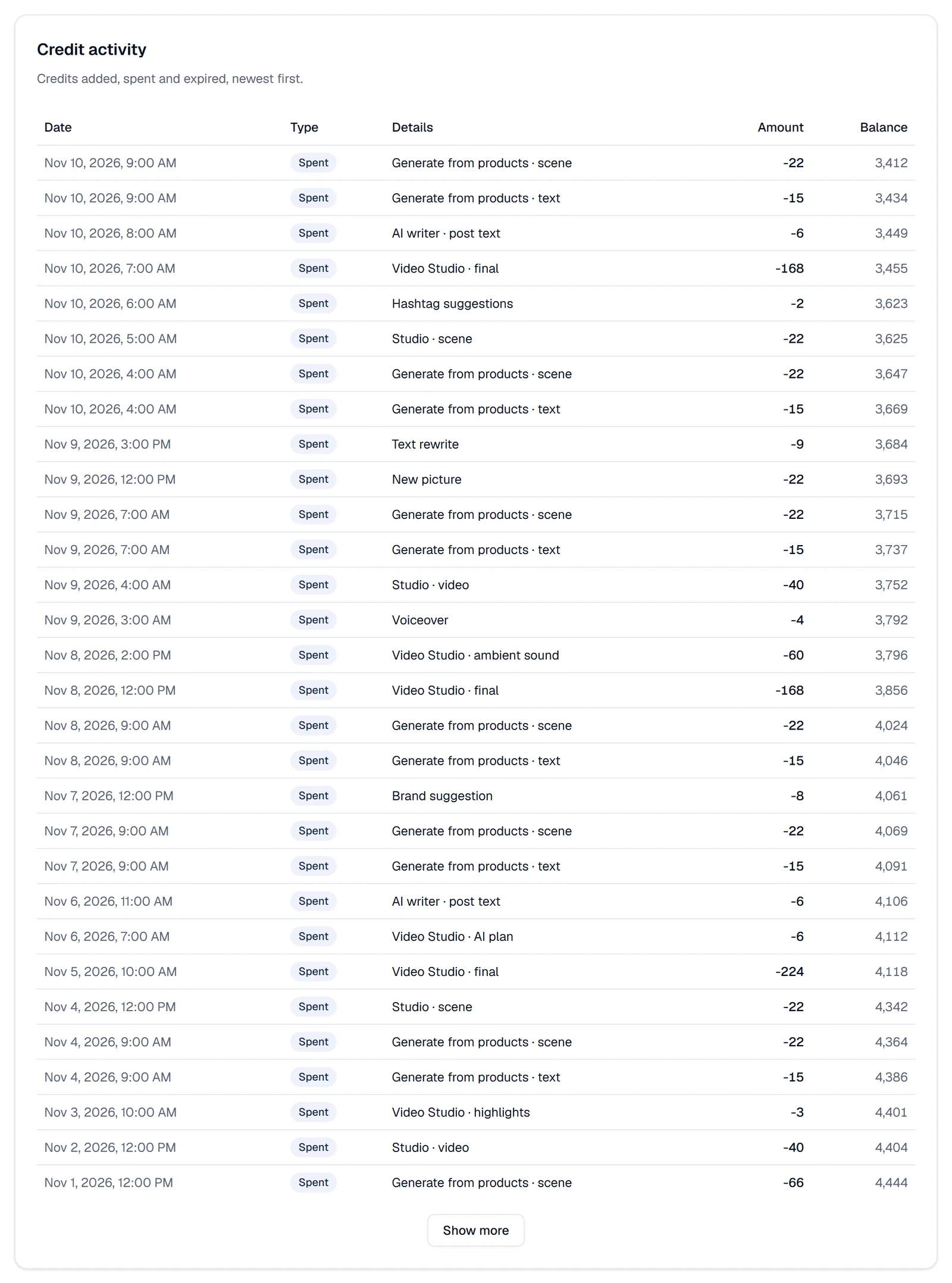
- Added: plan credits, a pack, the trial or a bonus.
- Spent: an AI job, which the details name, such as Generate from products · scene.
- Expired: credits that reached their end date.
- Adjustment: a correction, such as credits taken off after a switch to yearly billing.
- Refund: credits taken back because a payment was refunded.
Spending, on the same page, charts the credits spent each day over 7, 30 or 90 days, with the total, the daily average and the busiest day.
Cap the spending
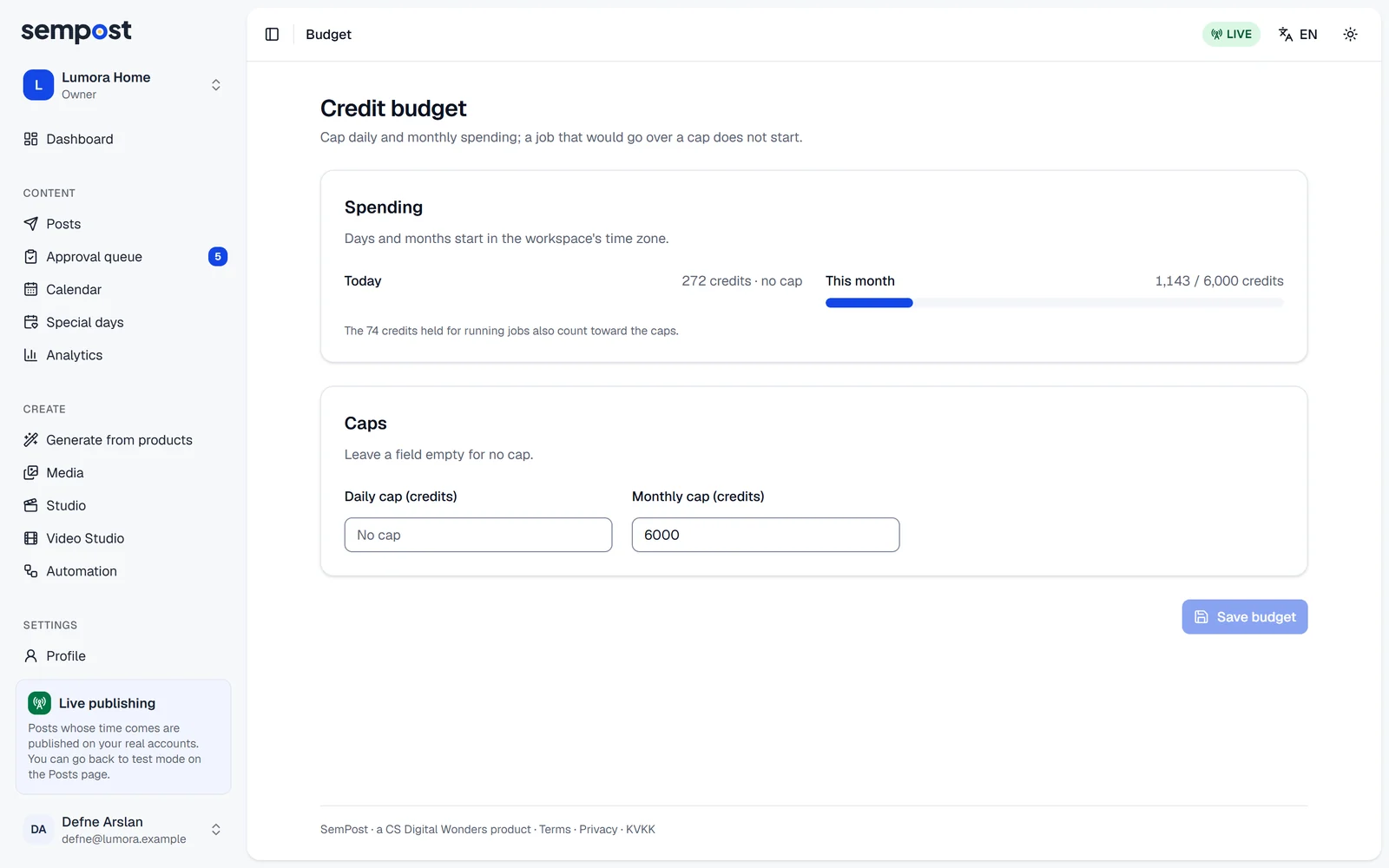
The owner and admins can cap spending in Settings › Budget: a Daily cap (credits) and a Monthly cap (credits). Leave a field empty for no cap, then press Save budget. Days and months start in the workspace's time zone, and credits reserved for running jobs count toward the caps. A job that would go over a cap doesn't start.
When credits run out
- Work that needs more credits than you have doesn't start, and the message says how many it needs.
- An automation rule that can't pay for its day skips the day and stops, and owners and admins get an email. Switch it back on once there are credits: see Credits and the monthly cap.
- Scheduled posts still go out and analytics keep updating: they don't use credits.
To go on, the owner buys a credit pack or a bigger plan in Settings › Billing, or you wait for next month's plan credits.
If something goes wrong
- Not enough credits: this needs … credits and … are available. The owner can buy credits in Settings › Billing.
- This would go over the workspace's credit budget. You can change it in Settings › Budget. Make the job smaller, or ask an admin or the owner to raise the cap.
- The workspace's plan is closed. Buy a plan on the Billing page to go on. Nothing that costs credits starts until a plan is bought: see When a payment fails.