Explanation
Read your analytics
What the Analytics page shows, which periods your plan opens, and what each number on it means.
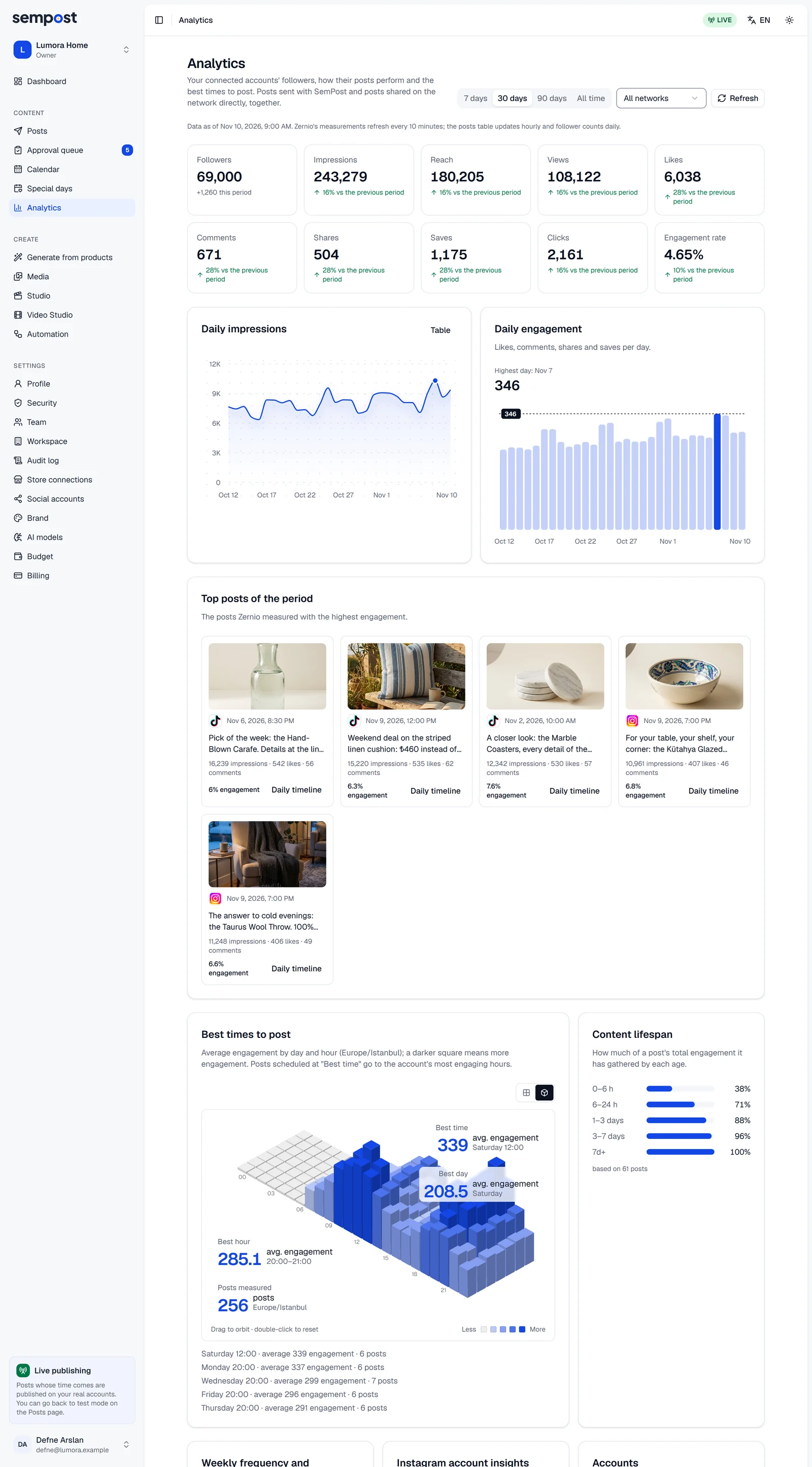
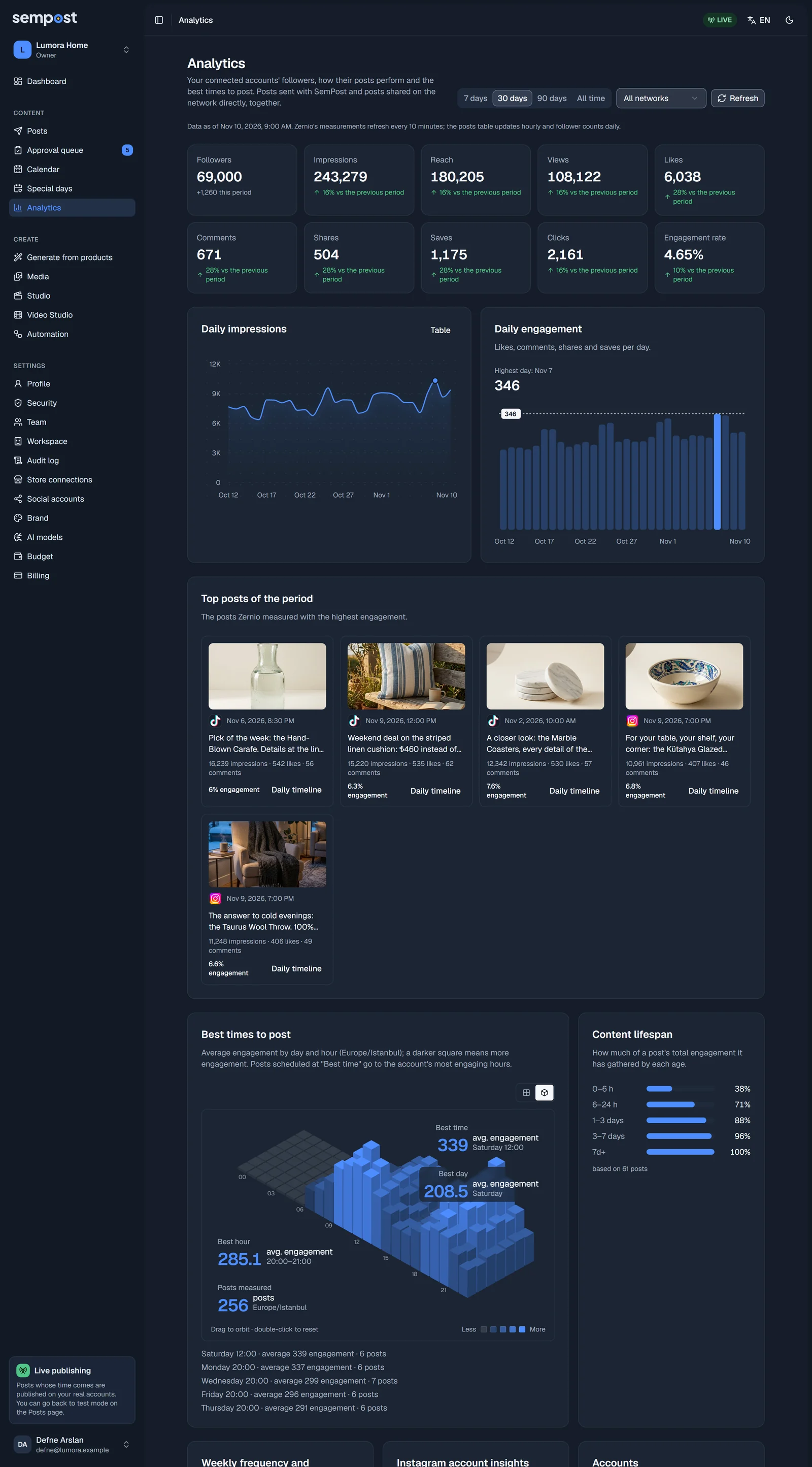
Analytics shows how your connected accounts are doing: their followers, how their posts perform and when your audience engages most. Posts you send with SemPost and posts you share on the network directly are counted together. Everyone in the workspace can open the page, and it never uses credits.
Period, network and Refresh
- 7 days, 30 days, 90 days and All time choose the period; the page opens on 30 days. A period your plan doesn't cover shows a lock, and the line under the buttons names the plan that opens it, such as "90 days with Growth".
- All networks shows when your accounts are on more than one network, and narrows the page to one of them.
- Refresh reads the measurements again, at most once a minute.
The Analytics history row is how far back each plan goes; a plan with 365 days also opens All time.
| Trial | Starter | Growth | Pro | Agency | |
|---|---|---|---|---|---|
| Credits each month | 150 | 800 | 2,000 | 5,000 | 12,000 |
| Social accounts | 2 | 2 | 5 | 10 | 25 |
| Stores | 1 | 1 | 2 | 5 | 15 |
| Team members | 3 | 1 | 3 | 8 | 20 |
| Automation rules | 2 | 2 | 10 | 30 | Unlimited (fair use: up to 100 switched on) |
| Analytics history | 30 days | 30 days | 90 days | 365 days | 365 days |
| Media library | 1 GB | 1 GB | 5 GB | 10 GB | 20 GB |
Under the buttons, Data as of says when the numbers were measured. Most of the page comes from the measurements of Zernio, SemPost's publishing partner, and the page uses its name. They refresh every 10 minutes, the posts table every hour and follower counts once a day, so the tiles and the table can differ a little for a while. With All time, the line says that the measurements cover the last year.
The tiles
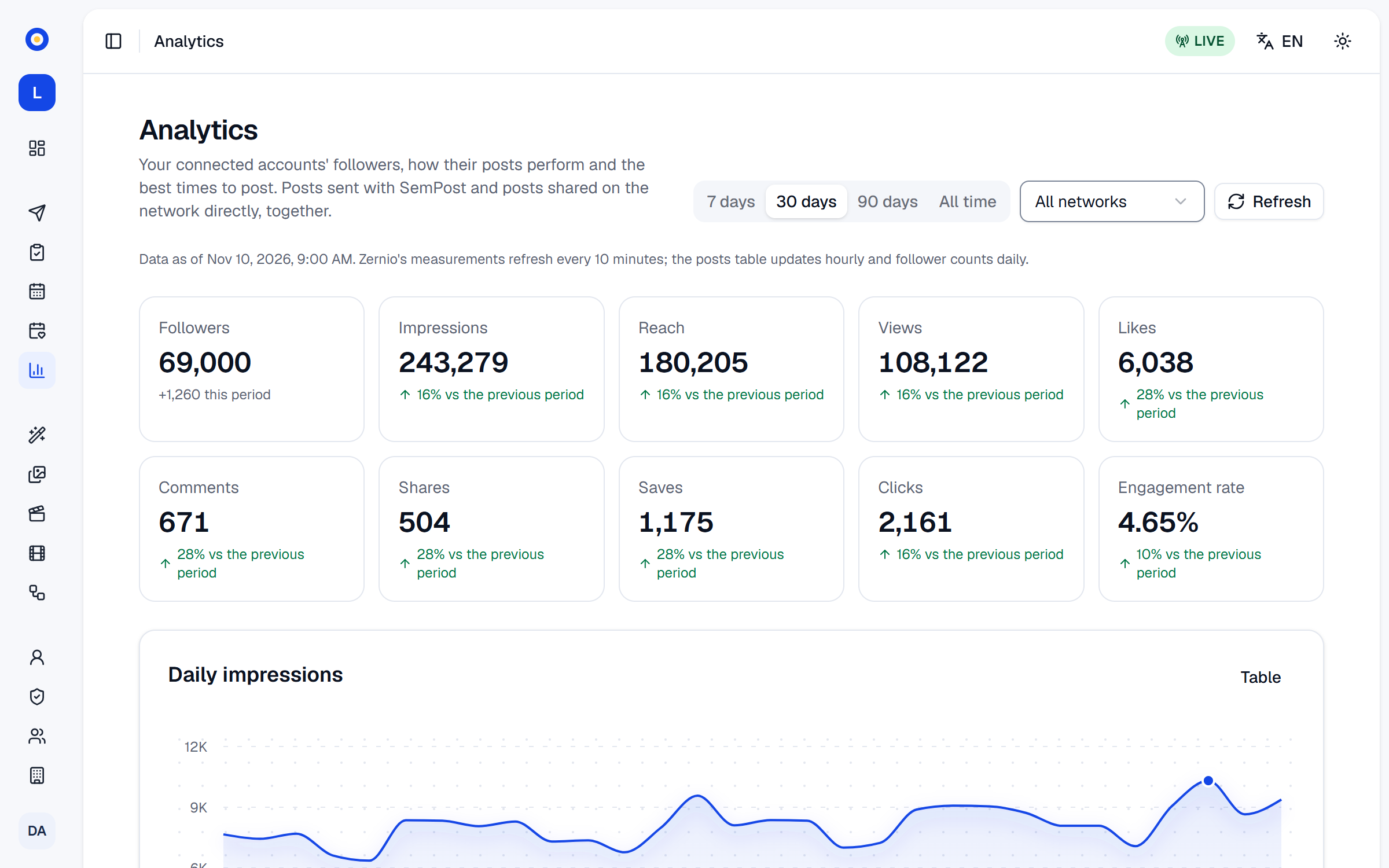
- Followers: your accounts' followers now, and how many they gained in the period.
- Impressions: how many times your posts were shown. Reach: how many accounts saw them. Views: how many times they were viewed, on networks that count views.
- Likes, Comments, Shares, Saves and Clicks, as each network counts them.
- Engagement rate: likes, comments, shares and saves as a share of impressions, or of reach or views on a network that reports no impressions.
Each tile but Followers compares the period with the one just before it, of the same length. An arrow gives the direction: with an up arrow, "16% vs the previous period" means 16% more than then. For Engagement rate it compares the rate itself: from 4.0% to 4.4% shows 10%. Previous period: no data means there was nothing to compare with.
Charts and top posts
- Daily impressions draws a line of the days; Table lists each day's impressions, engagement and follower change (Followers ±).
- Daily engagement shows the likes, comments, shares and saves of each day, and names the highest day.
- Top posts of the period shows up to eight posts with the most engagement. Daily timeline follows a post day by day, and the arrow opens it on the network.
The cards below
- Best times to post: the days and hours your posts get the most engagement. See Find your best times to post.
- Content lifespan: how much of its final engagement a post has gathered by each age, from its first hours to days later: how long a post keeps working.
- Weekly frequency and engagement: for each network, the average engagement rate for each number of posts a week, and over how many weeks; Best marks the highest.
- Instagram account insights: an Instagram account's reach, views, accounts engaged, interactions, follows and profile link taps in the period, at most its last 90 days. Choose the account when you have several.
- Accounts: each account's followers, a small line of them over the period, and the change since the period began. Under This workspace (period) come the posts Published, Validated (test) and Failed in the period, and the Credits spent.
- Posts: every post with its numbers. See Compare your posts.
Best times to post, Content lifespan and Weekly frequency and engagement use all your measured posts, whatever the period. The network you choose applies to them, but not to the Instagram and Accounts cards.
If something goes wrong
- No connected account for analytics: press Connect an account. See Connect your social accounts.
- No posts in this period: after you connect an account, its posts can take a few hours to come in.
- This part comes from Zernio's measurements; it appears once your connected account's measurements are ready. The measurements aren't ready for your workspace yet: look again later.
- This section didn't load with The publishing service did not answer. Try again in a moment. Press Try again.
- Your plan shows the last … days of analytics. Choose a shorter period, or the owner moves to a bigger plan.
- Not enough posts yet; this fills in as your accounts post. A card that needs measured posts fills in as your accounts post.