Explanation
Your media library
Find every picture and video in your workspace, see how long each one stays, use it in a post and make room when the library is full.
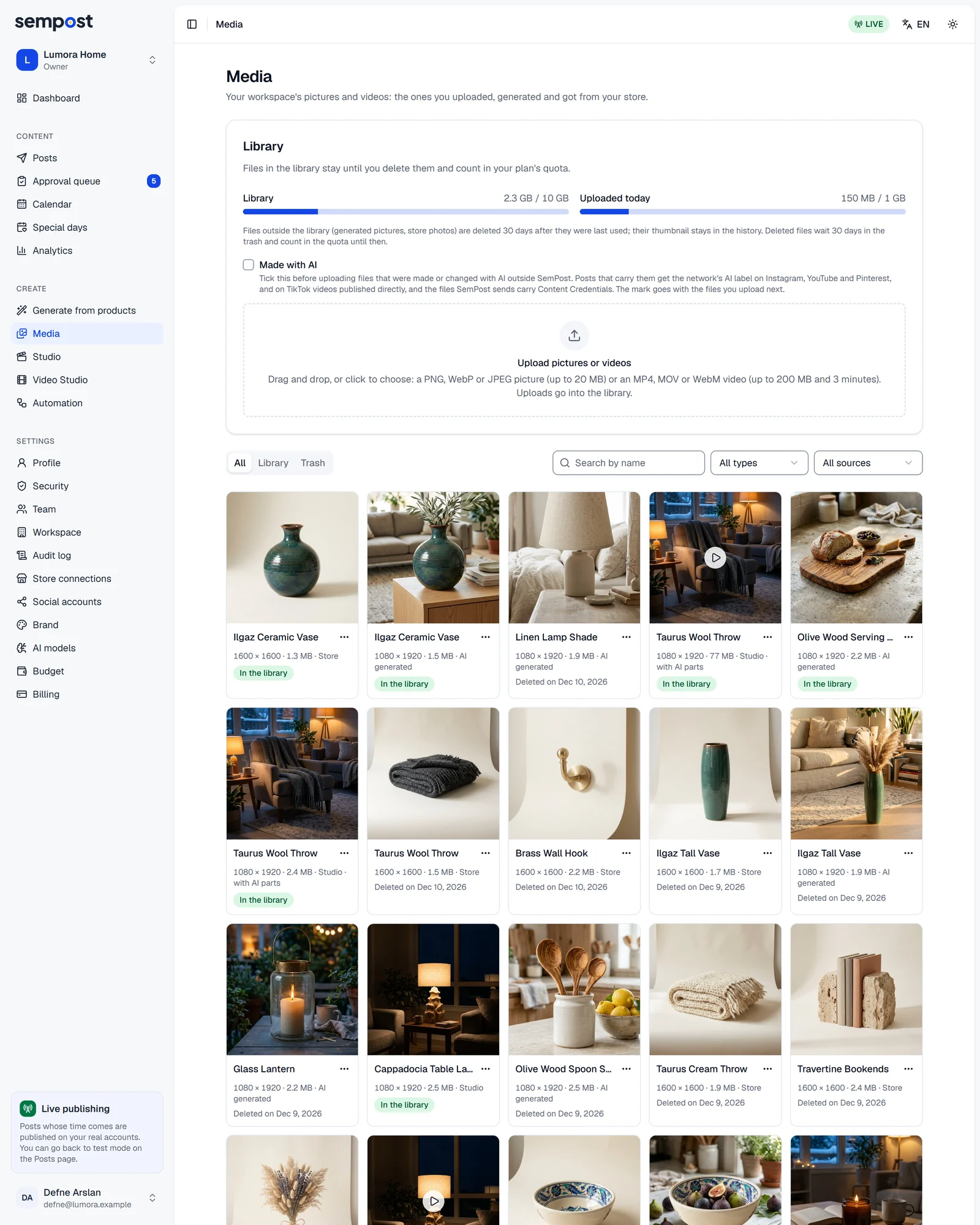
The Media page holds your workspace's pictures and videos: the ones you uploaded, the ones SemPost made with AI or in the Studio, and the photos it took from your store. Everyone in the workspace can look through it; editors, admins and the owner Editor upload, save, use and delete files.
The library and the other files
Not every file is kept for good. The Library card at the top of the page explains the two kinds.
- In the library: kept until you delete it, and counted in your plan's storage. Your uploads and the pictures and videos you make in the Studio and the Video Studio go there by themselves.
- Everything else: the AI pictures and clips SemPost generates and the photos it takes from your store. Such a file is deleted 30 days after it was last used, and never while a draft, a post waiting for approval or a planned post still uses it. Its card says when: Deleted on …. The posts' history keeps its thumbnail.
To keep a file, open its … menu and choose Save to library. Remove from library frees its space at once and puts it back under the 30-day rule. In the approval queue and in the calendar's side panel, a post's picture shows its date too, with Save to library beside it.
Your logo isn't part of the library: it's in Settings › Brand.
Storage
The Library bar shows what the library holds against your plan's size, and turns red at 90%. A library file in the trash still counts until it's deleted. Uploaded today is a separate daily limit: see Upload pictures and videos.
| Trial | Starter | Growth | Pro | Agency | |
|---|---|---|---|---|---|
| Credits each month | 150 | 800 | 2,000 | 5,000 | 12,000 |
| Social accounts | 2 | 2 | 5 | 10 | 25 |
| Stores | 1 | 1 | 2 | 5 | 15 |
| Team members | 3 | 1 | 3 | 8 | 20 |
| Automation rules | 2 | 2 | 10 | 30 | Unlimited (fair use: up to 100 switched on) |
| Analytics history | 30 days | 30 days | 90 days | 365 days | 365 days |
| Media library | 1 GB | 1 GB | 5 GB | 10 GB | 20 GB |
The Media library row is each plan's size. When the library is full, uploads and saves stop with The library is full, and files in the trash still count. To make room, remove files from the library, or delete files in the trash for good with Delete now. Nothing is deleted by itself, not even when you move to a smaller plan.
Find a file
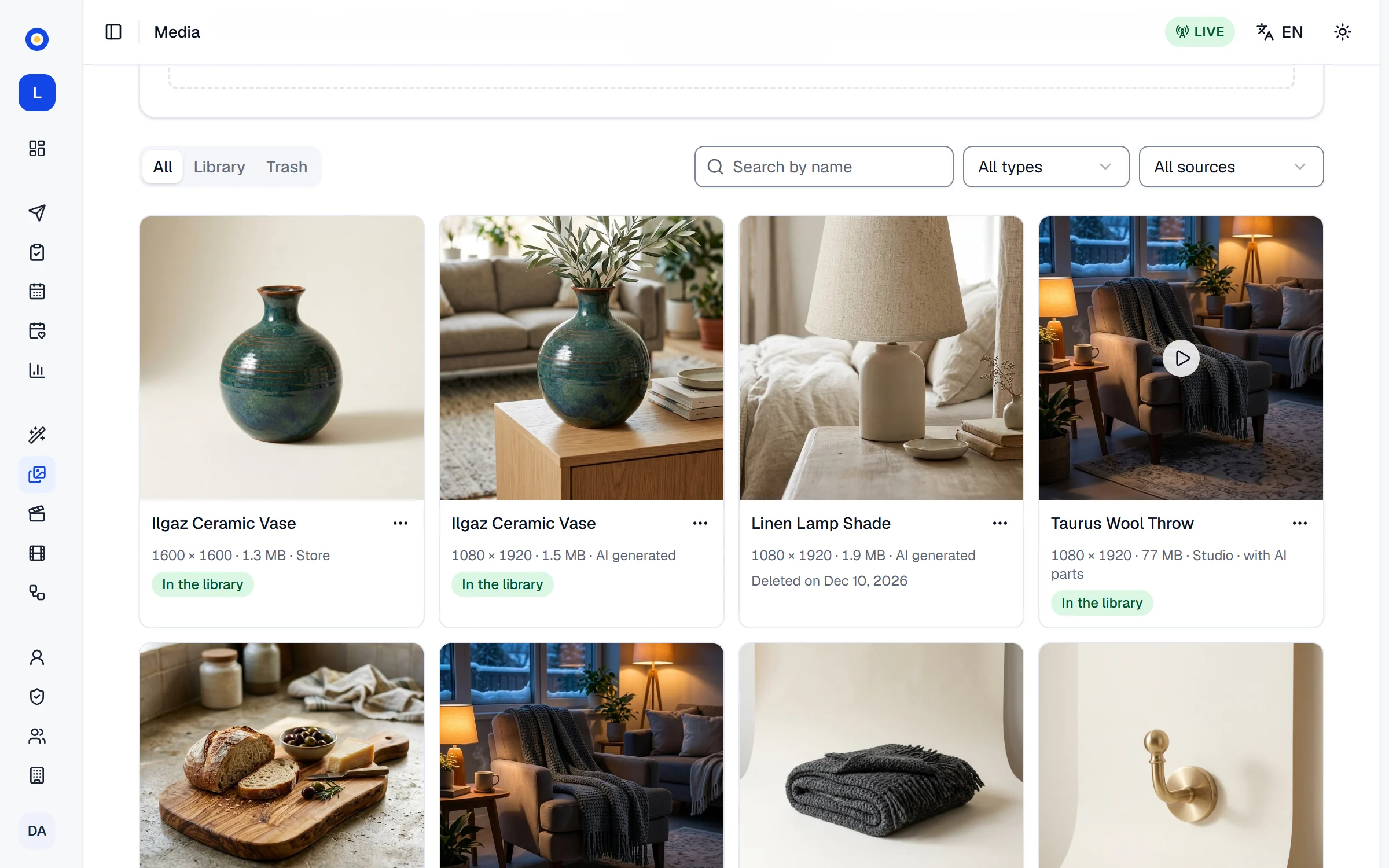
- All, Library and Trash choose which files you see, newest first. Show more loads older ones.
- Search by name looks in the files' names. An upload keeps its file name; an AI picture or a store photo takes its product's name.
- All types narrows the list to Pictures or Videos, and All sources to Uploads, AI, Store or Studio.
Each card shows the size in pixels and megabytes, where the file came from, its AI label if it has one, and whether it's In the library or when it's deleted. Press the picture to see it large or to play the video.
Use a file
A file's … menu starts something new with it:
- Write a post with AI and Make a post open the Posts page with the file under Media. See Let the AI write the text.
- Open in the Studio puts it in the Studio's tray.
- Make a video in the Video Studio, for a picture, starts a new video project with it.
On the Posts page, Choose media offers every file on this page except the ones in the trash.
Delete a file
Move it to the trash
In the file's … menu, choose Move to trash. It waits in Trash for 30 days, and Restore brings it back as it was.
Delete it for good, if you need the space now
In Trash, press Delete now under the file and confirm with Delete for good. The file and its thumbnail go at once and its space is free; a published post that used it shows no picture in its history. This can't be undone.
A file you leave in the trash is deleted after 30 days, and its thumbnail stays in the posts' history.
If something goes wrong
- A post that is not published yet uses this file. Take it out of the post first. Drafts count too. Change the post's media in Edit, or delete the post, then move the file to the trash.
- The library is full, and files in the trash still count. To make room, remove files from the library, or delete files in the trash for good with Delete now. No button empties the whole trash at once: press Delete now on each file you don't need, or remove files from the library.
- There's no … menu and no upload area. Your role is viewer, which can only look. An admin or the owner can change it.