How-to guide
The audit log
See who changed what in your workspace and when, search and filter the entries, and know what is recorded and what happens to it.
The audit log lists who did what in the workspace, and when: changes to the settings and the team, connections, the brand and media, automation, and the plan and credits. Entries can't be edited or deleted. Only the owner and admins can open it, in Settings › Audit log; they also see its latest entries under Recent activity on the dashboard.
What's recorded
Each entry belongs to one of six areas, the same as in the filters:
- Workspace and team: the workspace's settings, invitations sent, revoked and accepted, roles changed, members removed, AI model choices, data exports asked for and downloaded, the workspace's deletion and taking it back.
- Accounts and publishing: social accounts connected and removed, an account's language, time zone or Pinterest board, the publish mode, and the approval and planning settings.
- Stores: stores connected and removed, and the Shopify app installed or removed.
- Content and brand: runs of Generate from products, brand and logo changes, files uploaded to the media library or deleted for good, and pictures saved in the Studio.
- Automation: rules created, changed, deleted, switched on, paused or run now, rules SemPost stopped, all automation paused and resumed, and days without automation posts.
- Plan and credits: plans bought and changed, credit packs, cancelled subscriptions, failed payments, refunds, extra accounts and changes to the credit budget.
Done by says who acted: Team member, with the person's email address; SemPost support, when SemPost's support team acted in your workspace, without the person, address or notes; or System, SemPost itself, such as when a plan closes.
Single posts aren't in the log: Post history on the Posts page shows each post's status and who wrote it. Your sign-ins, password and two-factor changes belong to your account, not to a workspace, so no workspace's log shows them; your own data export has them.
Find an entry
Open the log
Go to Settings › Audit log. The newest entries are at the top; Load more shows older ones, until That's everything.
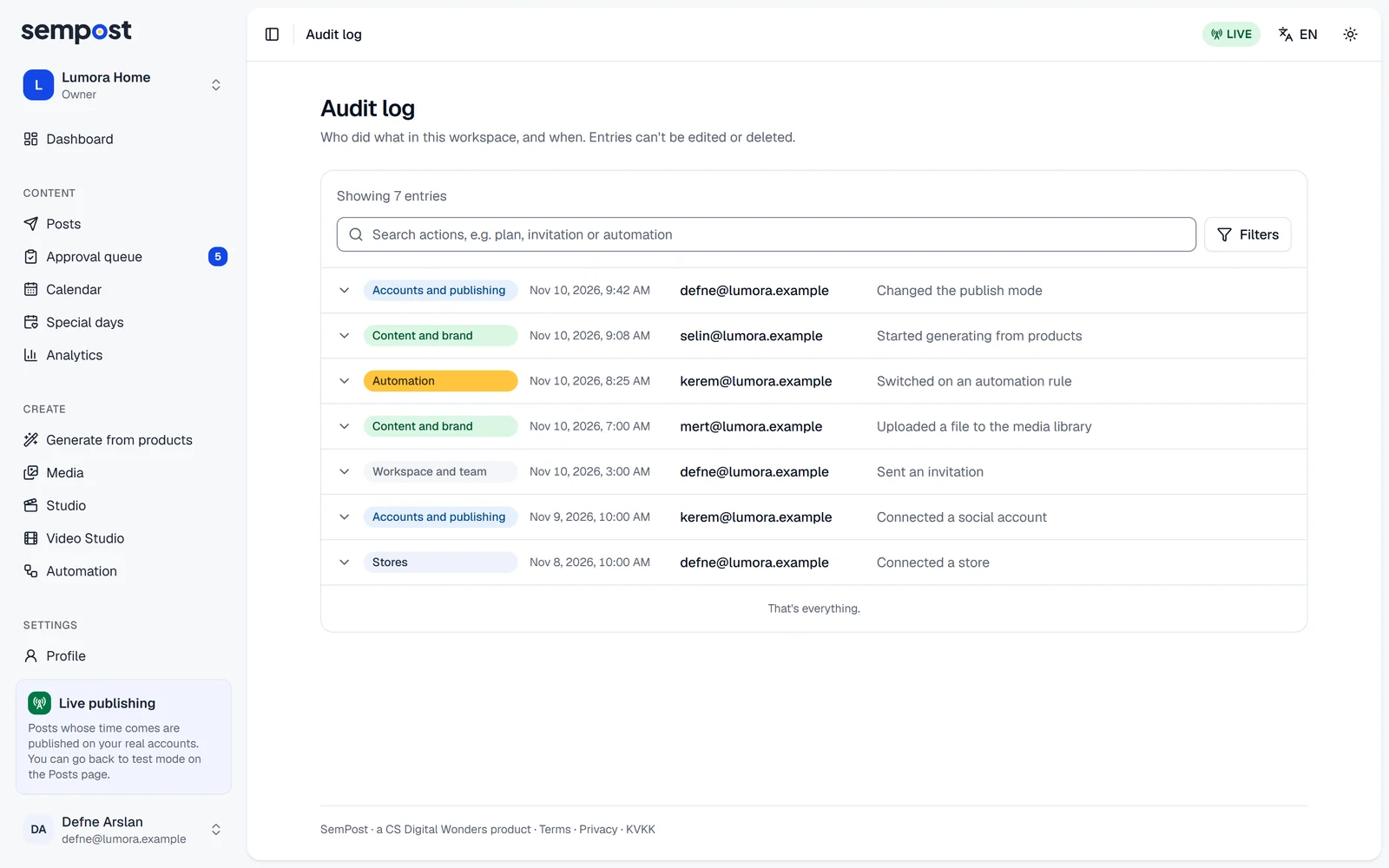
Search for an action
Type a word from the action's name in the search box, such as plan, invitation or automation. The search looks through the actions' names in your language.
Narrow it down
Press Filters and choose one or more under Area and Done by, or type part of an email address, or a person's ID, under Person. The button shows how many filters are on; Clear filters removes them.
Open an entry
Press a row to see its Action, When, By, Area, Target, IP address and Details. Only this person shows the entries of the person who acted.
The IP address shows only the network the person acted from, such as 203.0.113.0/24: the last number of an IPv4 address, and everything after the first three groups of an IPv6 address, are left out.
What happens to entries
When a member deletes their SemPost account, their entries stay, without their IP address, and show Team member instead of an email address. To keep a copy of the log, export the workspace's data: it holds the log as this page shows it. See Export or delete your data.
If something goes wrong
- Only owners and admins can see the audit log. Your role doesn't open it: ask an admin or the owner.
- No action matches this search. Try a word from the action's name, such as plan or invitation.
- No entries match. Try fewer filters or another search.